Using Herd+:
Download Herd+
- Download Herd+ from the Apple App Store / Google Play Store / Huawei AppGallery.
Using Vessel Mode
-
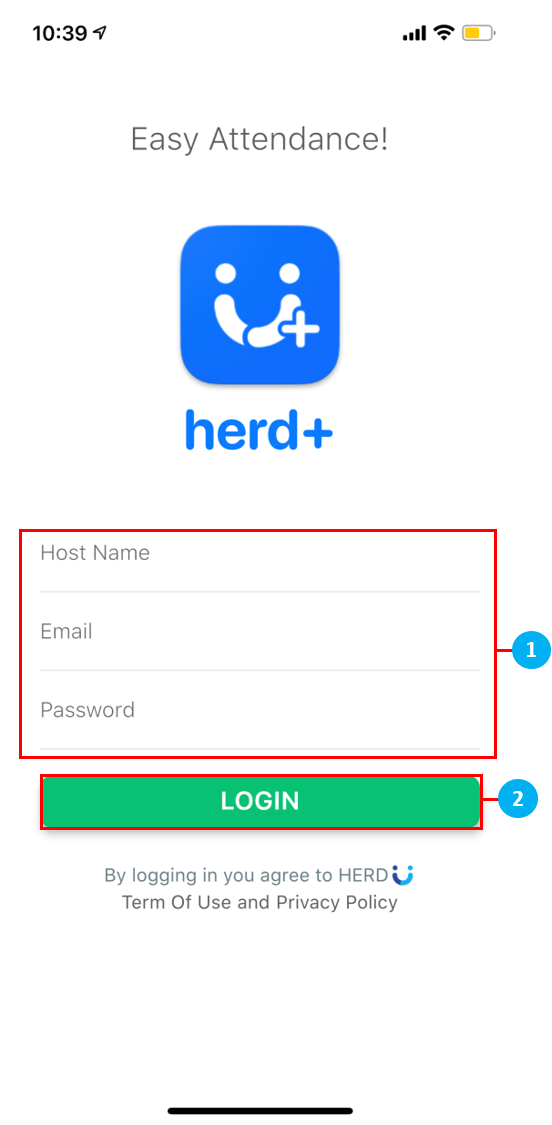
Sign in using your Herd account credentials which will be sent to you via email.
Hostname: herdhr <- Tenant Name (Not required when accessing Herd by clicking on the URL below.)
Email: sample@gmail.com <- Your working email address.
Password: G@H#H$JF <- Change this to something easy to remember once you log in.
- Tap on LOGIN at the bottom of the screen.
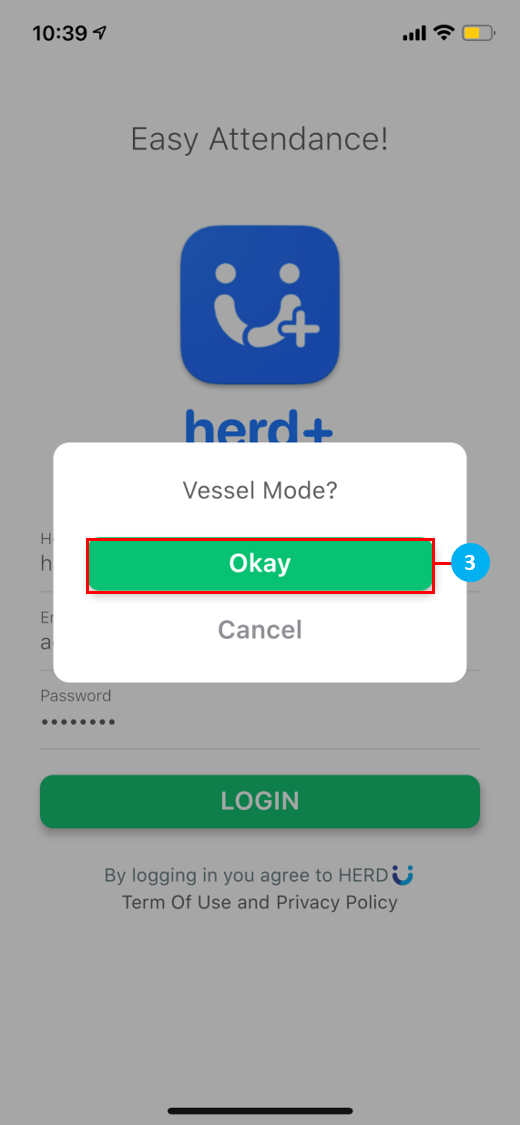
- Once you have signed in, you will be prompted to select Vessel Mode. Tap Okay to continue.
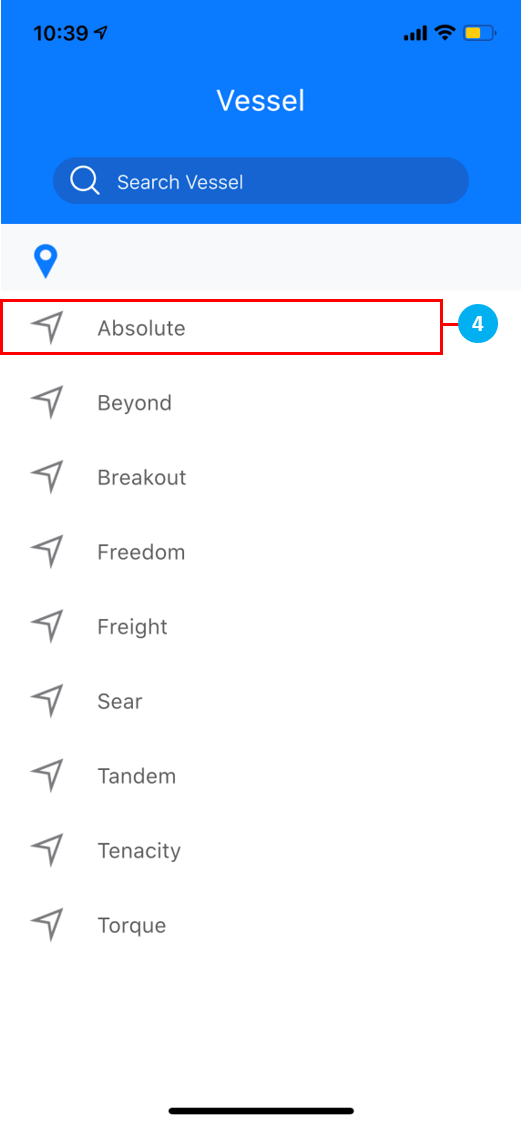
- Tap to select Vessel name from the list on screen.
- Tap on the
 icon at the top left of the screen to access the Menu.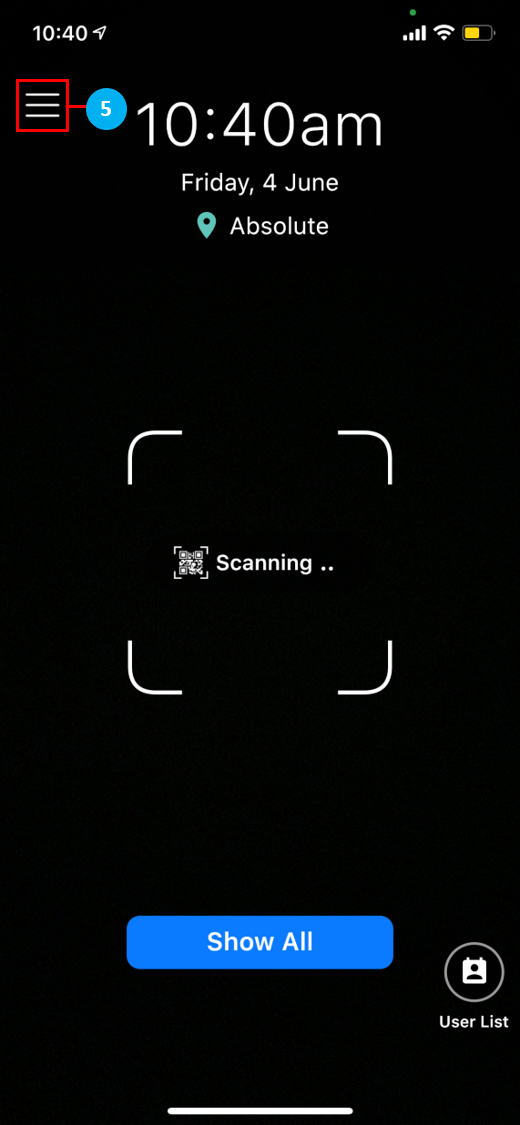
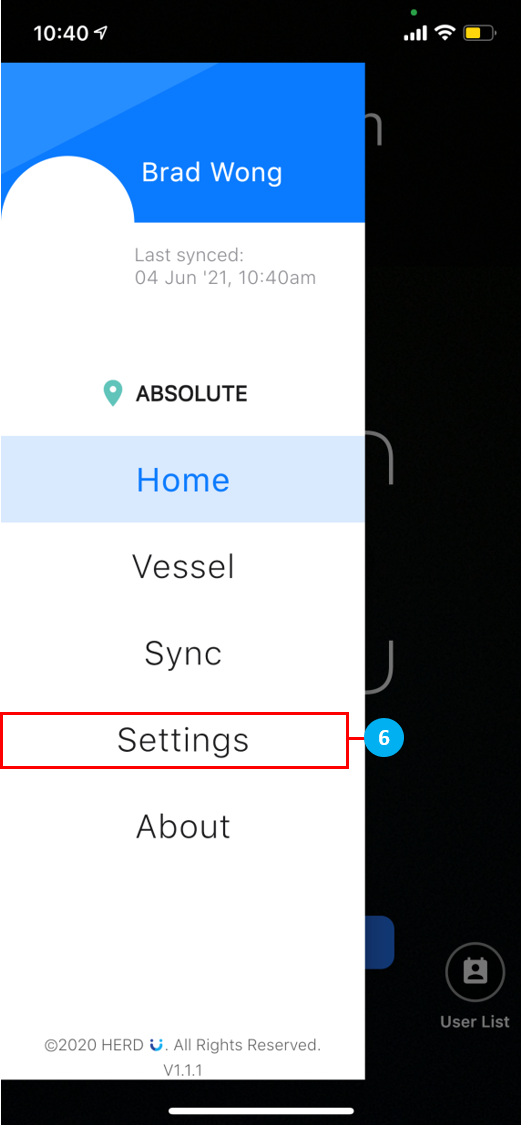
- In the Menu list, tap on Settings to configure Vessel Mode.
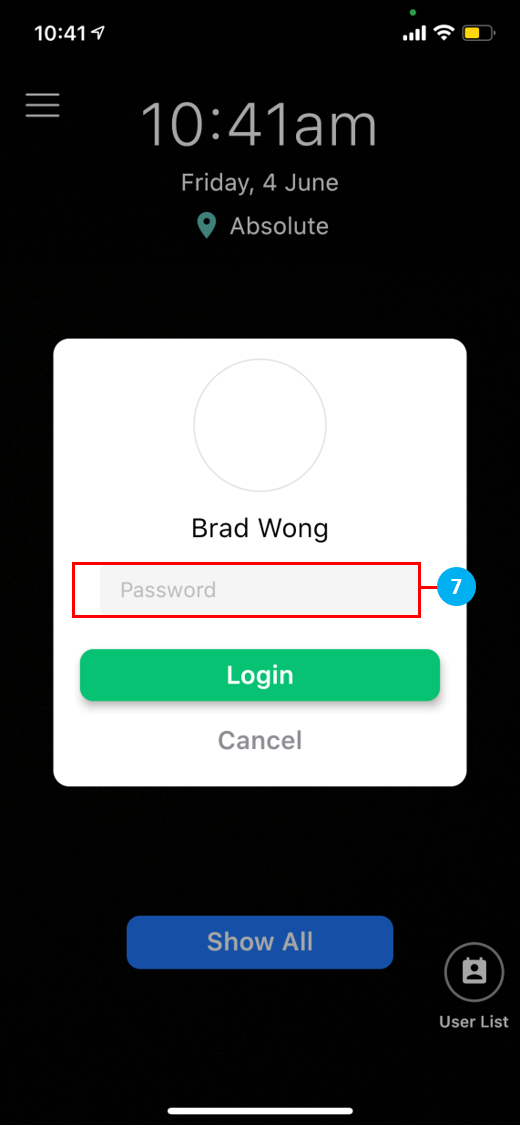
- You will be prompted to key in your Password before you can change any Settings. Tap Login.
- Tap once to switch Default Profile Selection to User List.
- Tap on the toggle switch to turn off the Enable Leave Application function.
- Once done, tap on the
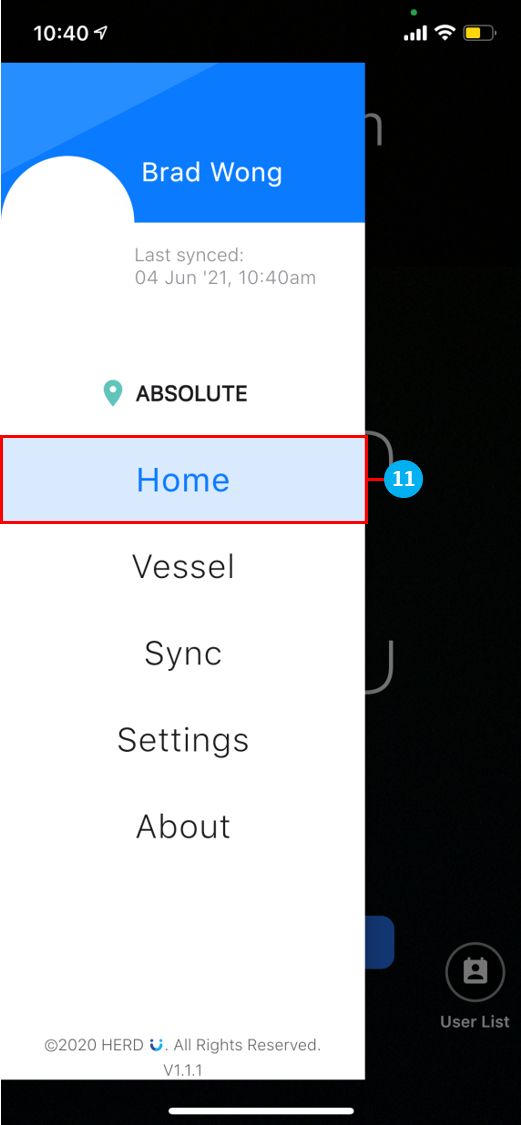
 icon to access the Menu again.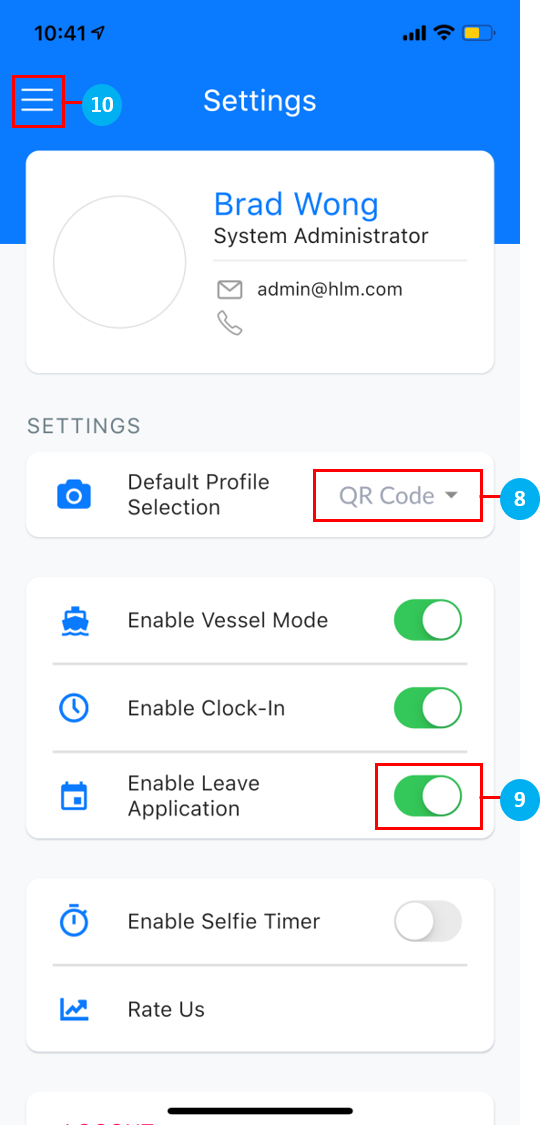
- Tap on Home to return to the main page. You are now ready to use Vessel Mode!
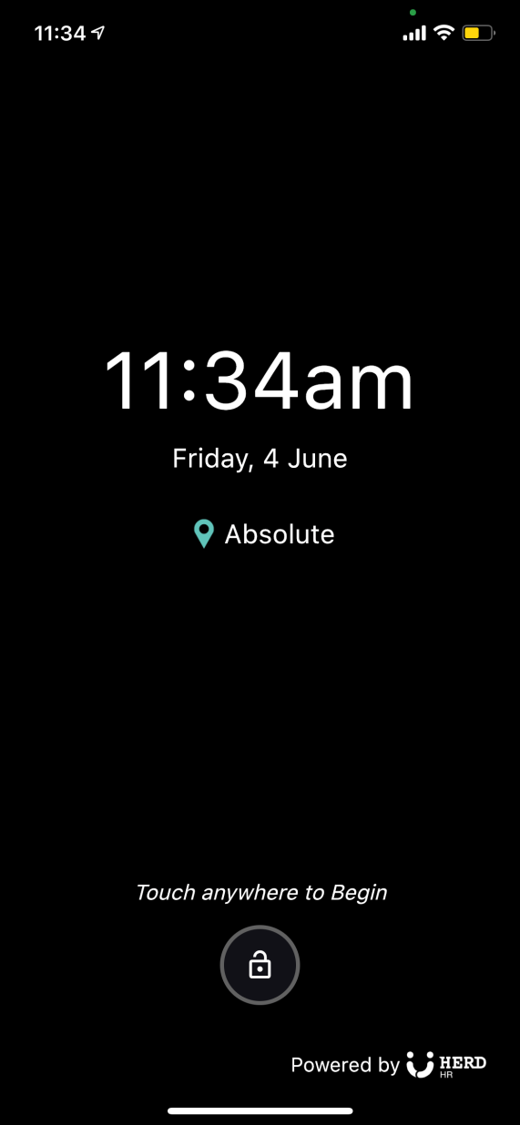
Sign In / Sign Off / Transfer / Spotcheck
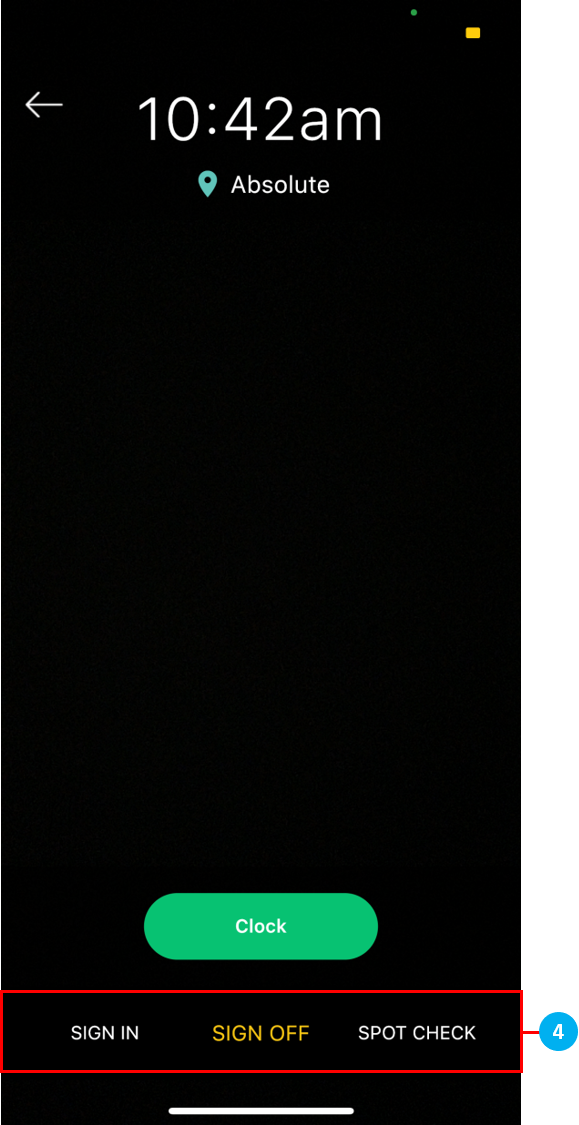
- To Sign In / Sign Off / Transfer / Spotcheck, tap anywhere on the screen to begin.
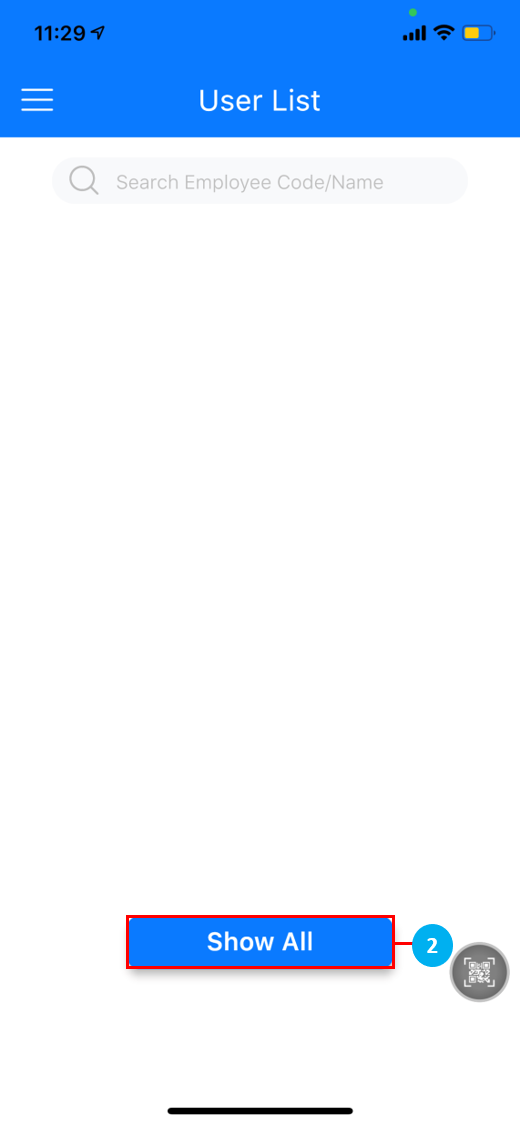
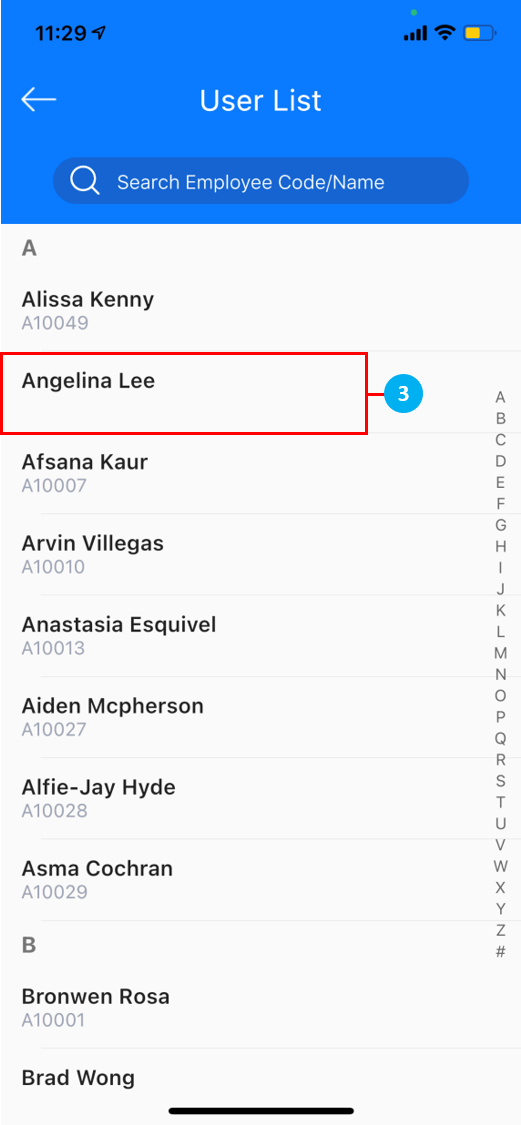
- Tap on Show All to view all the names on the User List.
- Select a name to perform a Sign In / Sign Off / Transfer / Spotcheck.
- Select Sign In / Sign Off / Transfer / Spotcheck, then tap Clock to take a photo.