Herd's Integration with Xero
Save time, improve accuracy, and simplify your payroll process by auto syncing all your payroll data from Herd Cloud Suite to Xero online accounting software.
Connect your Xero Account
To begin, you must ensure that you have signed up for both Herd and Xero.
On Herd, please ensure that you are using an account with the following permission types:
- Super User
- System Administrator
- Xero
Getting Started
First you need to connect Xero to Herd
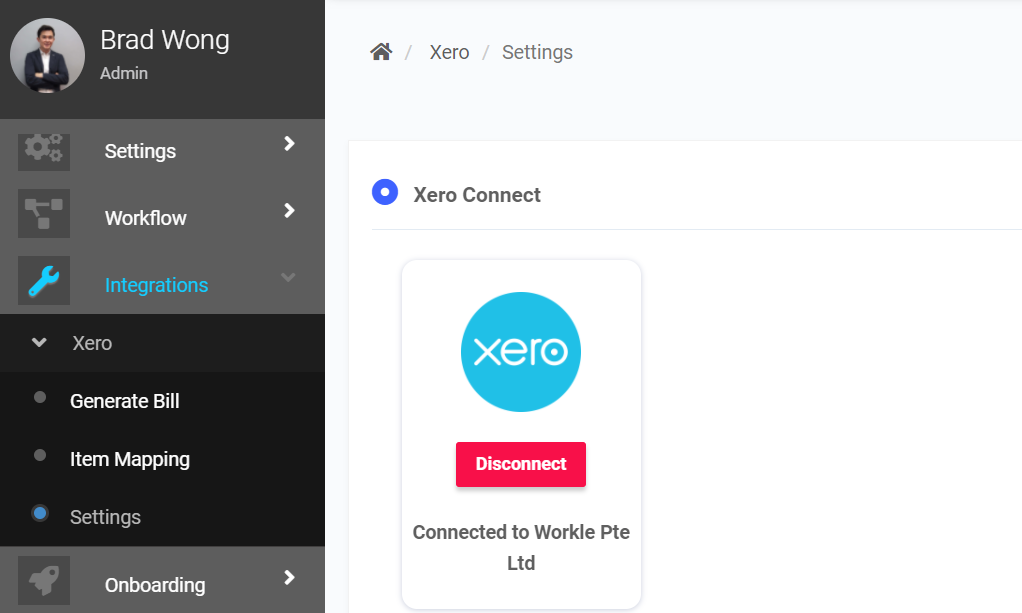
- On the left sidebar menu, go to Integrations > Xero > Settings
- Click Connect to log in to your Xero account.
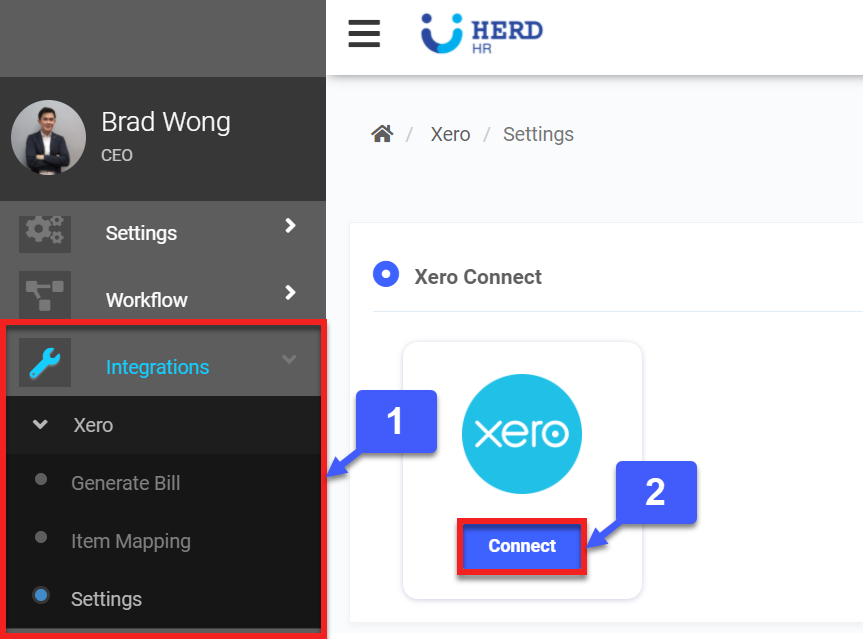
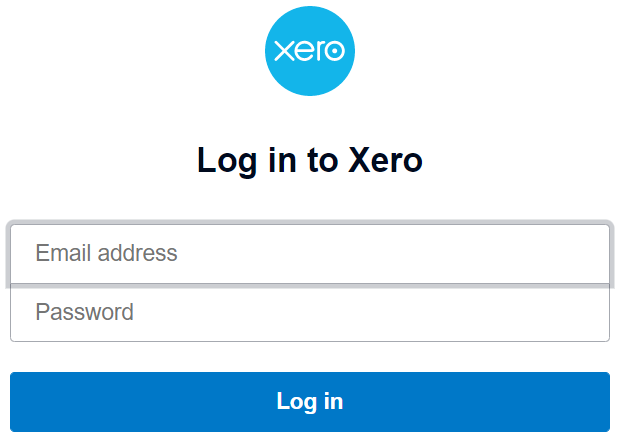
- Login with your Xero account or register for one.
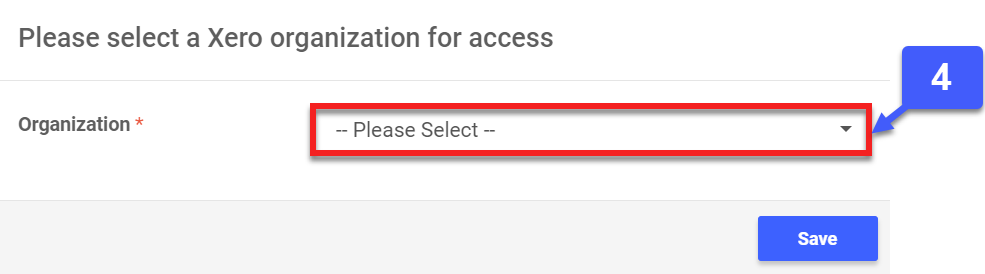
- Select the Xero organization that you want to connect with from the drop-down list and click Save.
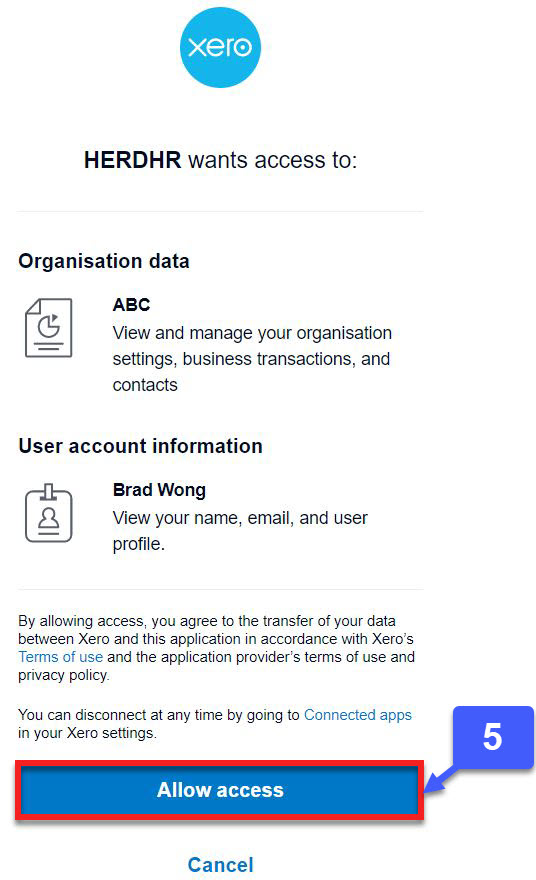
- Click Allow access to allow HerdHR to access your Xero account.
- Once it is successfully connected, you will be able to access your Xero’s Chart of Accounts and Contacts for mapping via Herd. You will remain connected until you click to disconnect.
Item Mapping
You need to map the Herd Payroll items to Xero Accountings. There are two Xero Account types we need to map; Xero Expense Accounts (Debit) and Xero Liability Accounts (Credit).
- On the left sidebar menu, go to Integrations > Xero > Item Mapping
- All Herd Payroll items that can be mapped will be listed with their respective Nature.
- Nature describes where a Payroll item originated from, and they fall into 5 types as follows:
- System Generated – Item is auto generated by the system
- Pay Item – Item created or maintained under Settings > Pay Item
- Claim Type – Item created or maintained under Claims > Claims Settings > Claims Type
- Attendance Item – Item created or maintained under Attendance > Attendance Settings > Attendance Item
- Vessel Item - Item created or maintained under Vessel > Vessel Settings
- Click on the
 icon.
icon.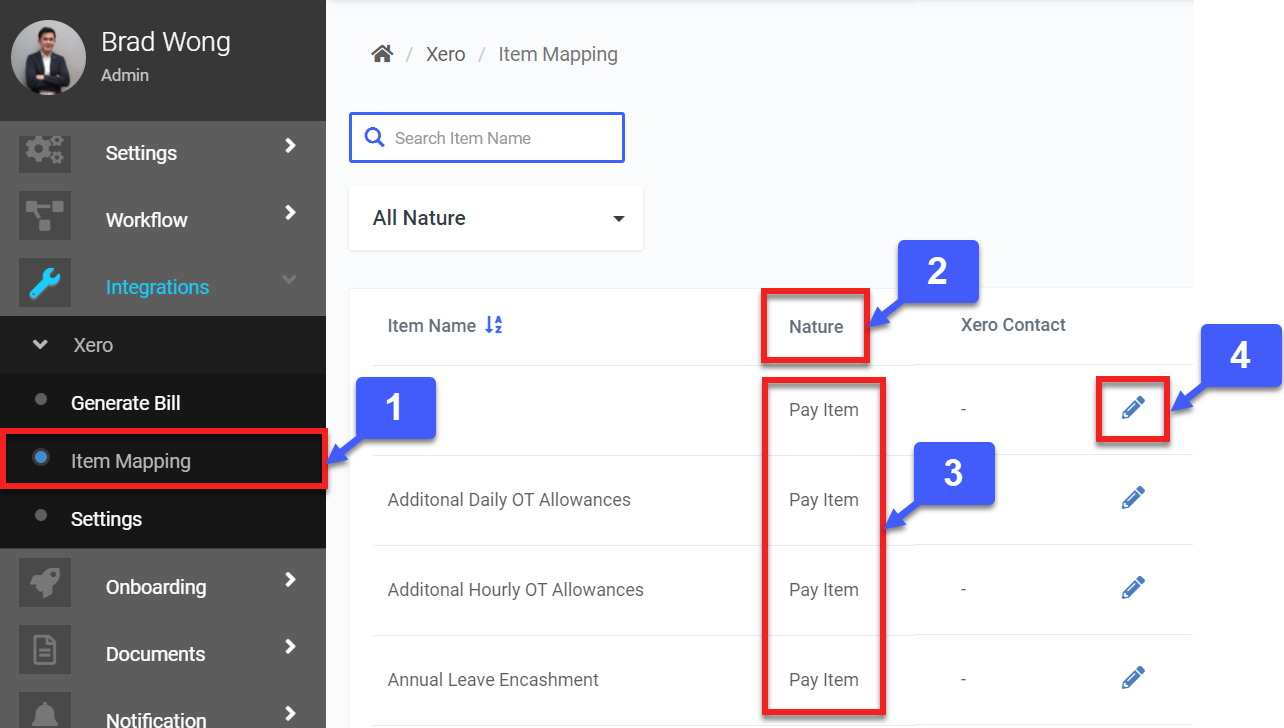
- For each Herd Payroll item, map Xero data for Xero Account (Dr - Expense), Xero Account (Cr - Liability) and Xero Contact. Click Update.
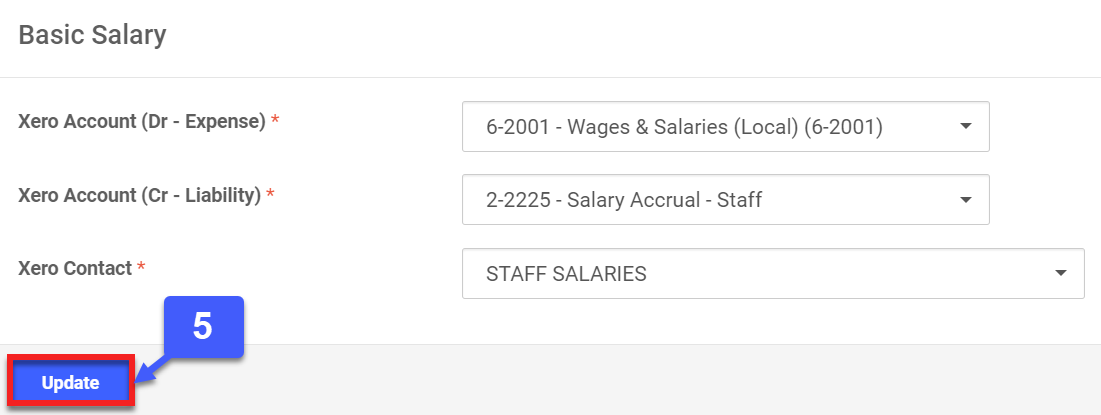
- (*Note: Xero Contact refers to the contact for which the bill is created in Xero.)
Generate Salary Bill
As Herd allows you to perform Xero mapping for every Payroll item, i.e., Additions and Deductions, we recommend that before you begin, perform a final check to ensure that each of the payroll items which you use in your monthly payroll run, such as such as Overtime, Bonus and Unpaid Leave, is properly mapped via the Item Mapping Step prior to commencing Generate Bill.
Important: Note that Basic Salary and Employee Contributions need to be mapped to reflect accordingly in Xero. Employee Contributions will be deducted twice to ensure its reflected correctly in the P&L and Balance Sheet.
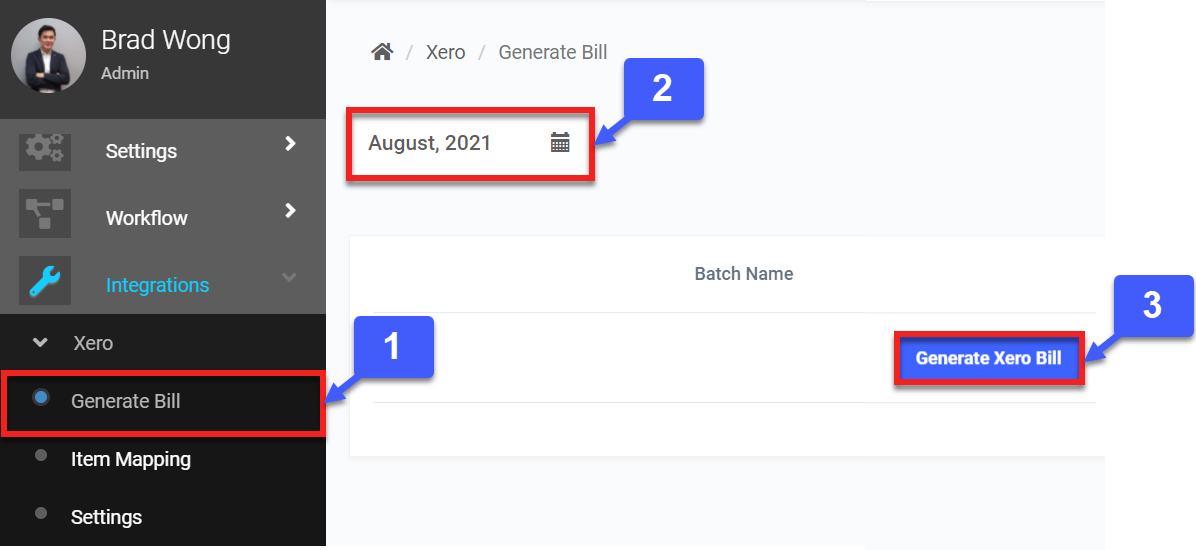
- On the left sidebar menu, go to Integrations > Xero > Generate Bill.
- Select a month.
- Select the Payroll Batch you wish to generate a Xero transfer for and click Generate Xero Bill.
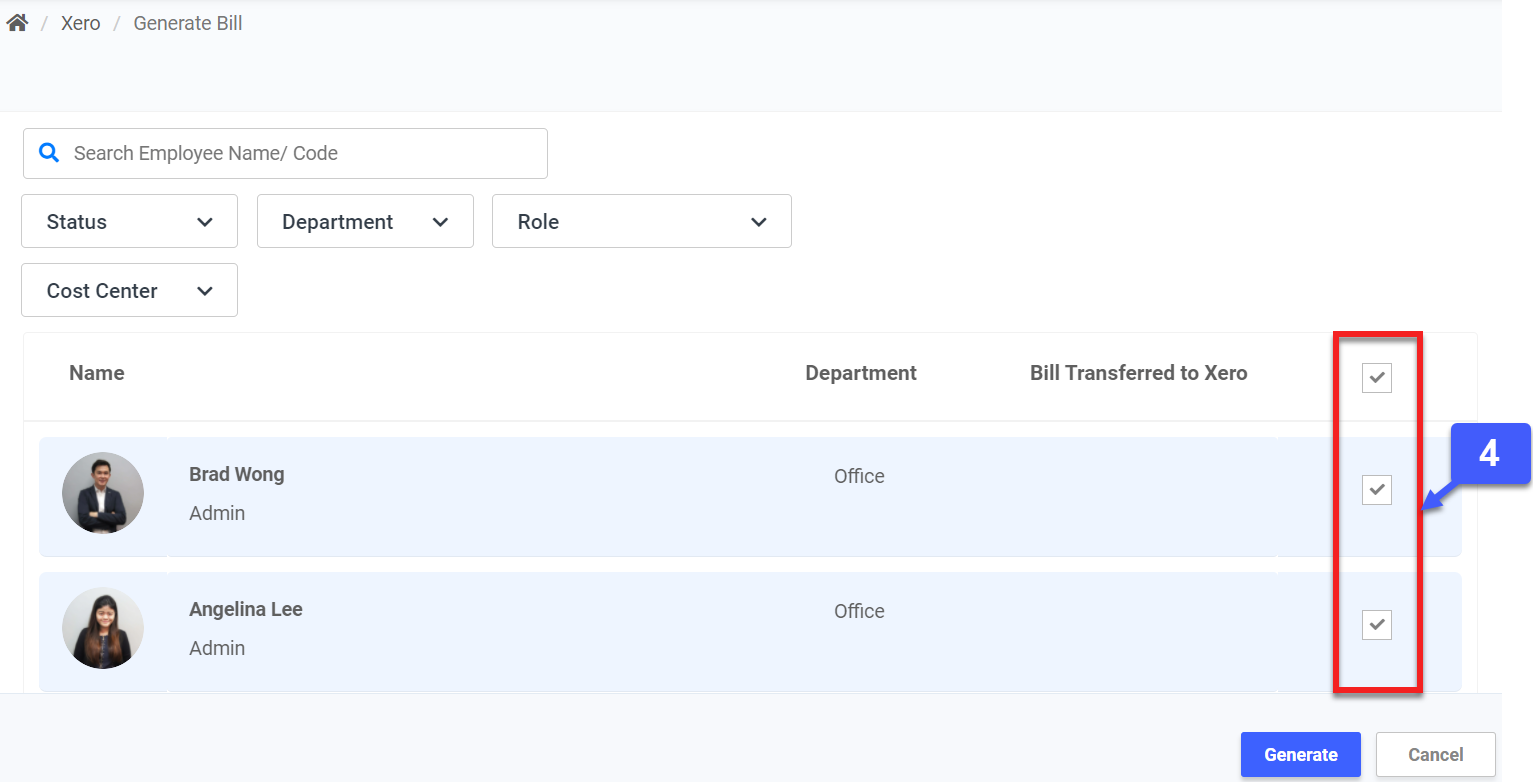
- Select the employee for whom the transfer is applicable for using either the search or filter functions. Alternatively, you can manually select each employee or select All employee. Once you have completed your employee selection, click Generate.
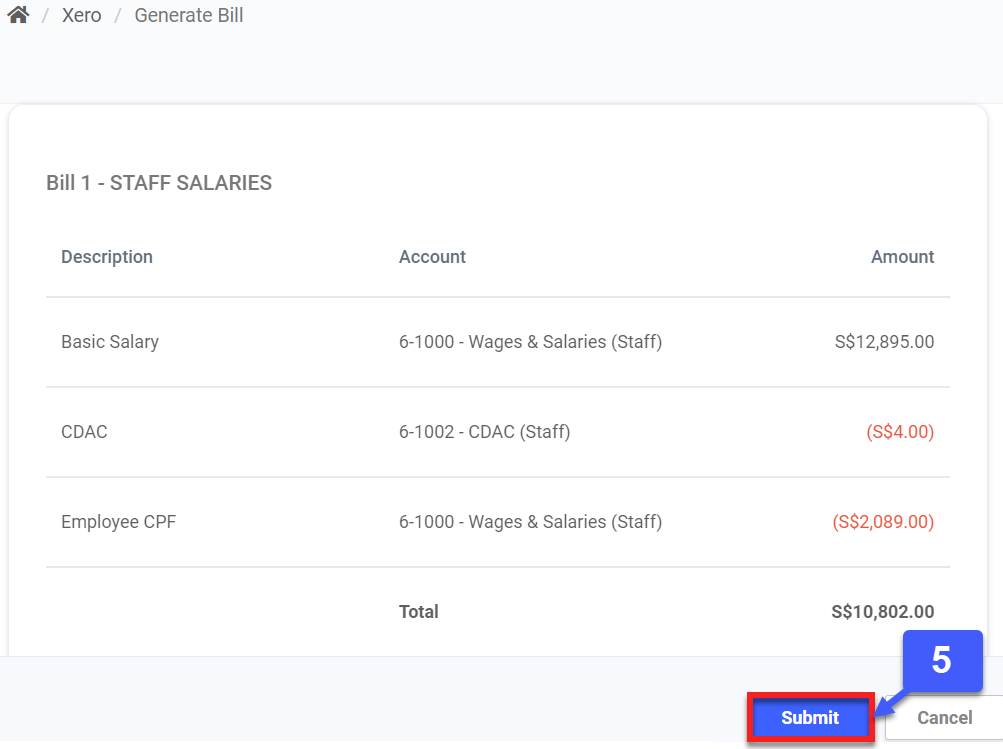
- Preview the data. Once you are ready, click Submit.
- Click on Transfer to Xero to proceed with transfer.
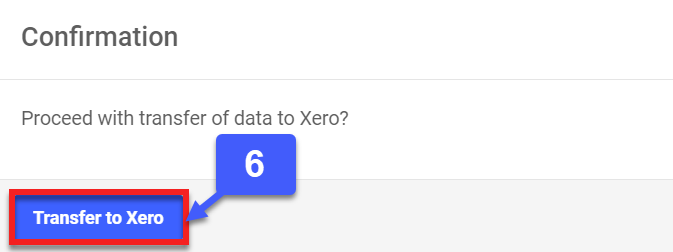
- All items and amounts in the bill will be transferred over to Xero and created as a draft Bill. Proceed to perform the necessary actions in Xero to approve the Bill.
If you need further assistance with the set-up, you may reach out to us via the in-app chat or support lines.