View vessels this PIC (person who has logged into the tenant) has assigned to him / her.
Click on the icon to filter Vessels / PIC's Employees / Roles / Departments / Latest Status.
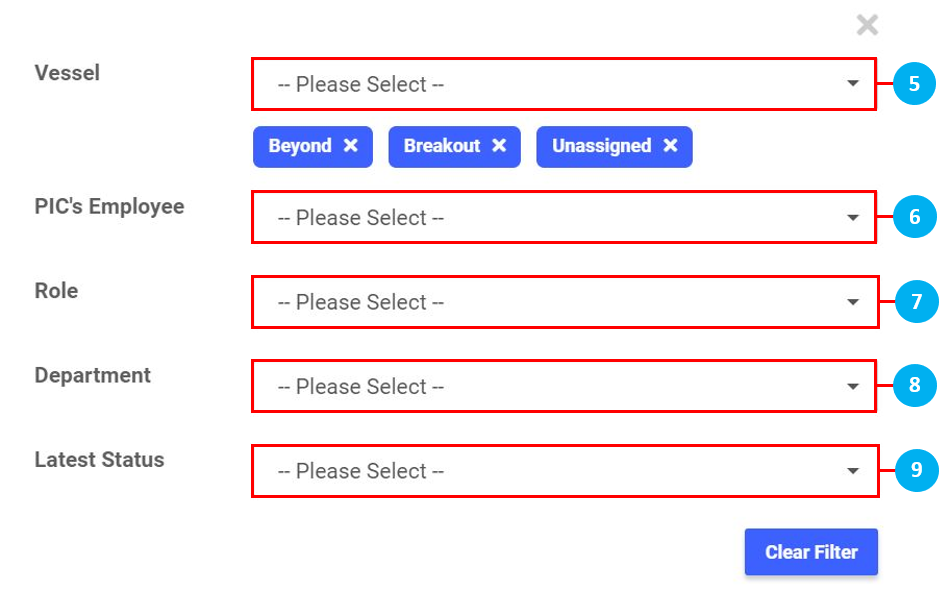
Select to add more vessels from the drop down list. (*Note: Click on the 'x' to remove)
Select PIC's Employee(s) from the drop down list.
Select Role(s) from the drop down list.
Select Department(s) from the drop down list.
Select Latest Status(es) from the drop down list.
Assign Crew's Onboard Date & Designation
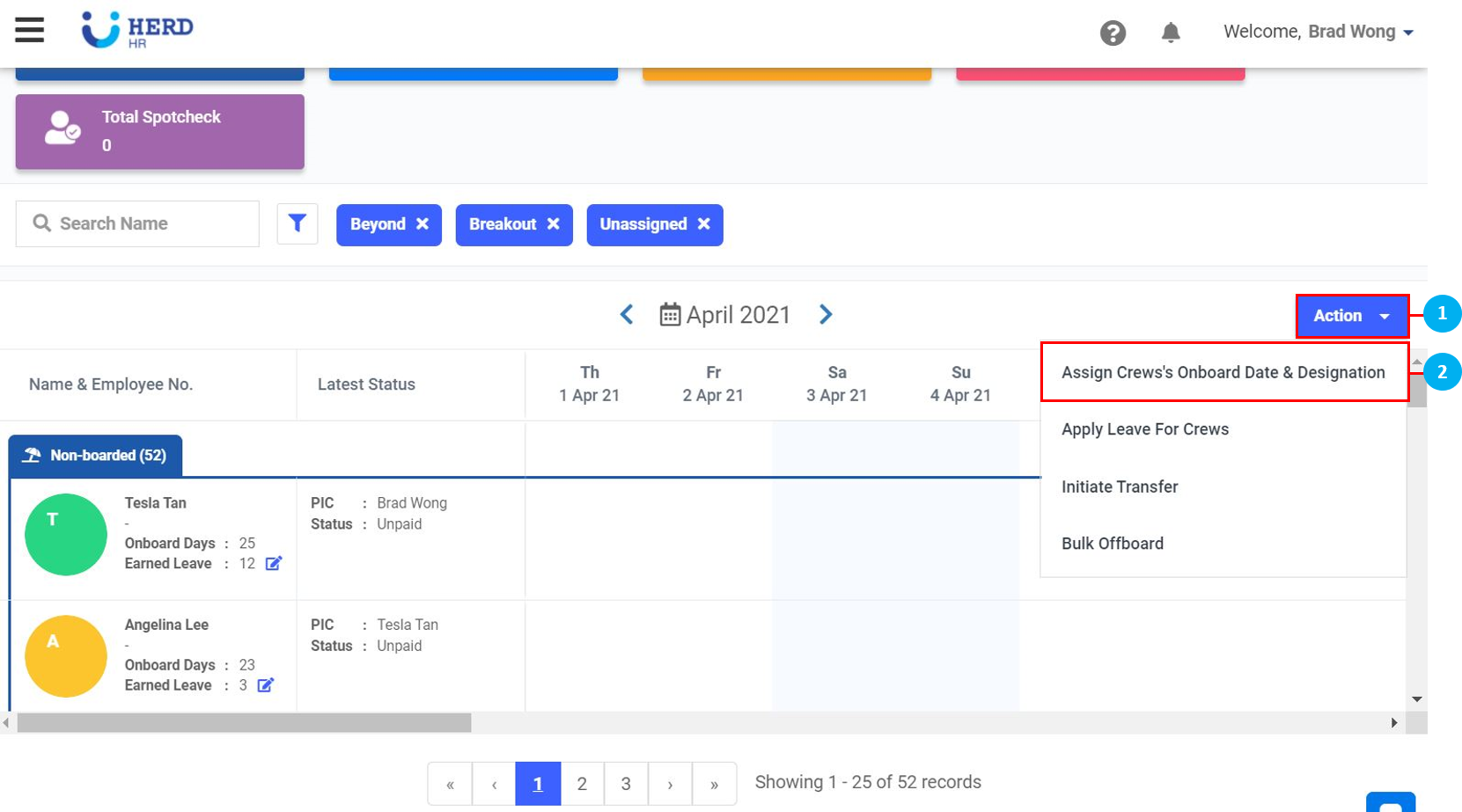
Click on Action.
Click on Assign Crew's Onboard Date & Designation.
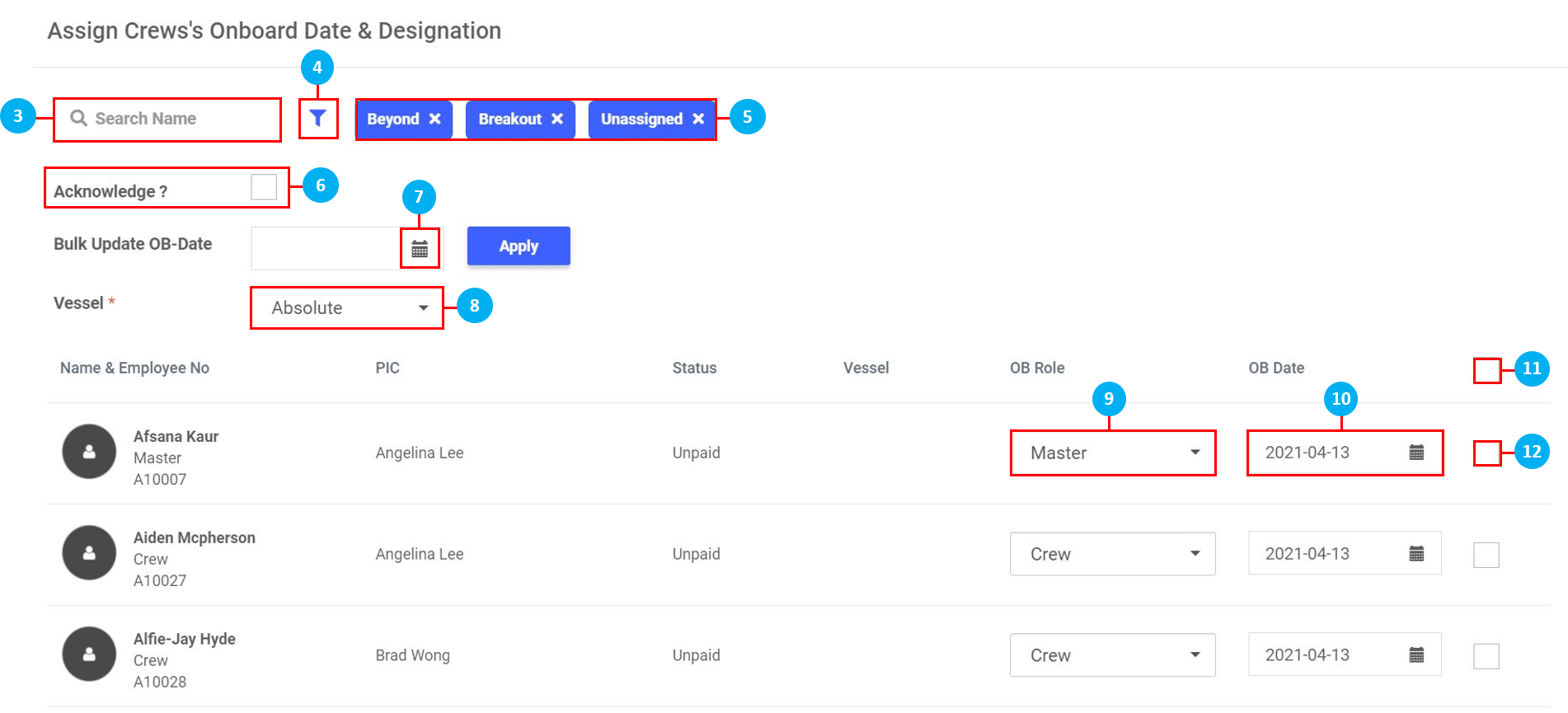
Type the name of the crew to search for them.
Click on the icon to filter Vessels / PIC's Employees / Roles / Departments / Latest Status as above.
Click on the 'x' to remove vessels, if required.
Click in the box to select this option to acknowledge the attendance of crew and onboard them without the need to verify by checking their photo attendance.
Click on the icon to select a date to Bulk Update Onboard Date, if required. Once done, click Apply, then scroll to the bottom of the page and click Confirm to initiate Bulk Onboard. Select Update Only if some crew members are already onboard another vessel and no changes should be made to their existing attendance. Select Overwrite All Vessel to overwrite any existing attendance for these crew and onboard them on this vessel. Once done, click Confirm.
Select a different vessel from the drop down list.
Select a different Onboard Role for the crew member, if required.
Click on the icon to select a different Onboard Date, if required.
Click to select all employees.
Click to select individual employees. Once done, click Save.
Acknowledging Attendance
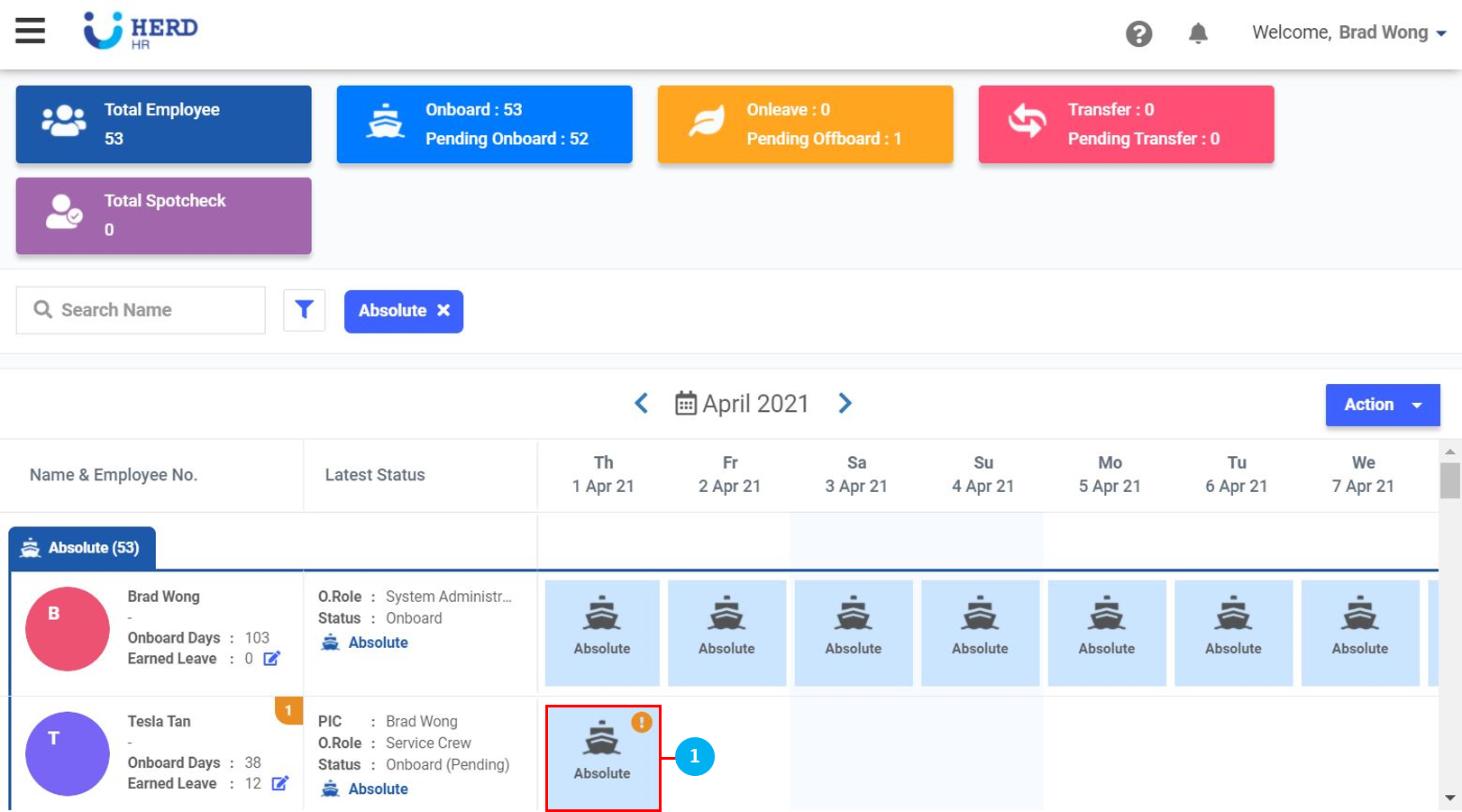
Tap on a box with the '!'. (*Note: This means that the status of this attendance is 'Pending')
Select a different vessel from the drop down list, if required.
Select a different role for the crew member from the drop down list, if required.
Click to view the photo attendance taken by the crew member to verify.
Click on the icon to select the Sign On Date. (*Note: The Sign On Date has to be the same as the Scheduled Onboard date. This is to ensure the crew sign on on the correct date that was assigned / scheduled for them. If a crew signs on on a later date than their Scheduled Onboard date, the Scheduled Onboard date has to be changed to match the Sign On Date.)
Once done, click on Acknowledge to acknowledge this attendance. The status will turn to 'Acknowledged'. Click anywhere on the outside of the screen to return to the main page. (*Note: Once Acknowledged, this is when Onboard Pay will begin to be calculated.)
Click on the icon to Decline the attendance. (*Note: This step cannot be undone once declined.)
Bulk Acknowledgement
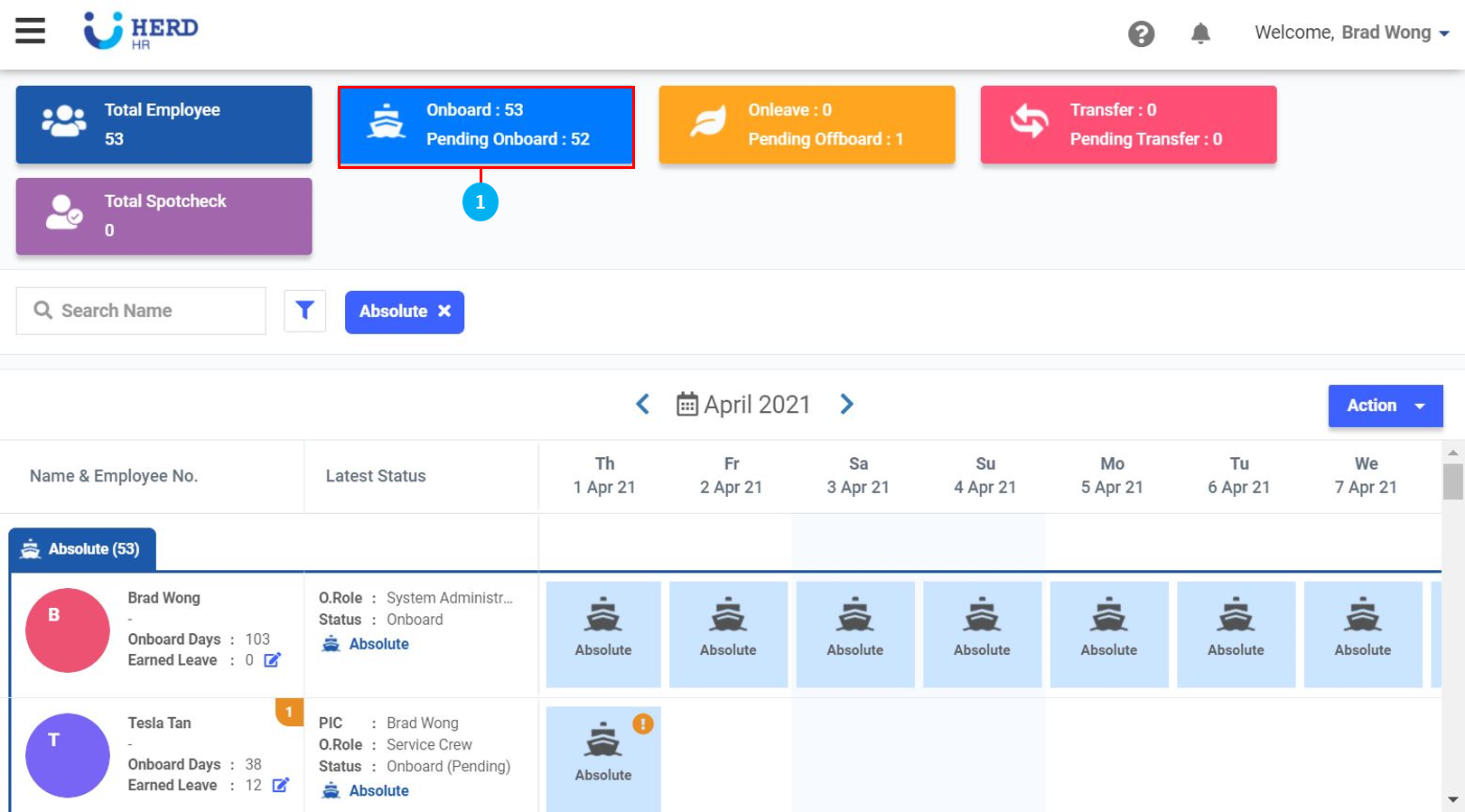
Click on the blue Onboard / Pending Onboard box.
Click on the icon to select the Bulk Update Onboard Date and the Bulk Update Sign On Date. As above, ensure the two dates are the same. Once done, click Apply.
Click to verify the individual photo attendances.
Click to select a different Onboard Role for the crew member, if required.
Once everything is in order, click on Acknowledge to perform the Bulk Acknowledgement.
Apply Leave For Crews
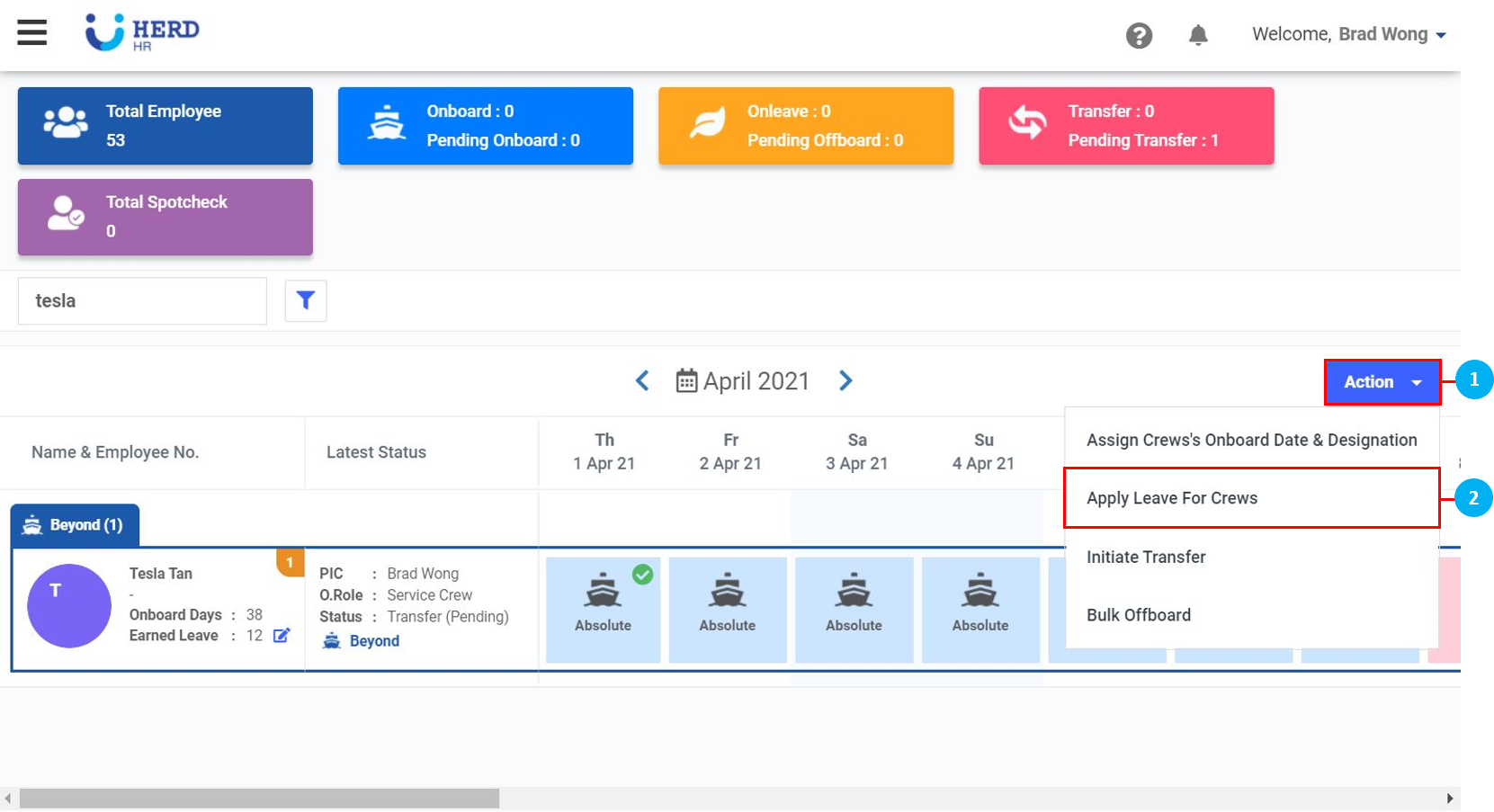
Click on Action.
Click on Apply Leave For Crews.
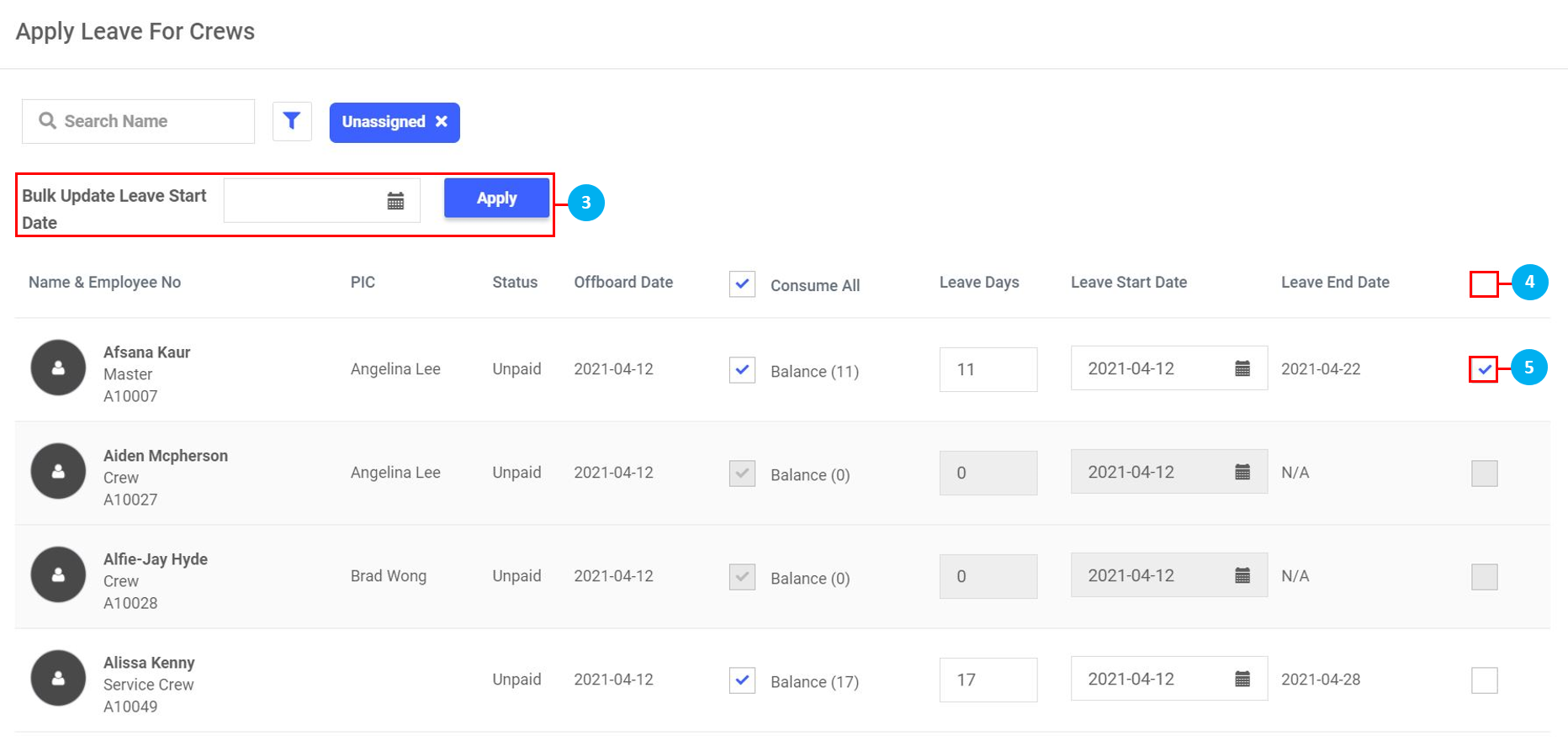
Click on the icon to select the Bulk Update Leave Start Date. Once done, click Apply.
Click to select all employees.
Click to select individual employees. Once done, scroll to the bottom of the page and click Confirm.
Initiate Transfer
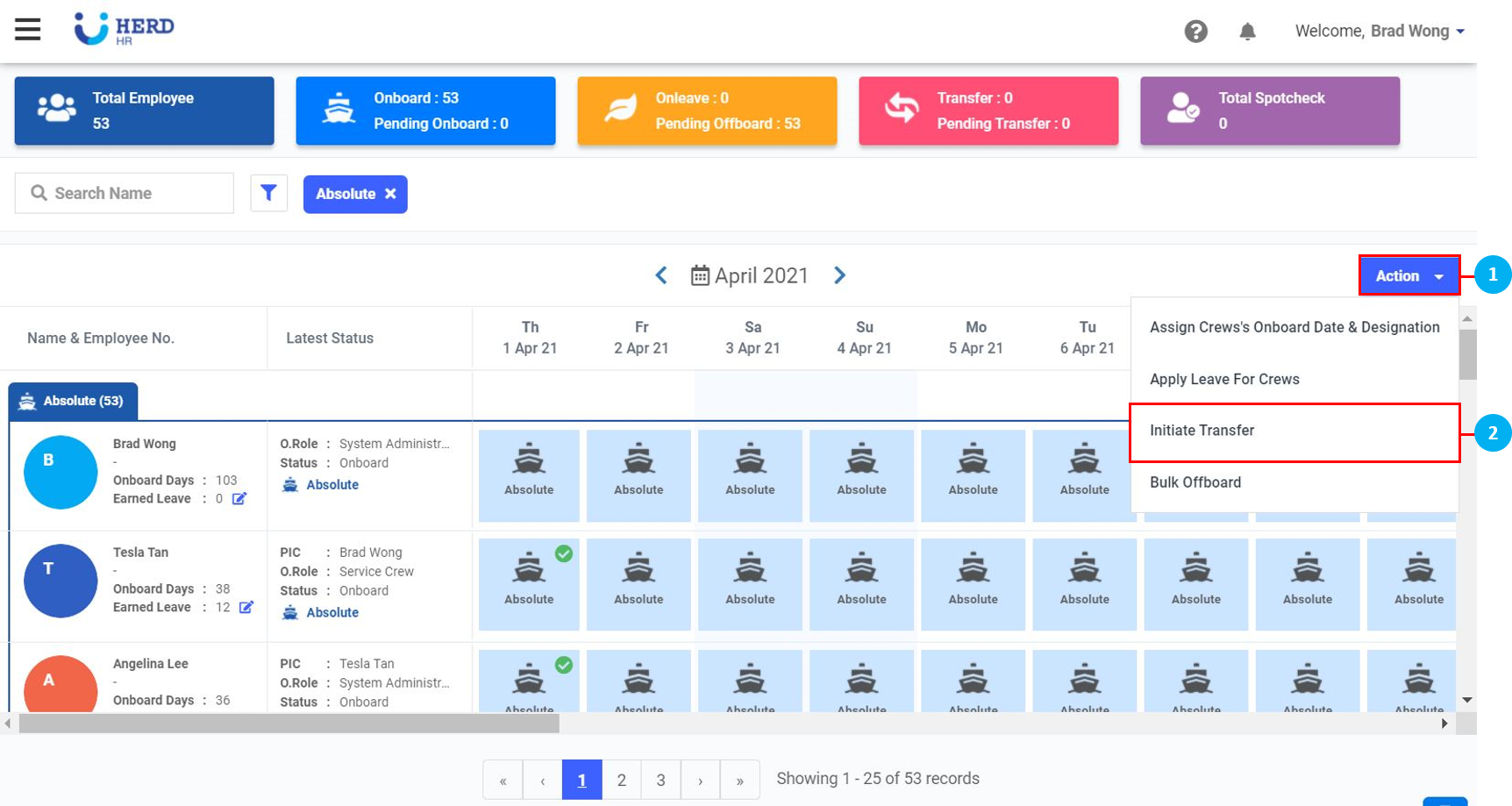
Click on Action.
Click on Initiate Transfer.
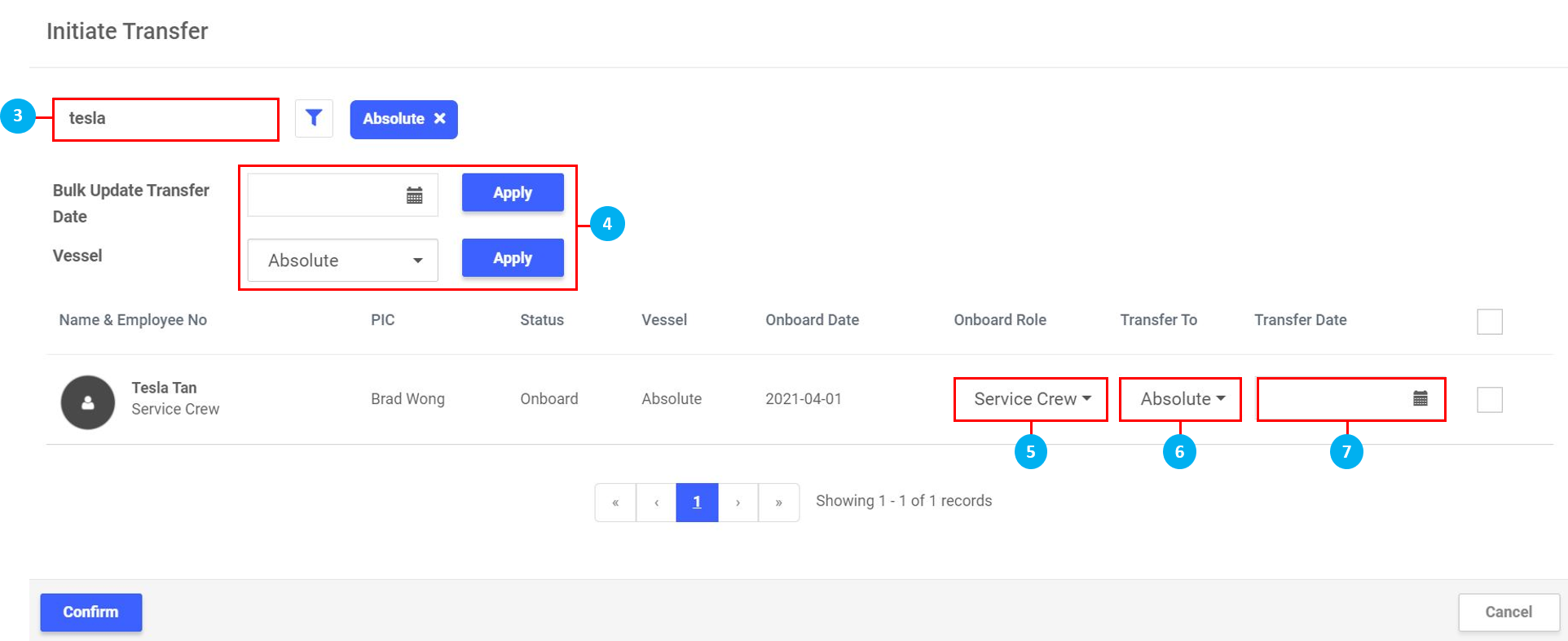
Type in the Name of the crew member to transfer.
Use these fields to select a Date and Vessel to perform a Bulk Transfer. (*Note: Select multiple / all crew using the check boxes on the right to perform Bulk Transfer.)
Change the Onboard Role for the crew member if their role on the new vessel is different from their current role.
Select the vessel to Transfer the crew member to.
Click on the icon to select the Transfer Date. Once done, click Confirm. As before, choose to Update Only or Overwrite All Vessel.
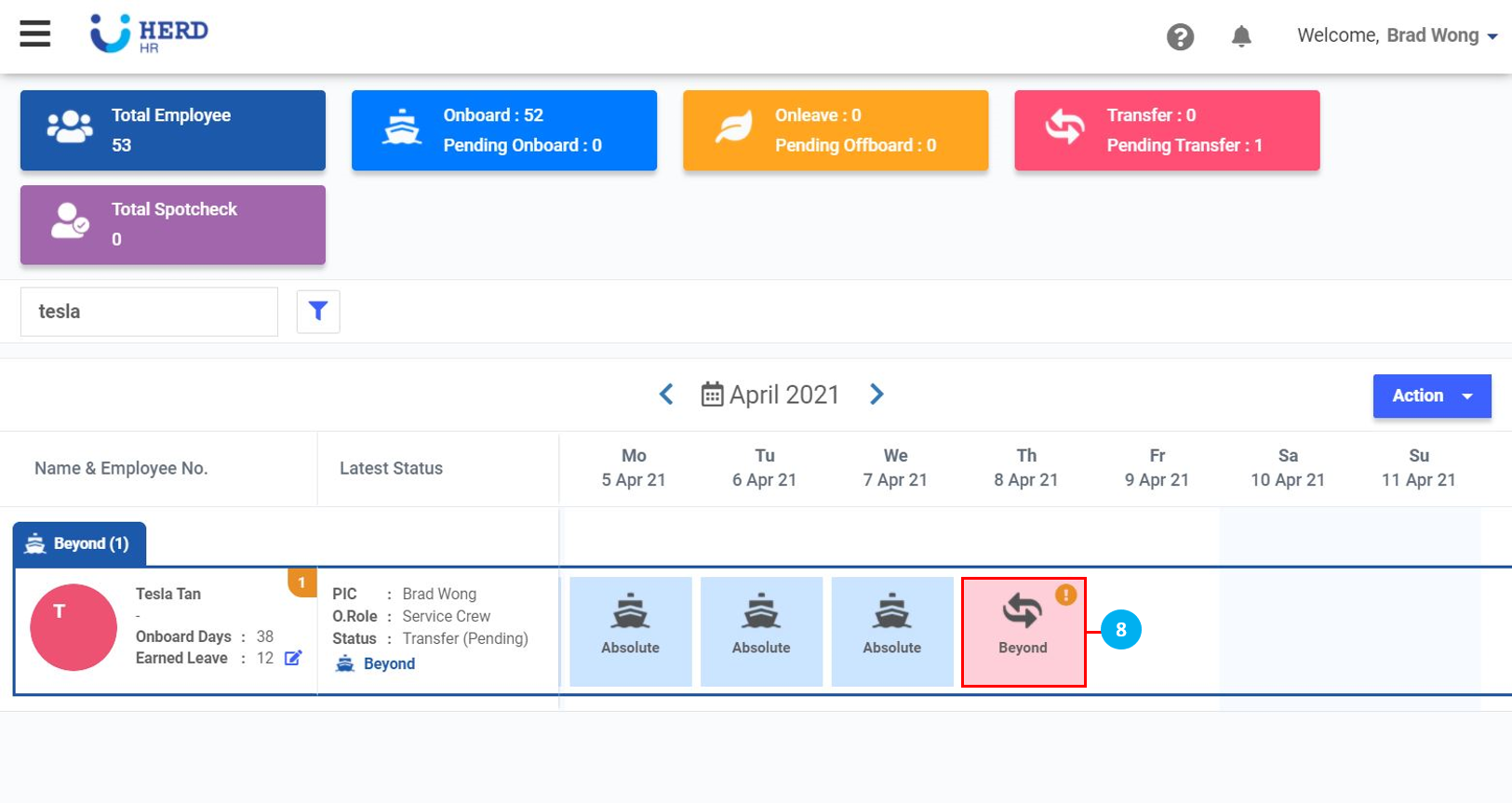
Tap on a box with the '!'. (*Note: This means that the status of this attendance is 'Pending')
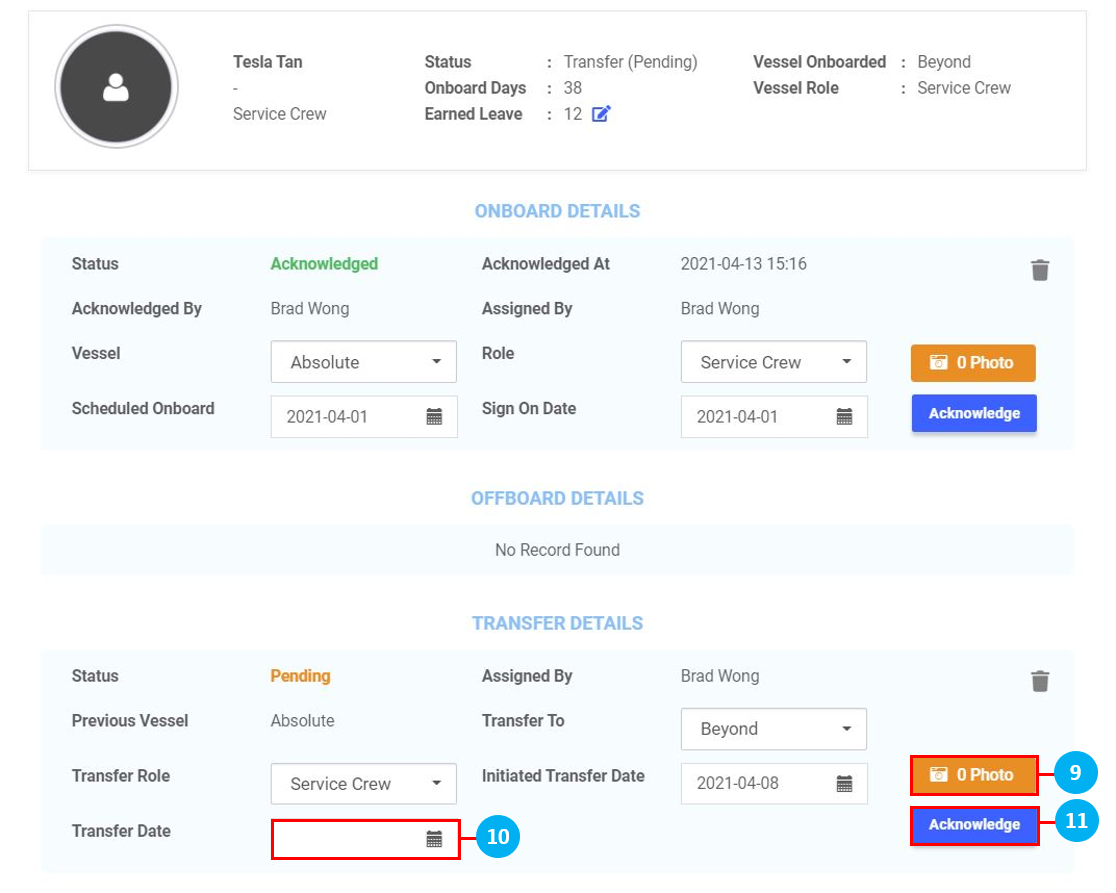
Click to view the photo attendance taken by the crew member to verify that their photo attendance date matches the transfer date.
Click on the icon to select the Transfer Date. (*Note: The Transfer Date has to be the same as the Initiated TransferDate. This is to ensure the crew sign on on the same date that the transfer was initiated.)
Once done, click on Acknowledge to acknowledge this attendance. The status will turn to 'Acknowledged'. Click anywhere on the outside of the screen to return to the main page. (*Note: Once Acknowledged, this is when Onboard Pay will begin to be calculated.)
Bulk Offboard
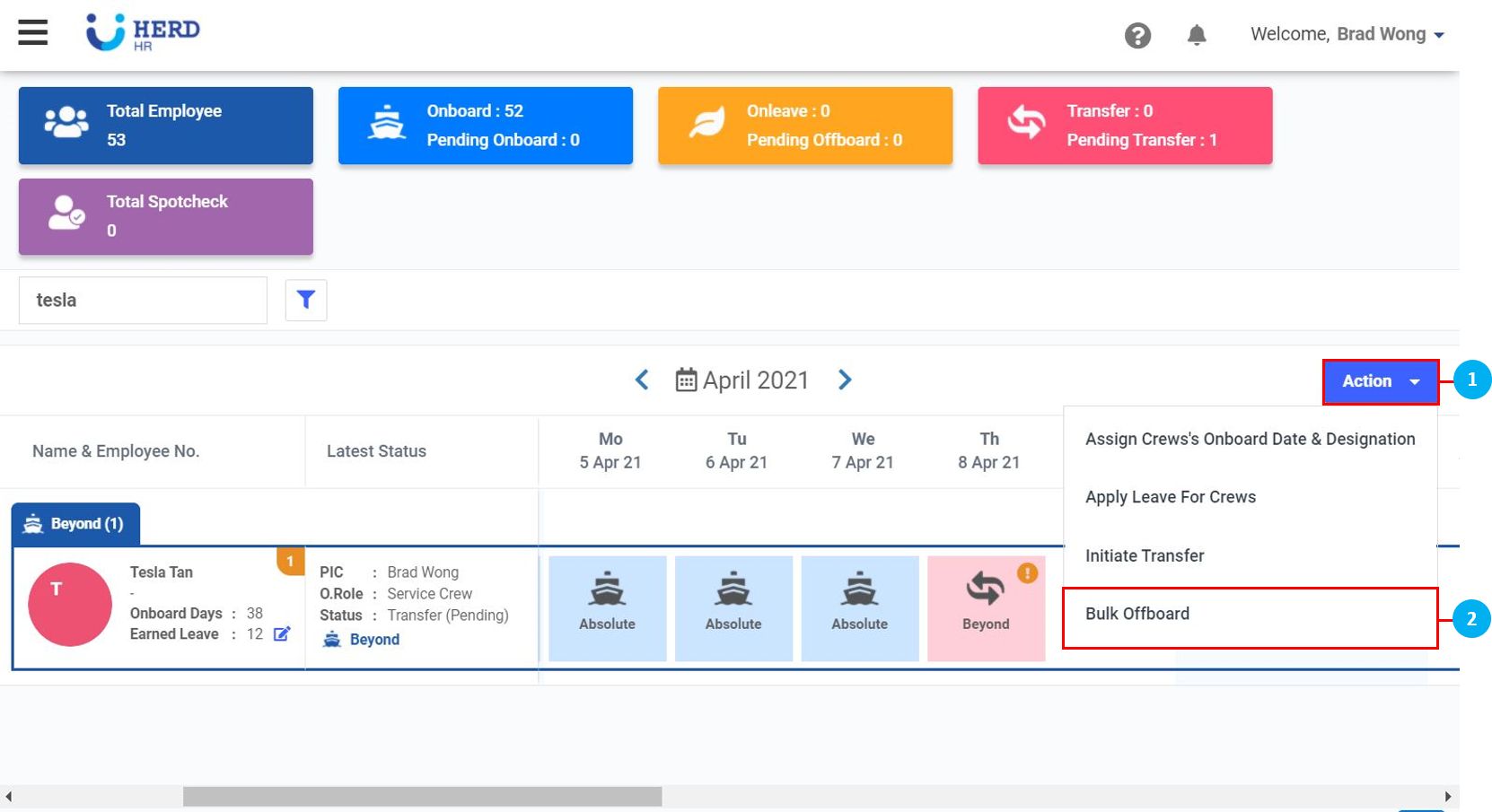
Click on Action.
Click on Bulk Offboard.
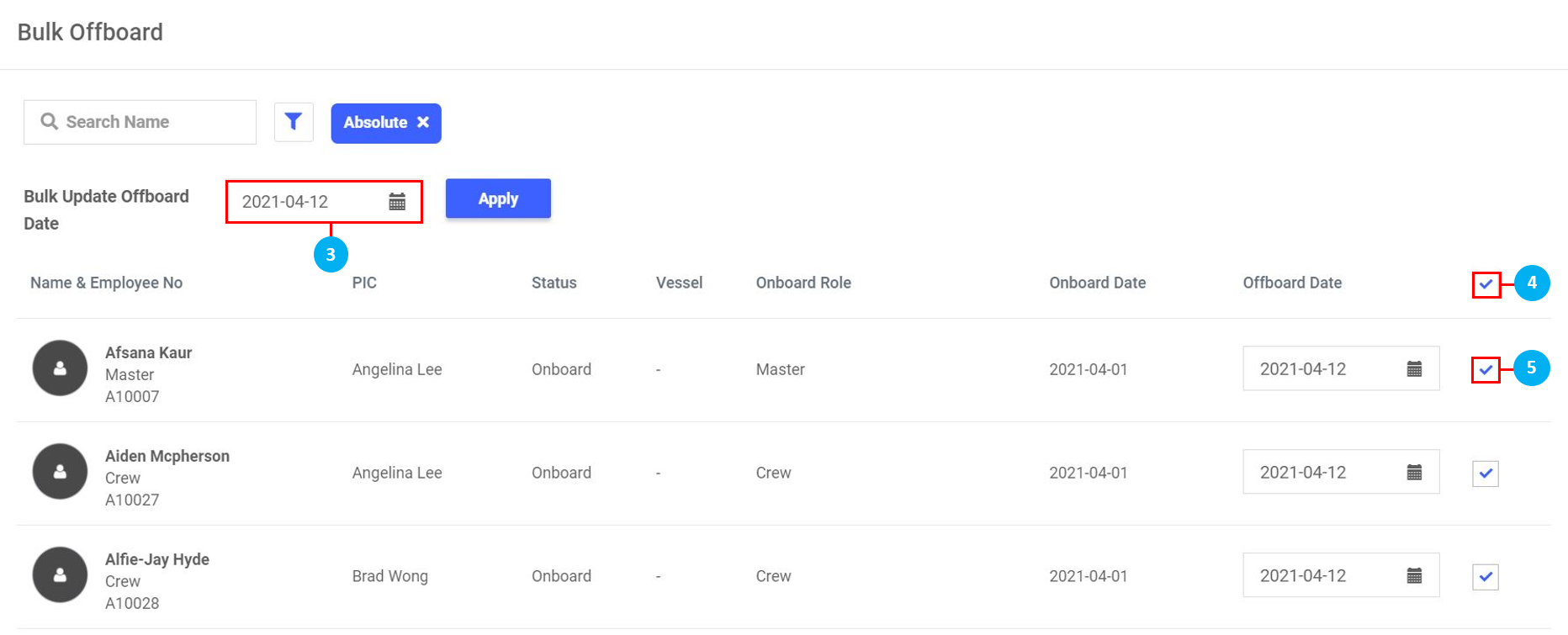
Click on the icon to select a Bulk Offboard Date and click Apply.
Click to select all employees.
Click to select individual employees. Once done, scroll to the bottom of the page and click Confirm.
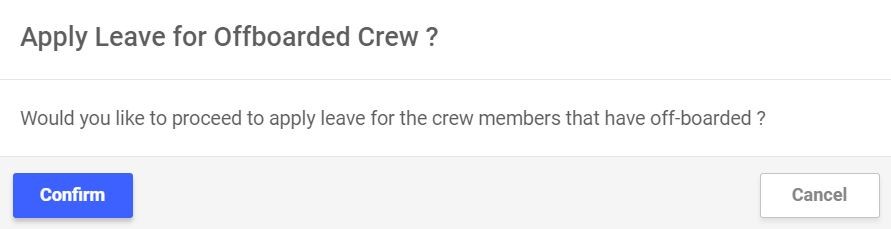
The system recognizes that when crew offboard, they will go on Leave, and will prompt the user to apply Leave for the offboarded crew. Click Confirm to proceed.
 icon to filter Vessels / PIC's Employees / Roles / Departments / Latest Status.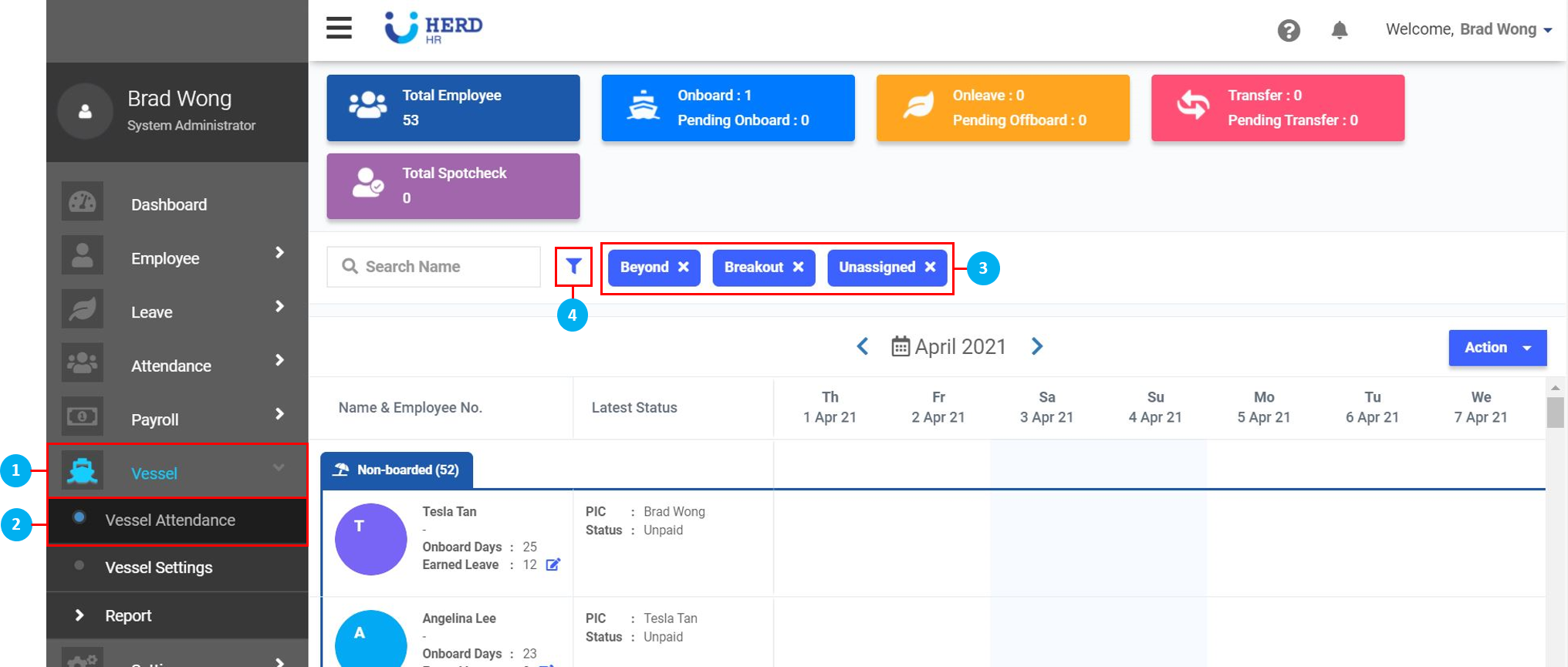
 icon to select a date to Bulk Update Onboard Date, if required. Once done, click Apply, then scroll to the bottom of the page and click Confirm to initiate Bulk Onboard. Select Update Only if some crew members are already onboard another vessel and no changes should be made to their existing attendance. Select Overwrite All Vessel to overwrite any existing attendance for these crew and onboard them on this vessel. Once done, click Confirm.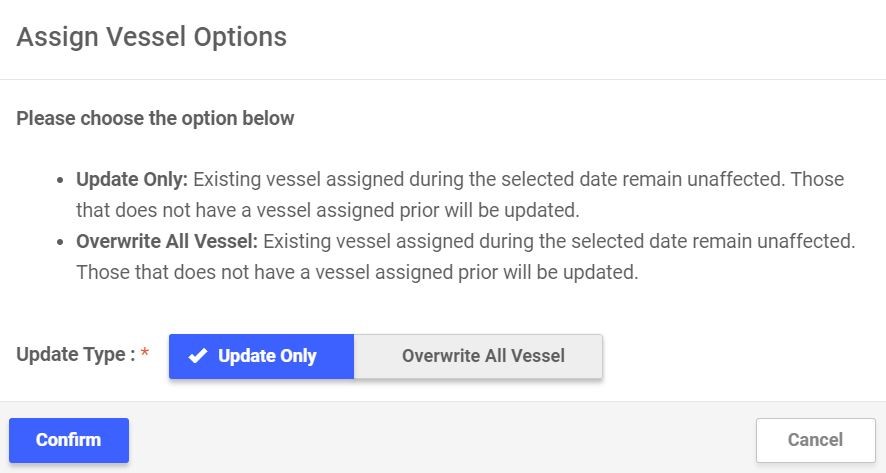
 icon to select the Sign On Date. (*Note: The Sign On Date has to be the same as the Scheduled Onboard date. This is to ensure the crew sign on on the correct date that was assigned / scheduled for them. If a crew signs on on a later date than their Scheduled Onboard date, the Scheduled Onboard date has to be changed to match the Sign On Date.)
 icon to Decline the attendance. (*Note: This step cannot be undone once declined.)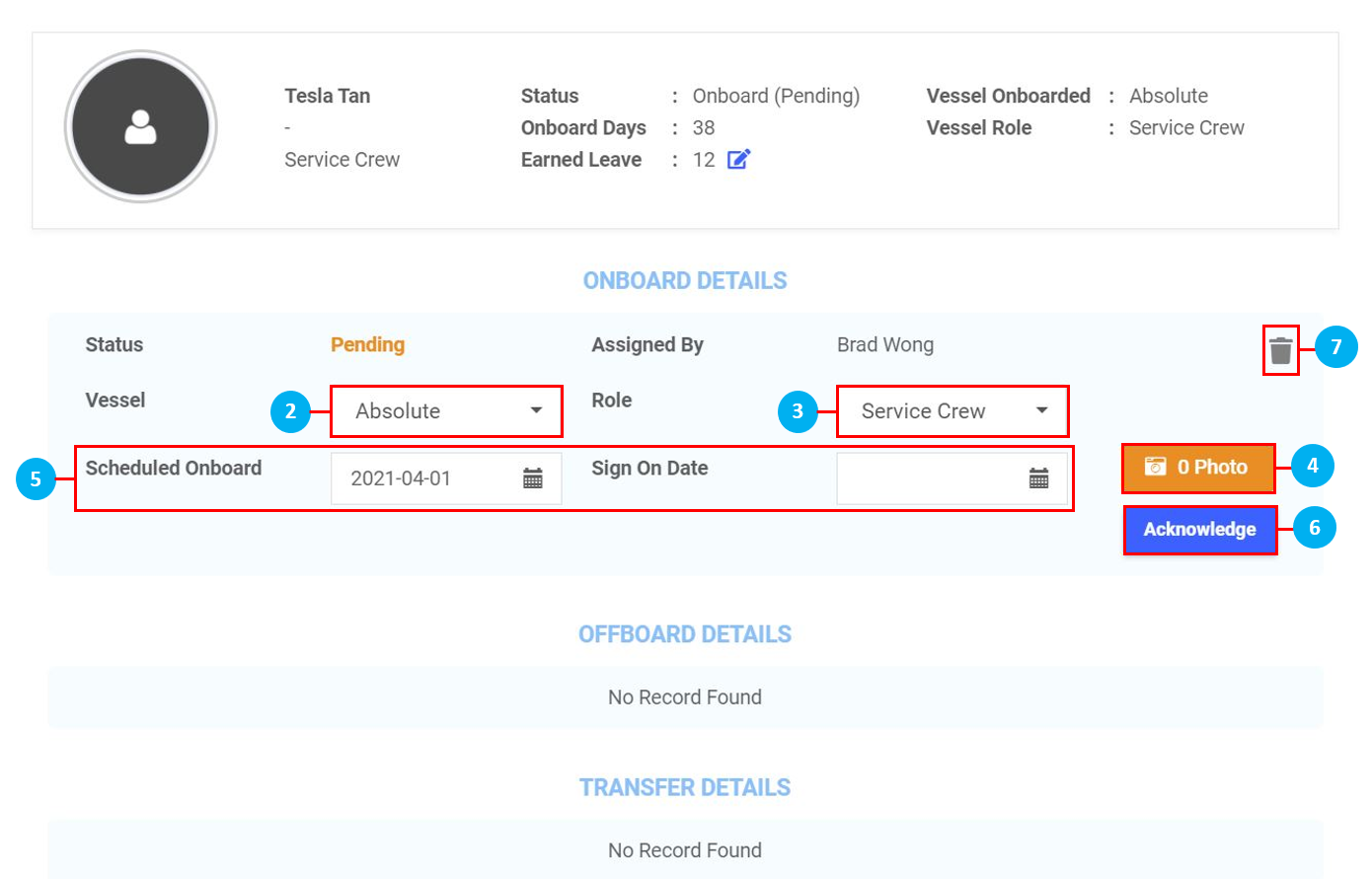
 icon to select the Bulk Update Onboard Date and the Bulk Update Sign On Date. As above, ensure the two dates are the same. Once done, click Apply.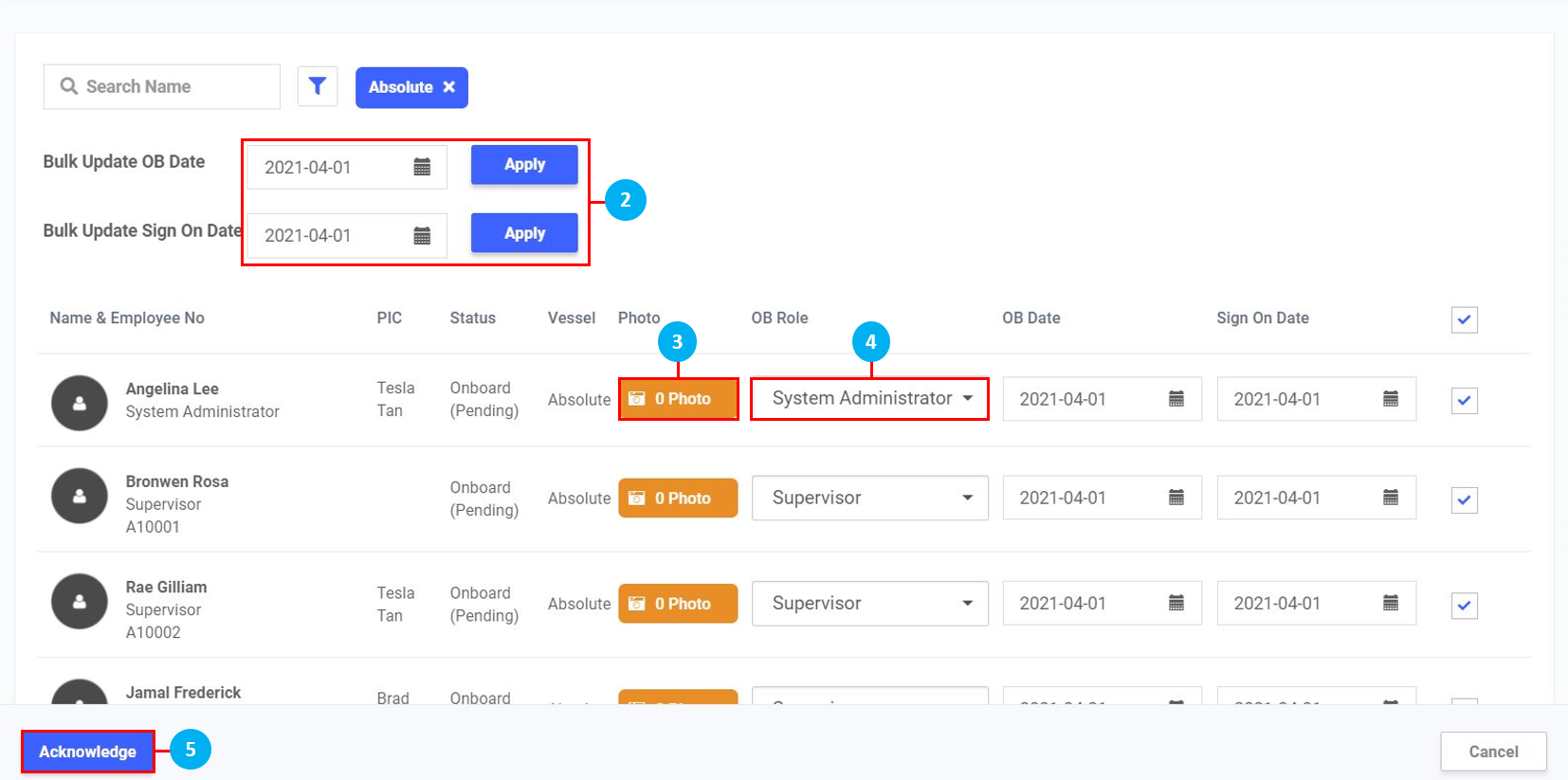
 icon to select the Transfer Date. Once done, click Confirm. As before, choose to Update Only or Overwrite All Vessel.