Select to Share With Location / Department / Role from the drop down list or to share with the Entire Organization (*Note: Another drop down list will appear when share with Location / Department / Role is selected. Select more than one option, and click Remove to delete if needed)
Type in a Description of the folder, if required.
Click on the icon to select an expiry date for the folder, if needed. Once done, click Create.
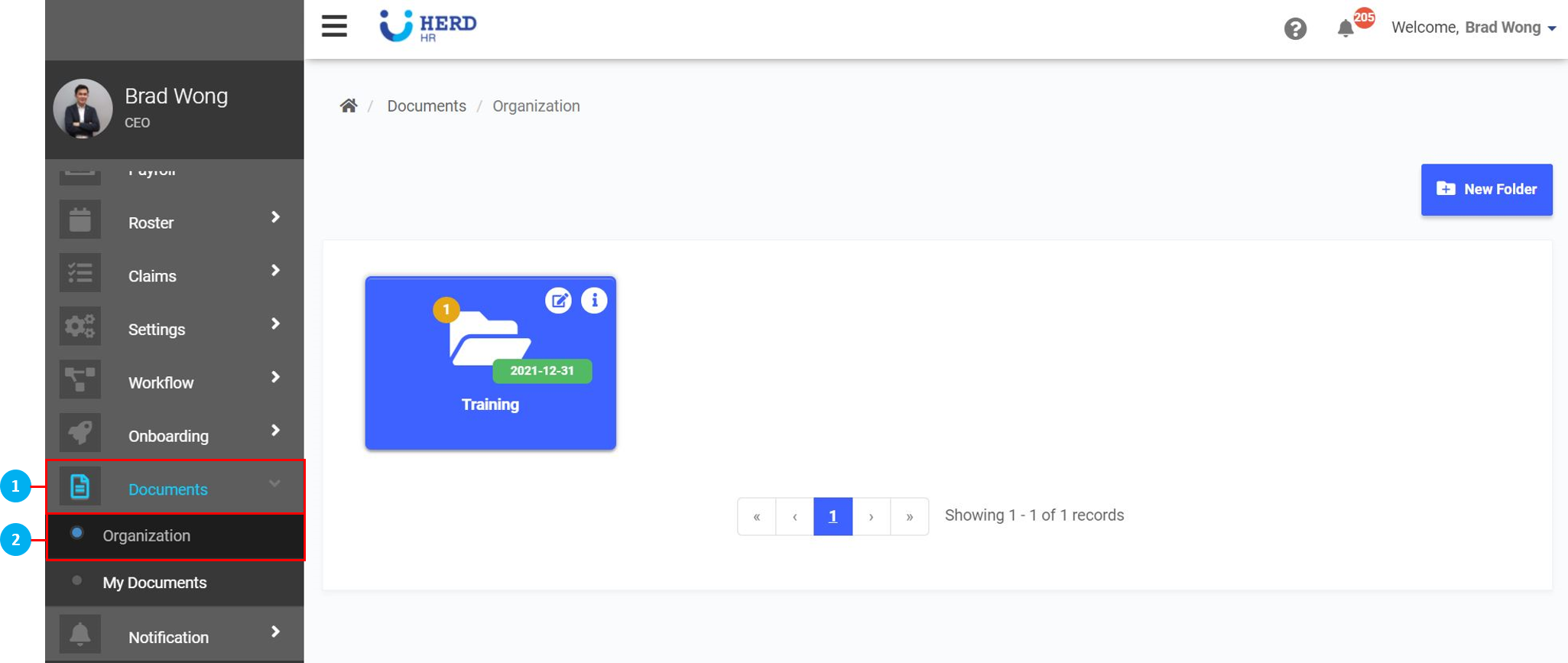
Click on the icon to view the details of the folder.
Click on the icon to edit the details of the folder, or delete the folder.
Click anywhere in the blue box to view the contents of the folder.
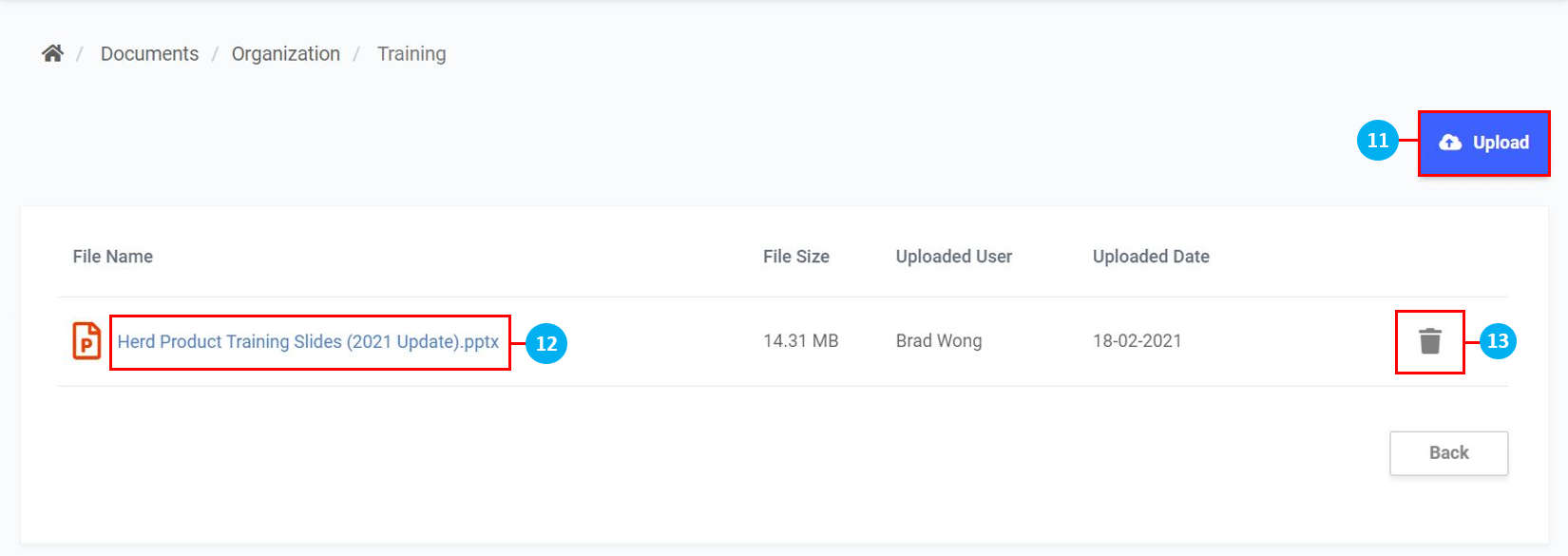
Click to upload a new file. Browse your computer for the file and double click on it. Upload multiple files this way. Once finished, click Done.
Click on the file to download it. The file will be downloaded to your Downloads folder.
Click on the icon to delete the file if required.
To Upload Employees' Documents:
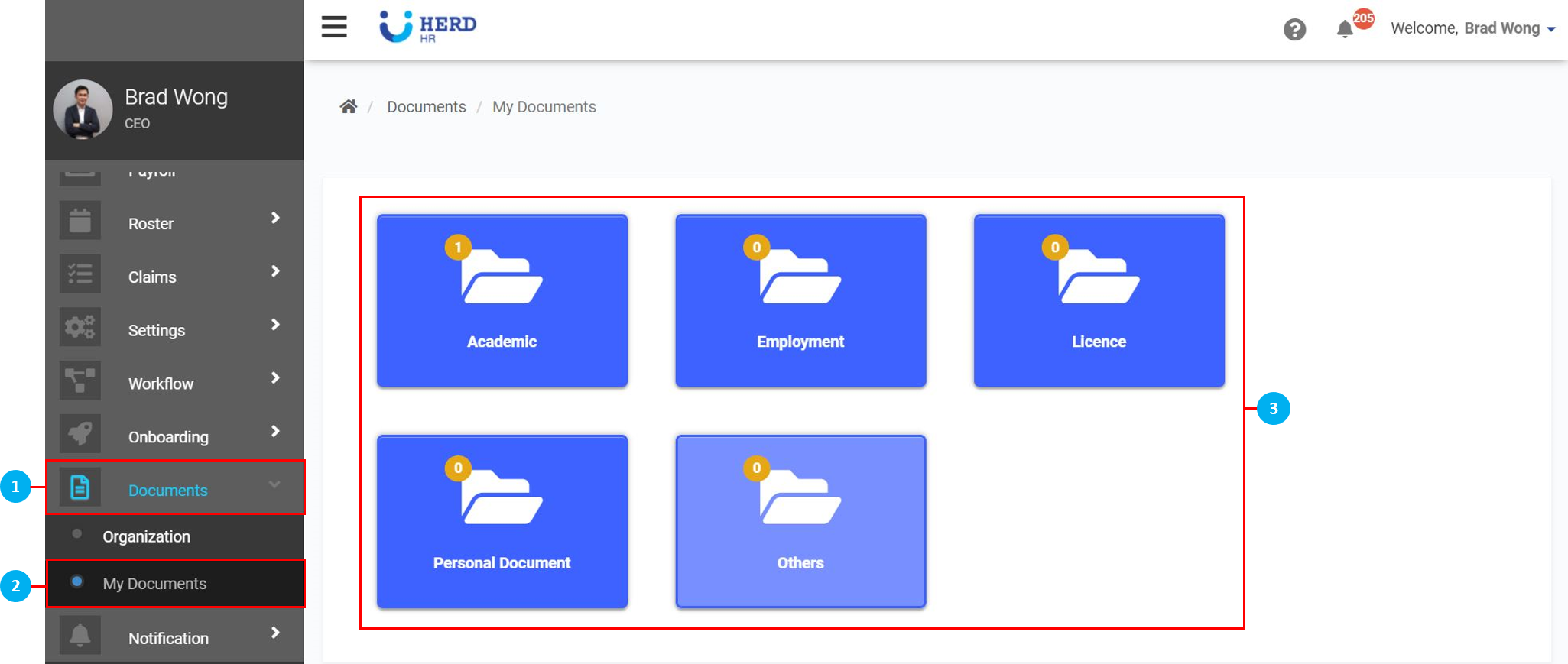
On the left sidebar menu, Click Documents.
Click My Documents.
Click on any of the preset folders to view the contents of the folder or upload documents into it.
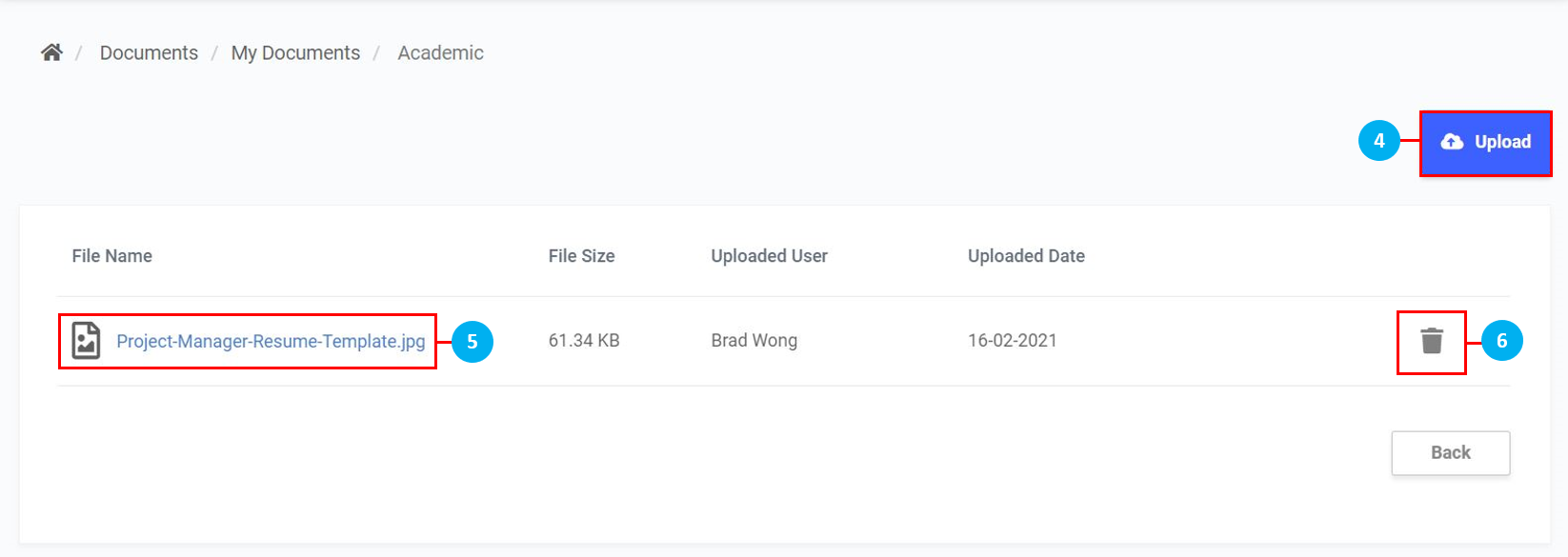
Click to upload a new file. Browse your computer for the file and double click on it. Upload multiple files this way. Once finished, click Done.
Click on the file to download it. The file will be downloaded to your Downloads folder.
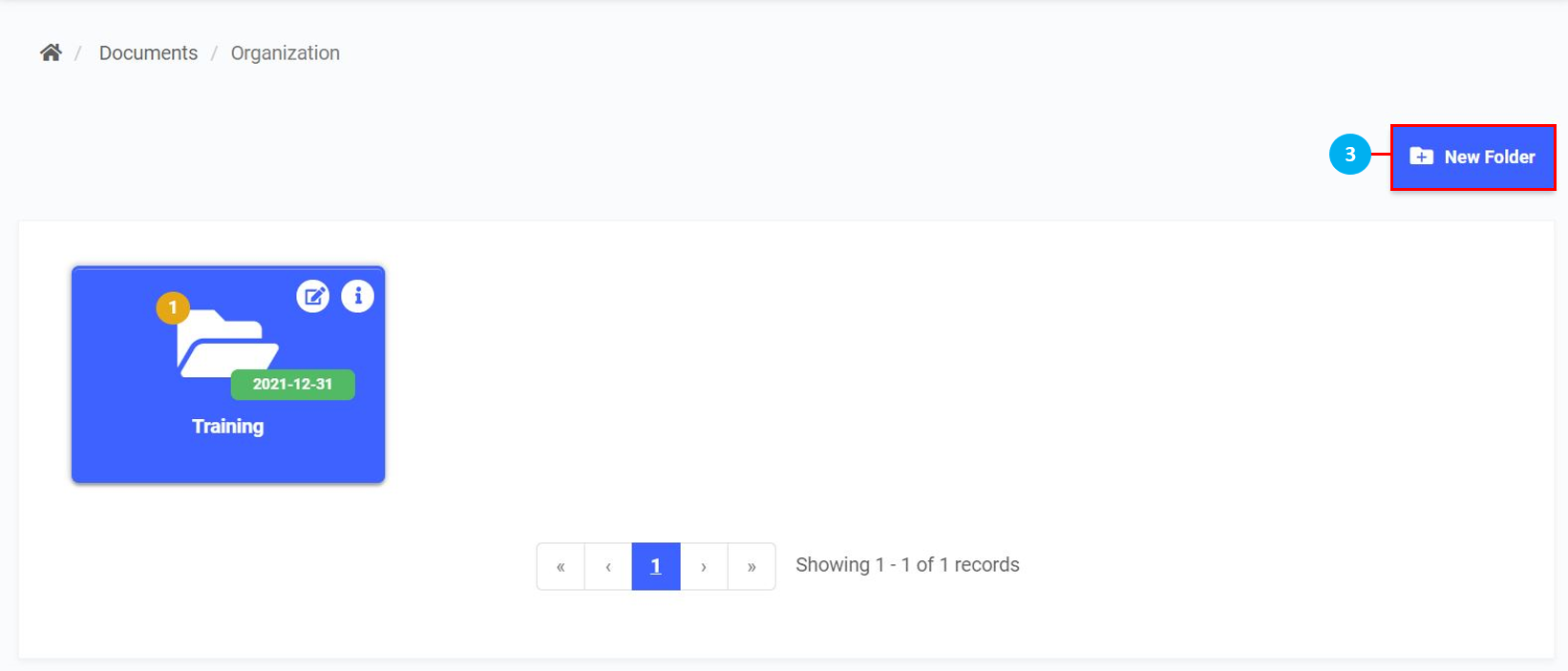
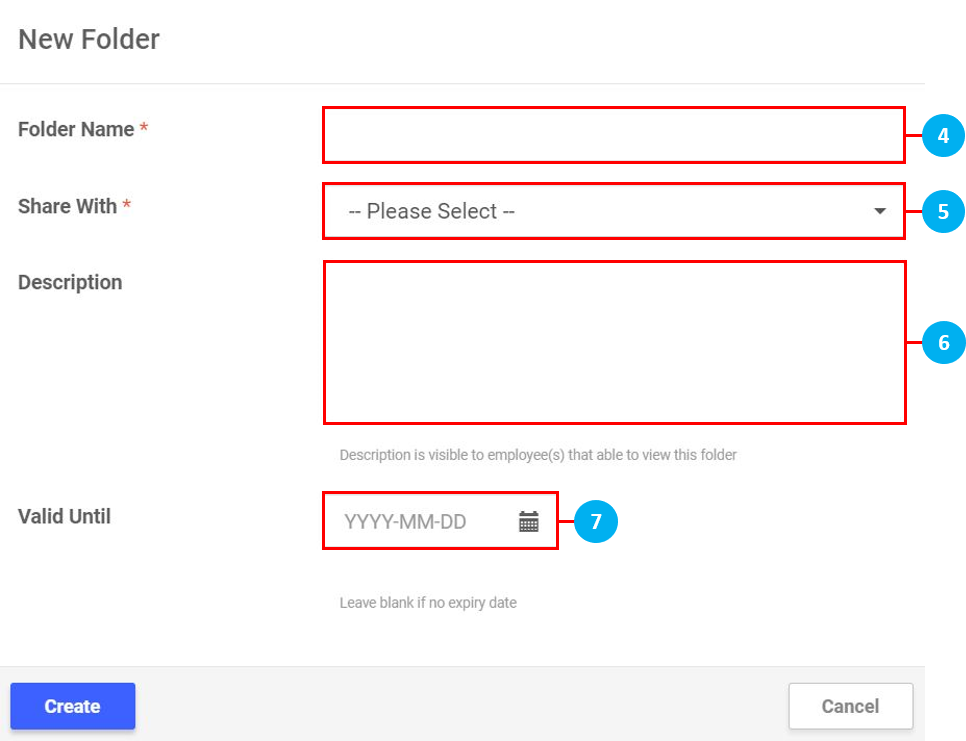
 icon to select an expiry date for the folder, if needed. Once done, click Create.
 icon to view the details of the folder.
 icon to edit the details of the folder, or delete the folder.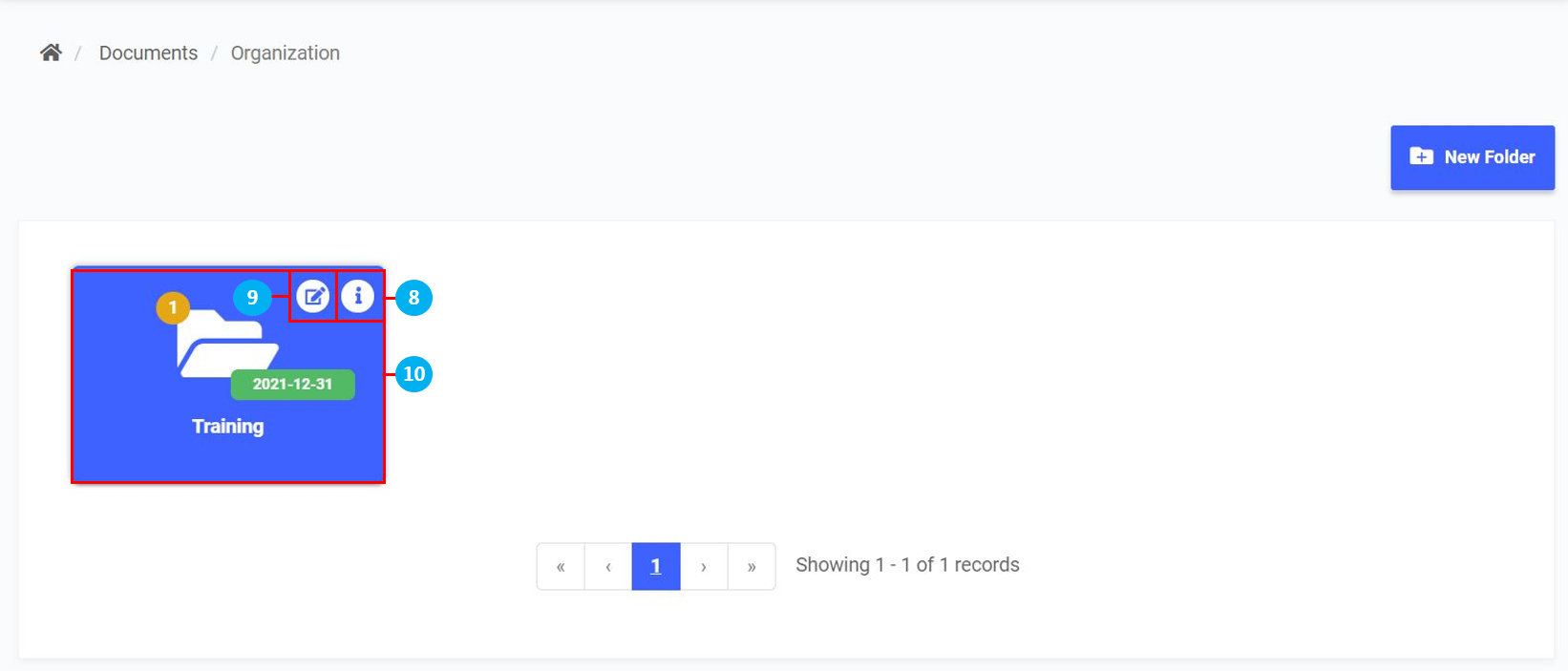
 icon to delete the file if required.