In this article, learn how to import your Payslip history when you make the switch to HerdHR Payroll by using the following steps:
To Import Payslip History:
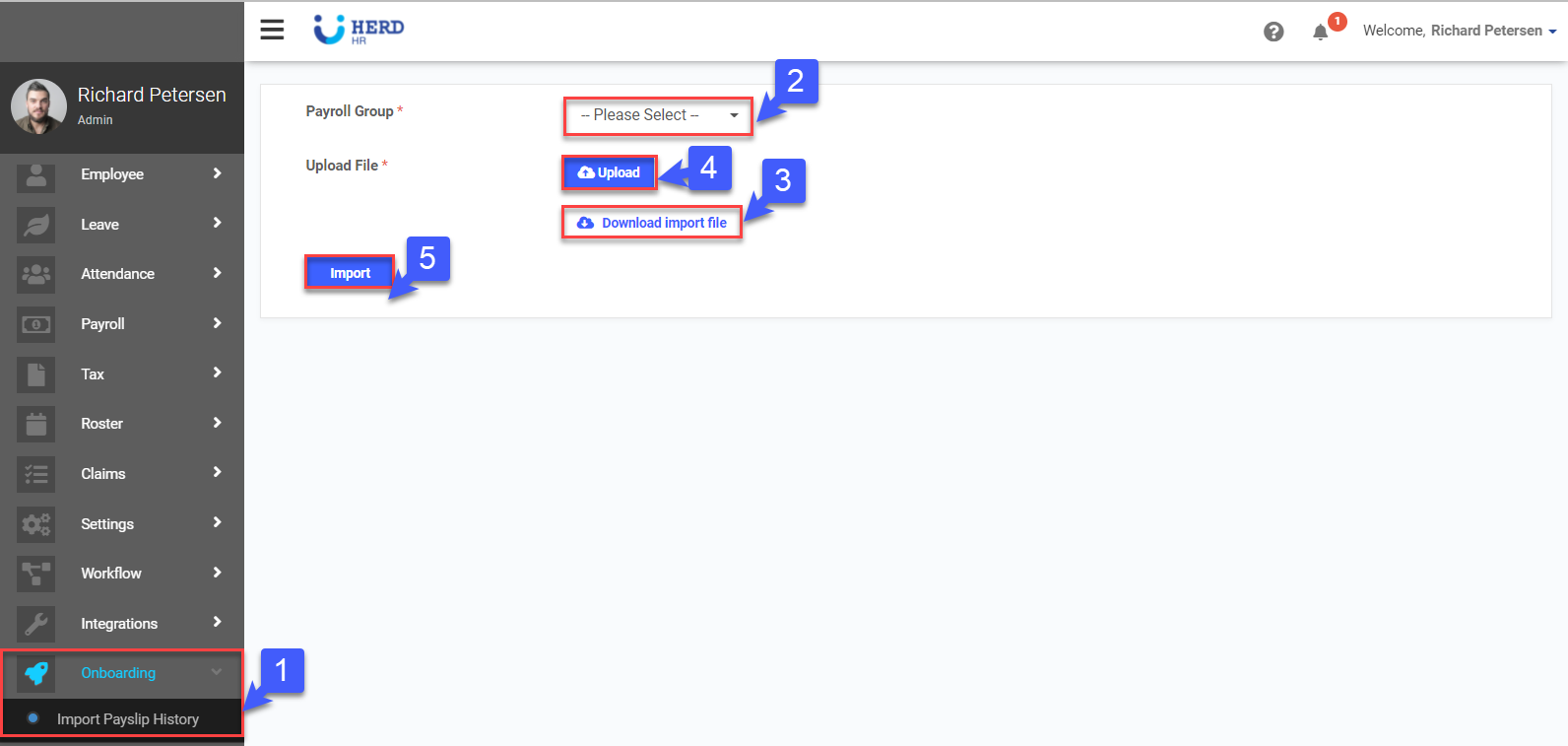
- On the left sidebar menu, Click Onboarding > Import Payslip History
- Select Payroll Group from the drop down menu
- Click Download import file, fill in the required fields and save the file
- Upload the saved import file
- Click Import
Filling In The Import File
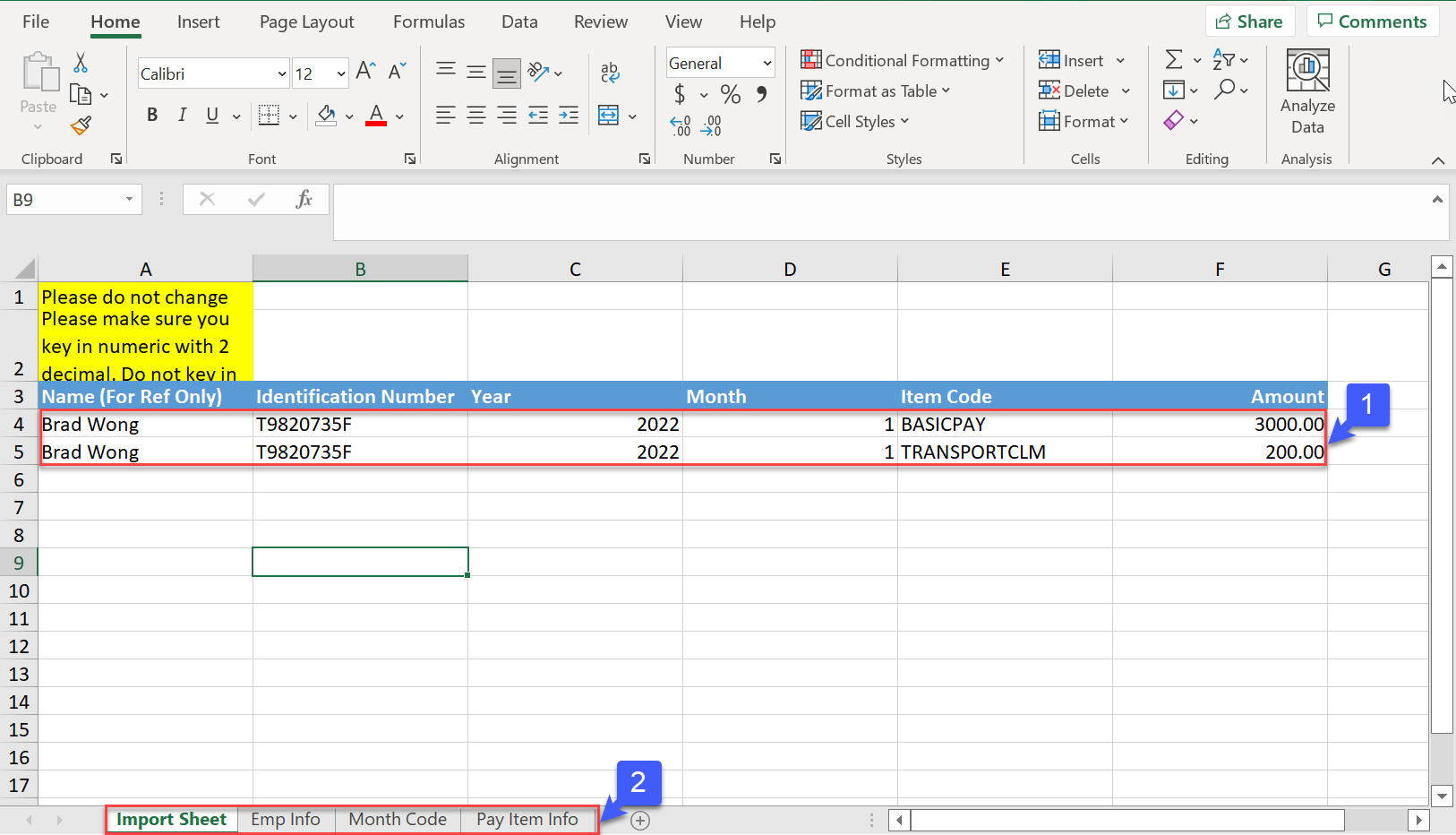
- Fill in all the required information
- From the information already keyed into the system when creating the Employee's profile, the Emp Info, Month Code and Pay Item Info tabs will auto populate. Use these codes to fill in the Import Sheet
Employee Info Tab
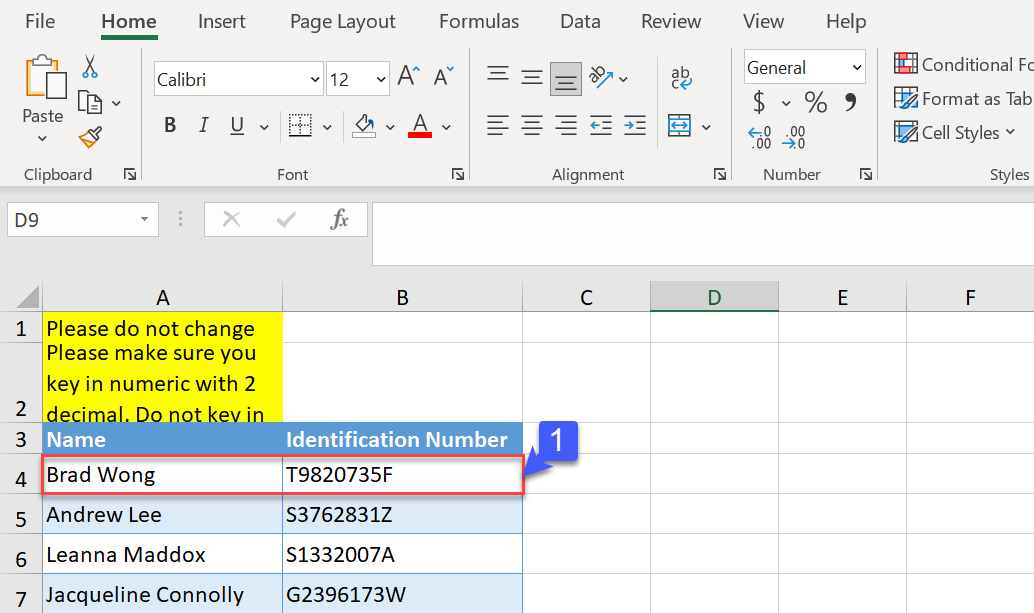
- Use the Identification Numbers as displayed in the Emp Info tab
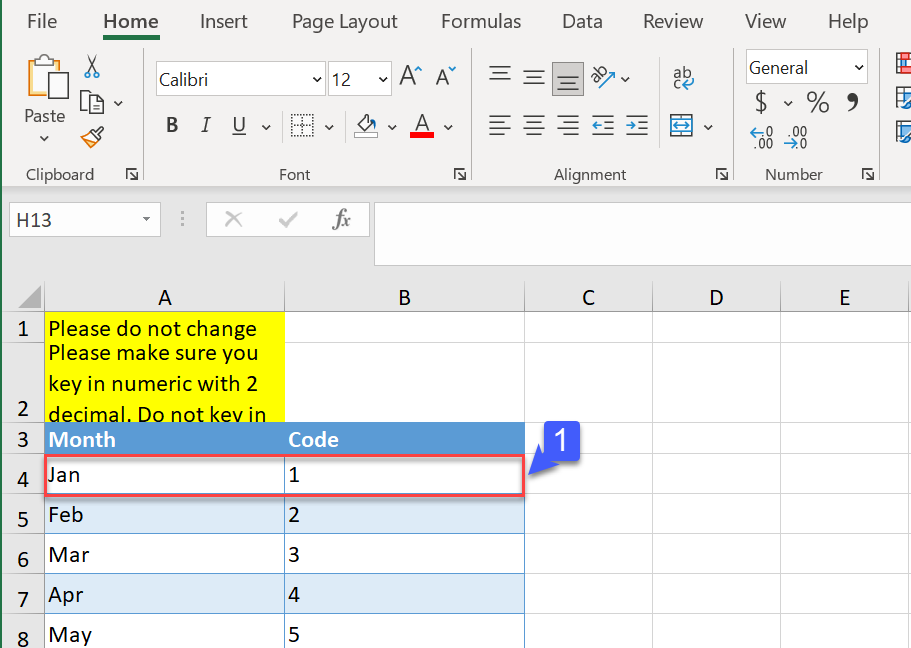
Month Code Tab
- Use the codes in the Month Code tab
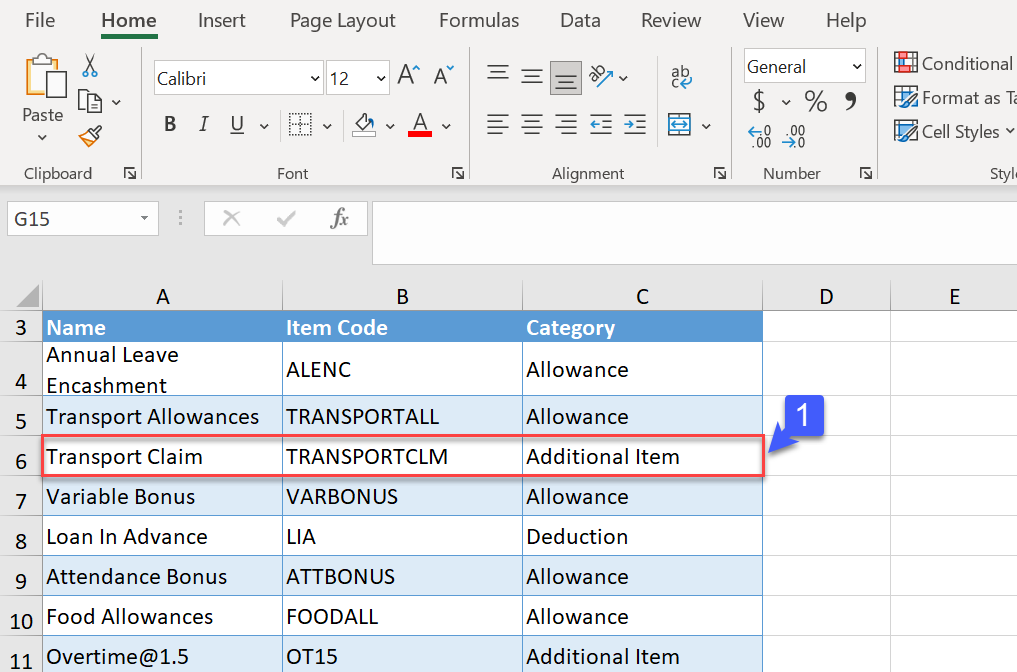
Pay Item Info Tab
- Use the codes in the Pay Item Info tab. These codes would have been generated when Pay Items were created in Settings > Pay Item
Upload Import File
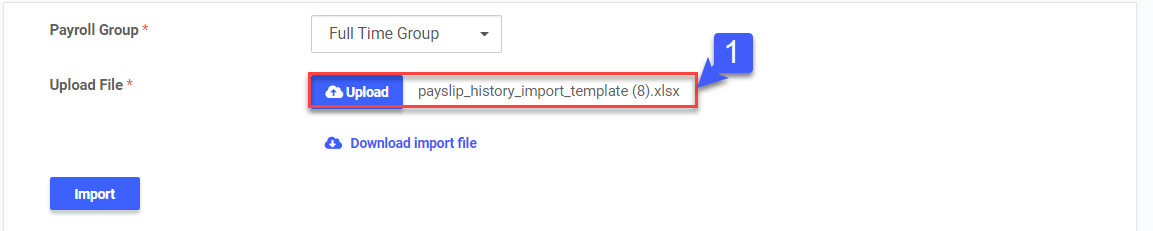
- Click Upload
- The filename of the file uploaded "payslip_history_import_template.xlsx" will be displayed
Import Payslip History
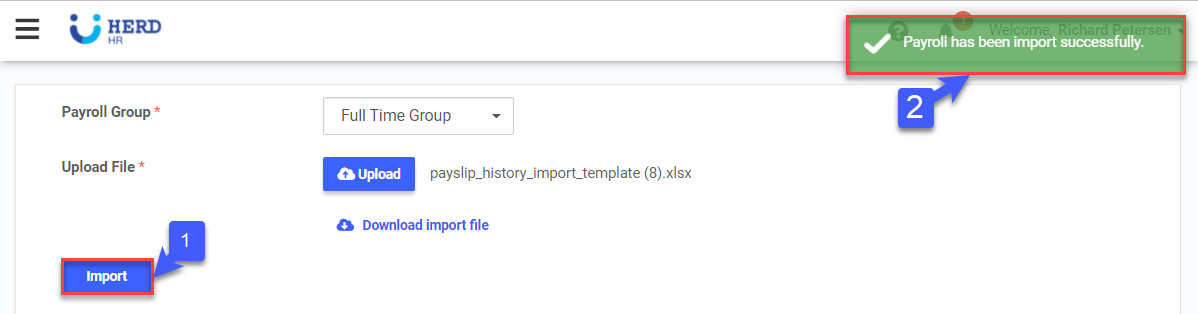
- Click Import
- A confirmation message that the Payroll has been imported successfully will appear
Finalized Payroll Batch
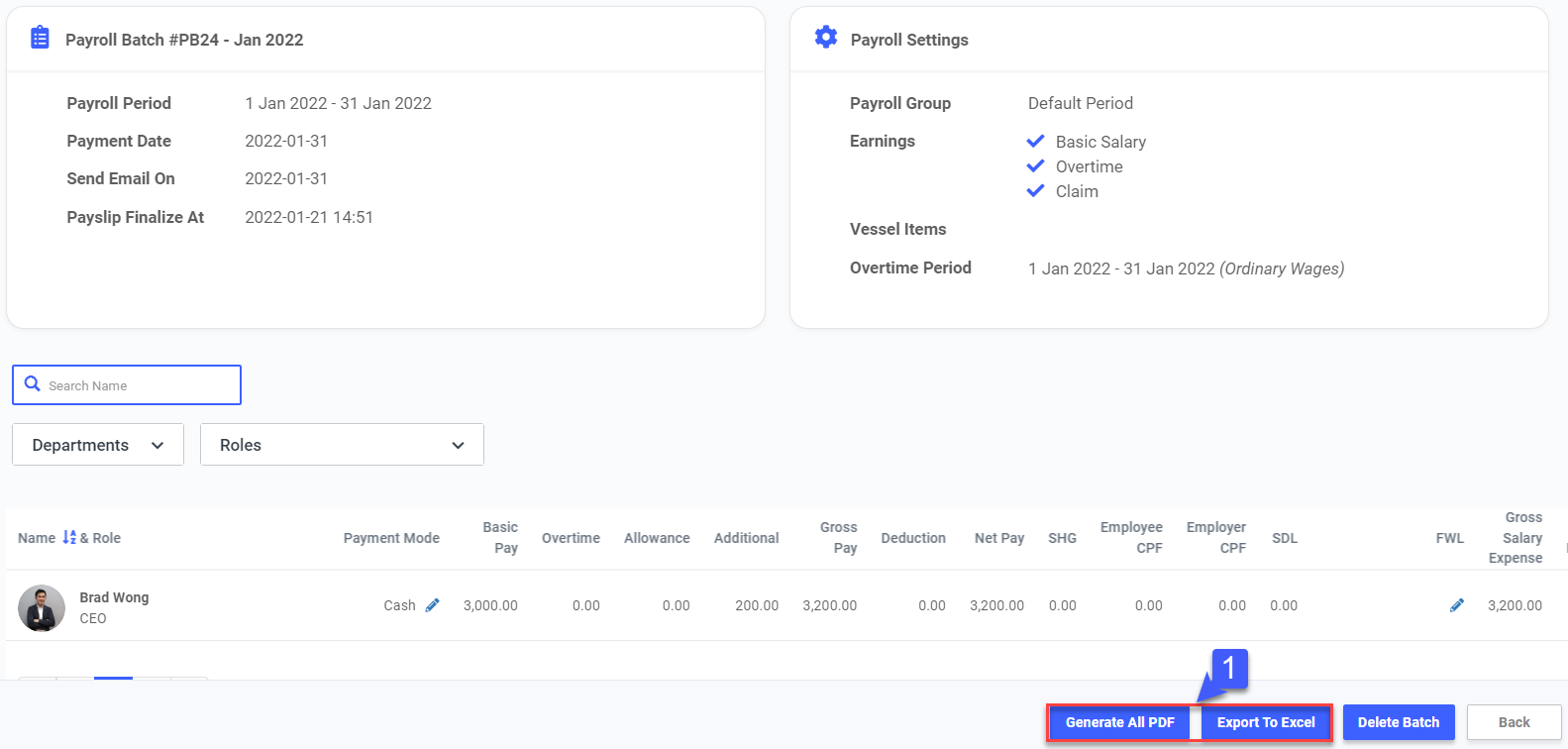
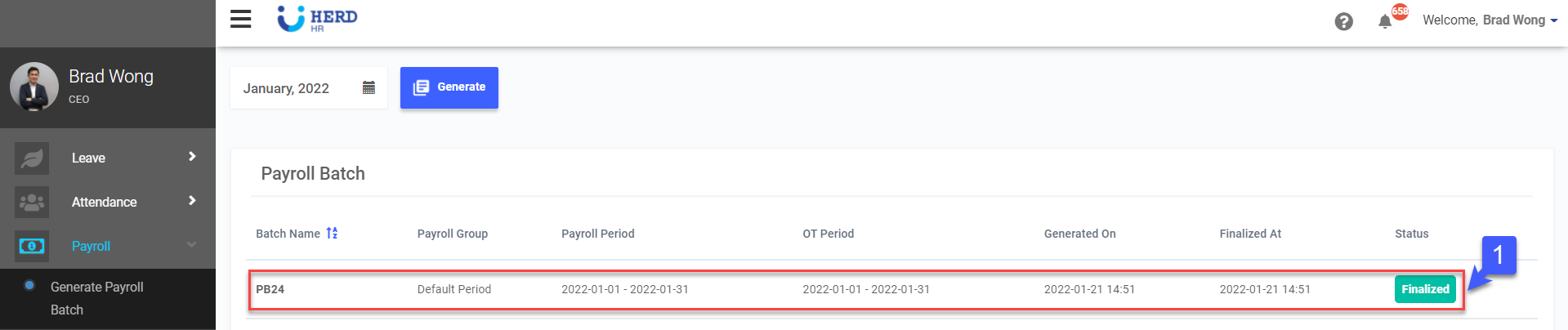
- A finalized Payroll Batch will appear in Payroll > Generate Payroll Batch for the selected month. Payroll Batch is now locked and labelled as Finalized. Click on the batch to check that the information uploaded is accurate
Export Payslip
- Export to PDF or Excel if required