Managing Attendance - Exceptions, Reviewing & Editing Timesheet
When exceptions are detected, it does not stop you from acknowledging your timesheet like a missing start / end work time does. However, the integrity of this record might be questionable and requires verification.
How to identify timesheet errors
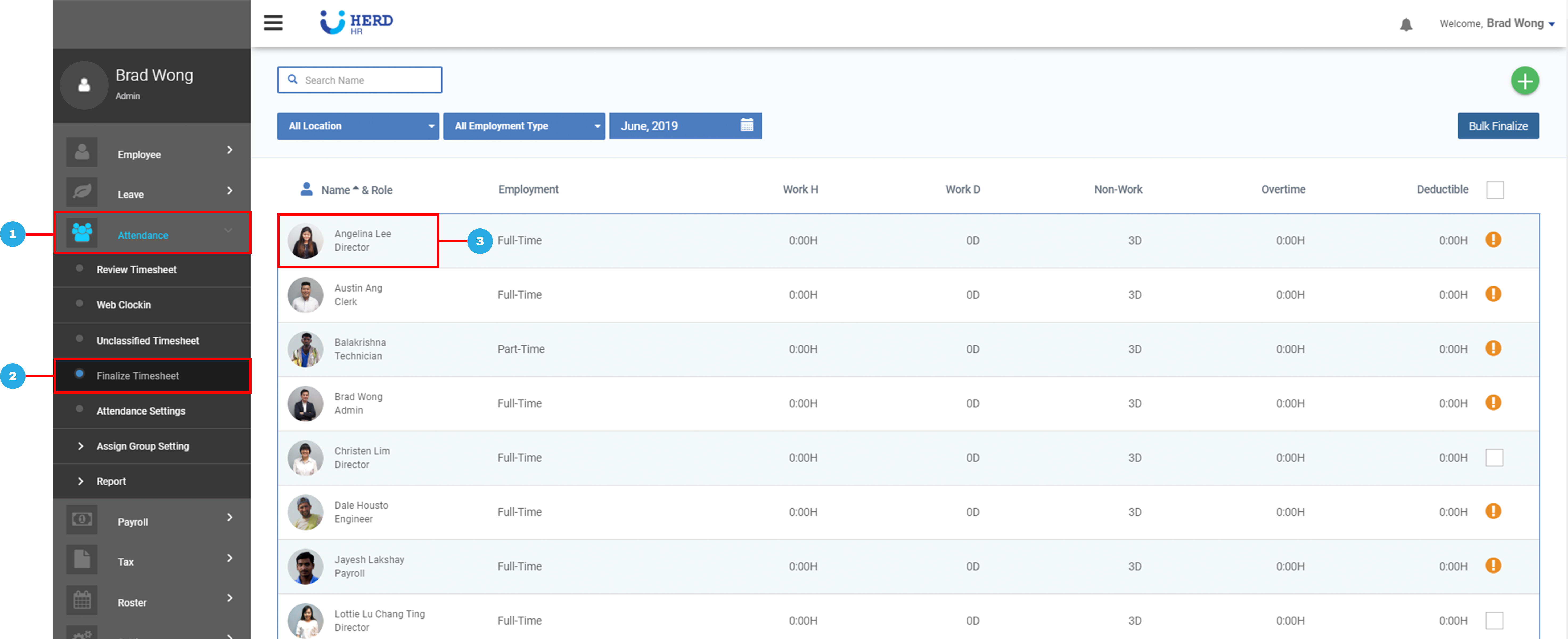
- On the left sidebar menu, Click Attendance
- Click Finalize Timesheet
- Select an employee profile by clicking the employee’s name to view the monthly attendance record
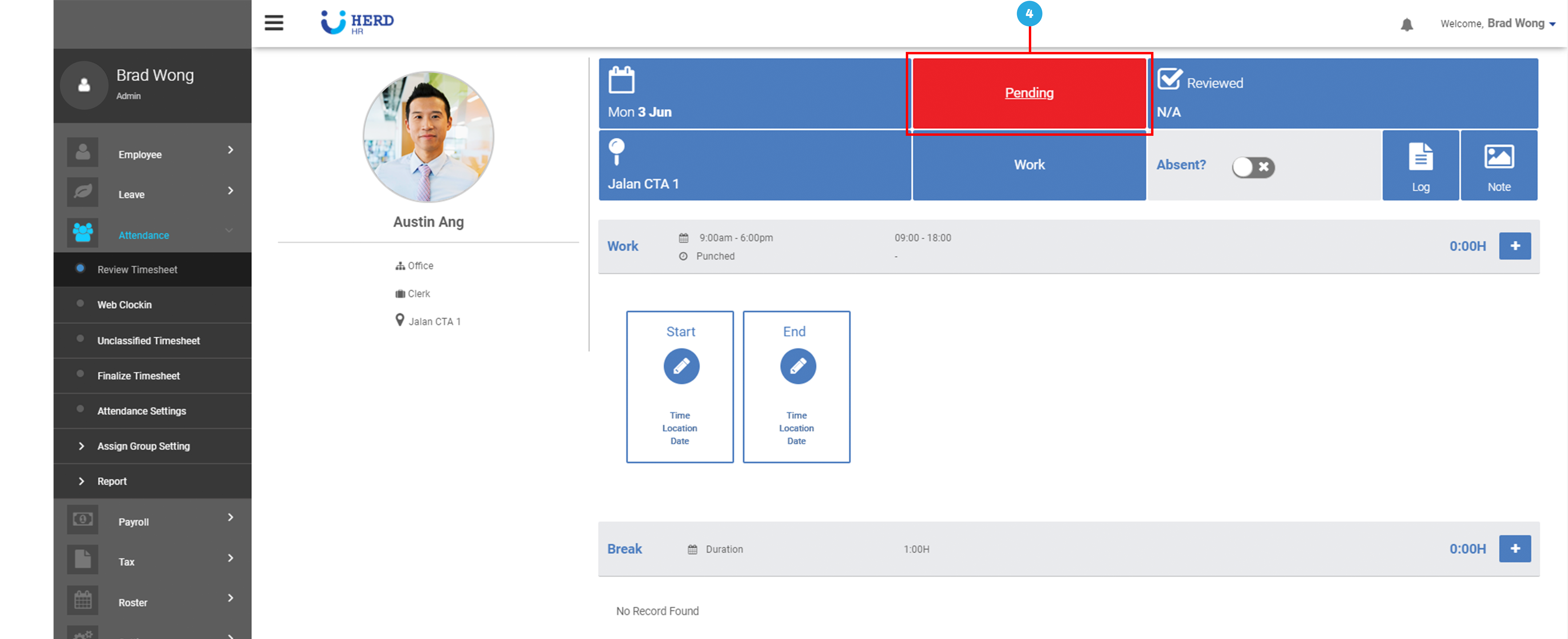
- Click either the Red Pending Rectangle or Yellow Bar within the employee’s profile
- An error notice will appear
Here are the 3 common timesheet errors:
Missing Start/End work time
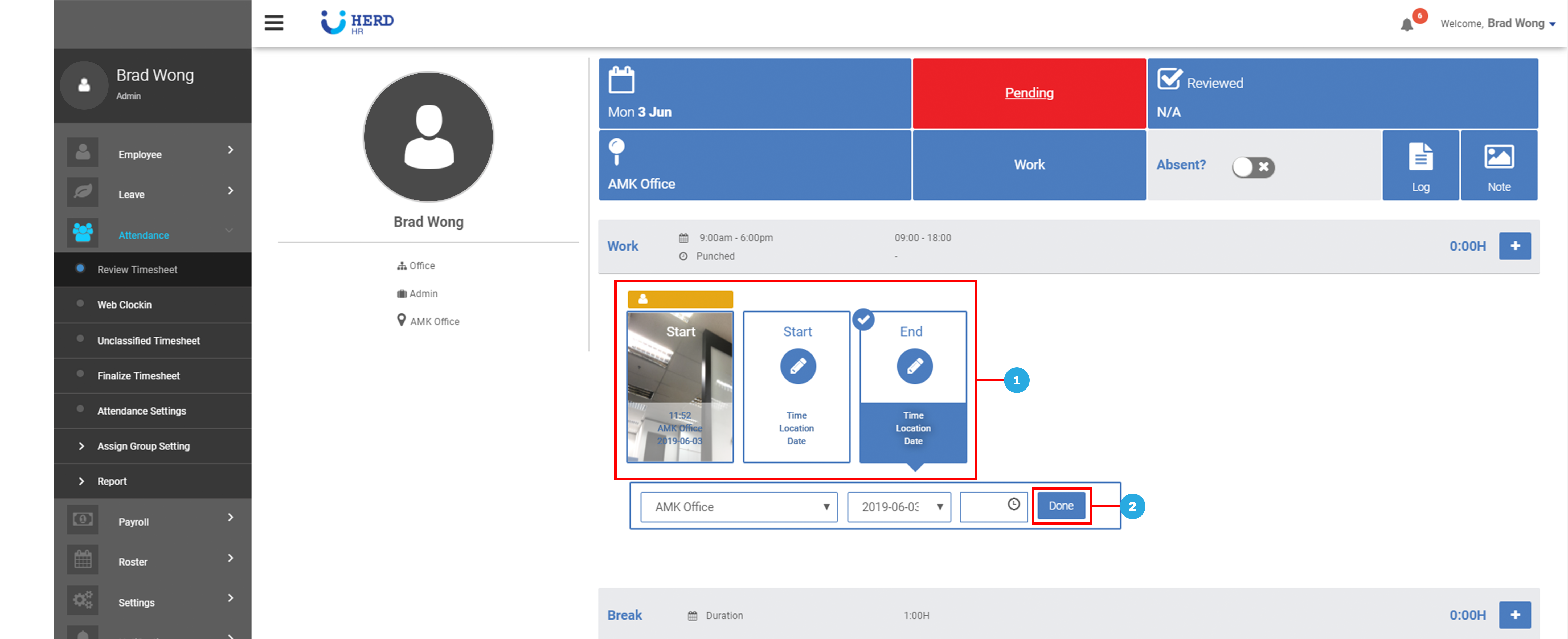
Occurs when an employee forgot to either clock in or clock out. Pending section will be highlighted in Red to signify no clock-in / clock-out time for this employee
- Click on Red Pending Section to find out the issue with the timesheet
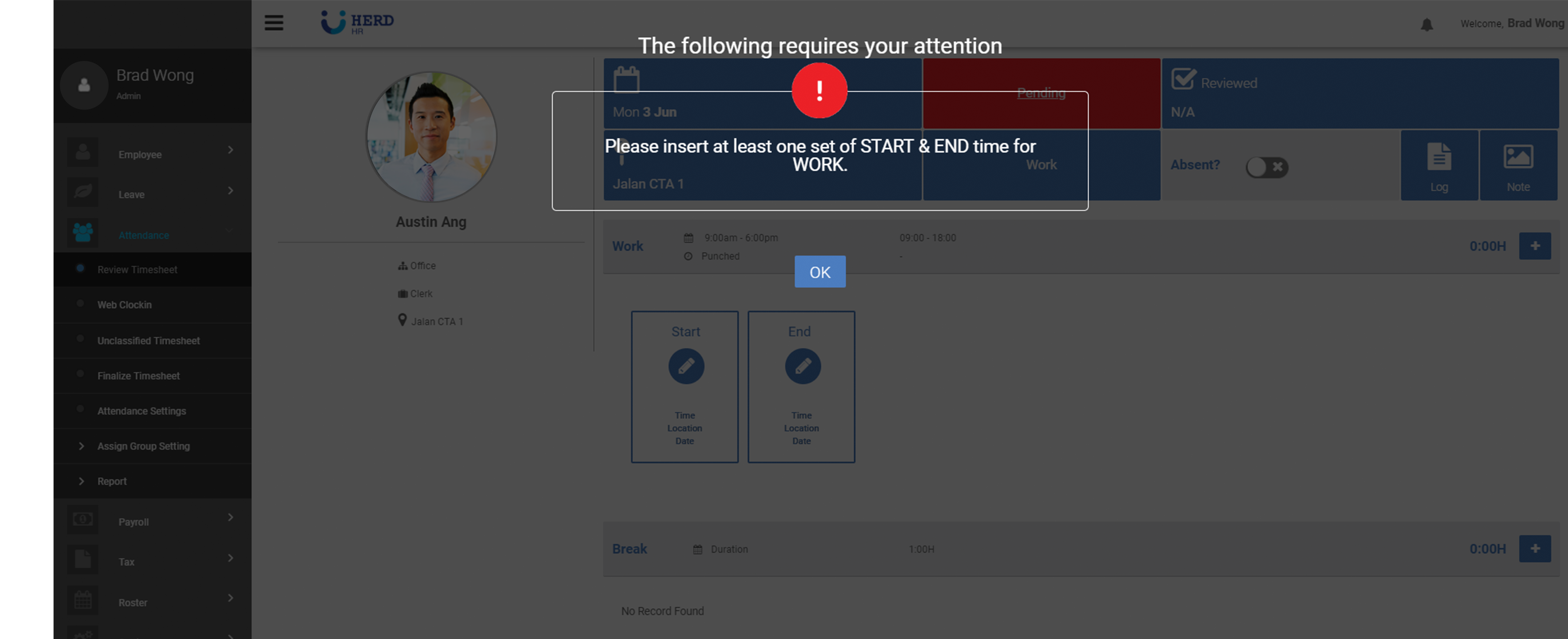
To resolve this error:
- Click Start/End icon to edit the location, time and date
- Click Done
Facial Recognition Mismatch
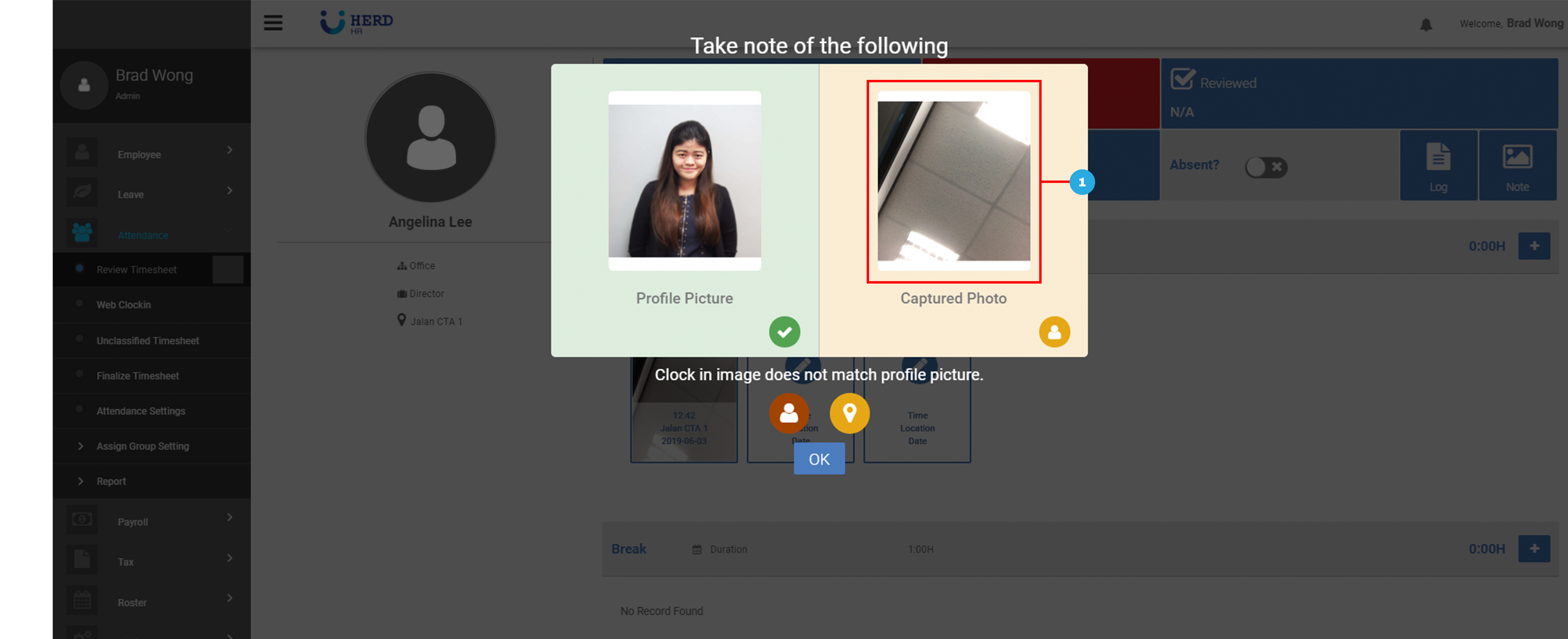
This occurs when the clock in photo has a low % match with your first attendance photo taken.
- Click on Yellow Section to find out the issue with the timesheet
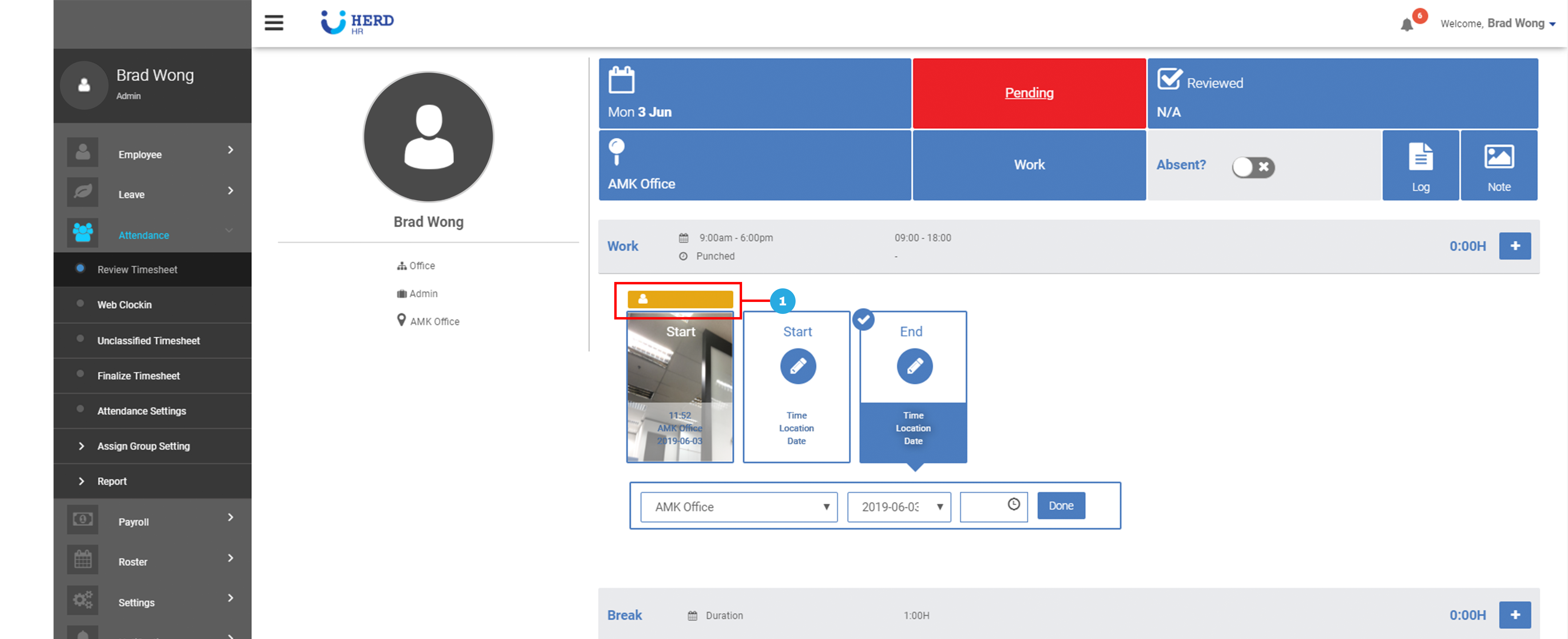
- Mousing the cursor over the Captured Photo will show the % match of the two images
- Facial Recognition Mismatch cannot be resolved
GPS Location Error
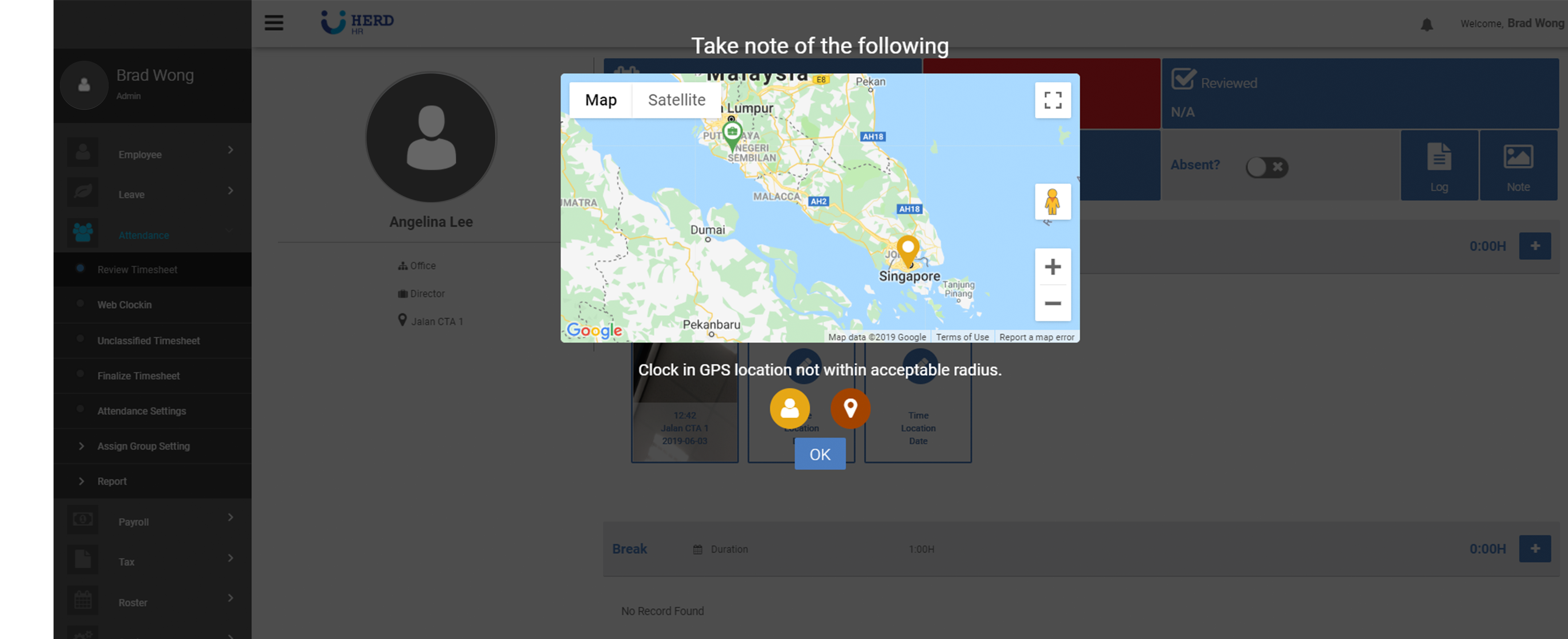
This occurs when the employee’s actual clock in location is too far away from the assigned work location he / she is supposed to clock in at.
- Click on Yellow Section to find out the issue with the timesheet
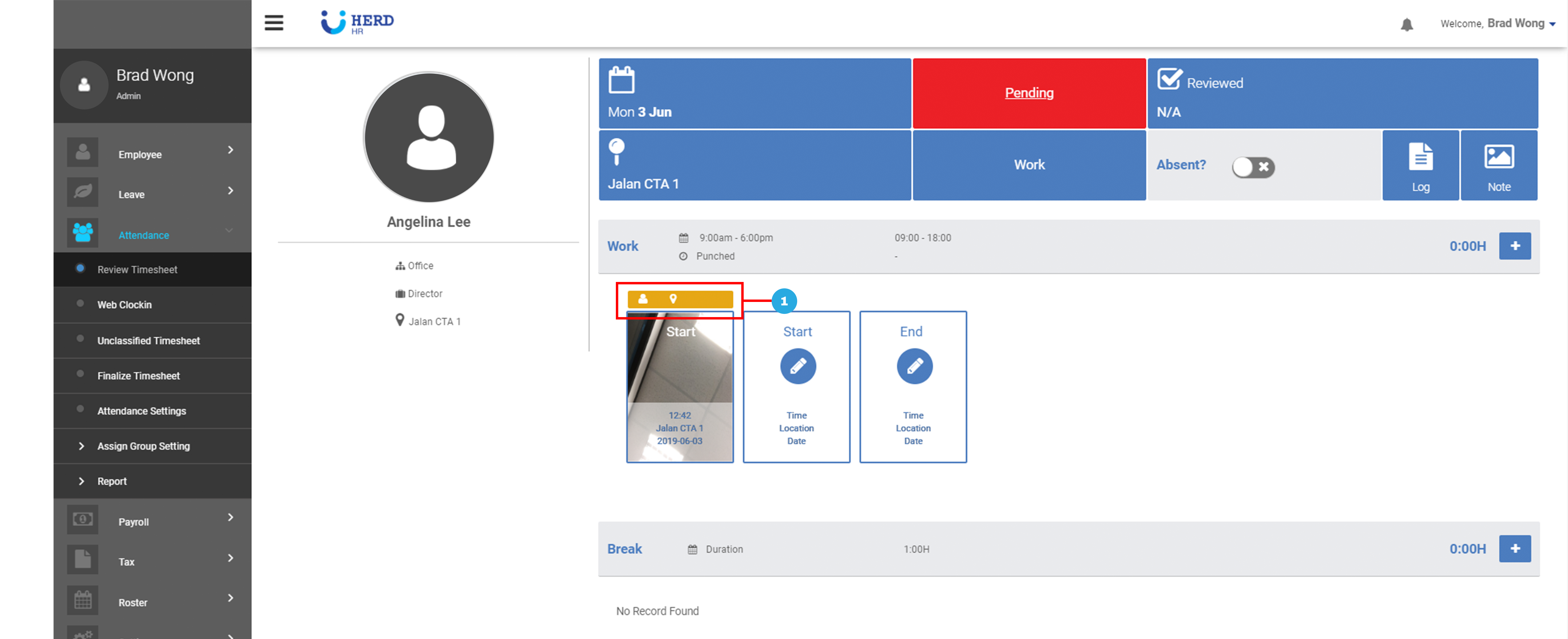
- GPS Location Error cannot be resolved