To make a Claims Application:
- On the left sidebar menu, click “Claims”.
- Click "My Claims".
- Filter through the existing Claims submitted by status of the application using the drop down list.
- Click on the
 icon to create a new Claims application.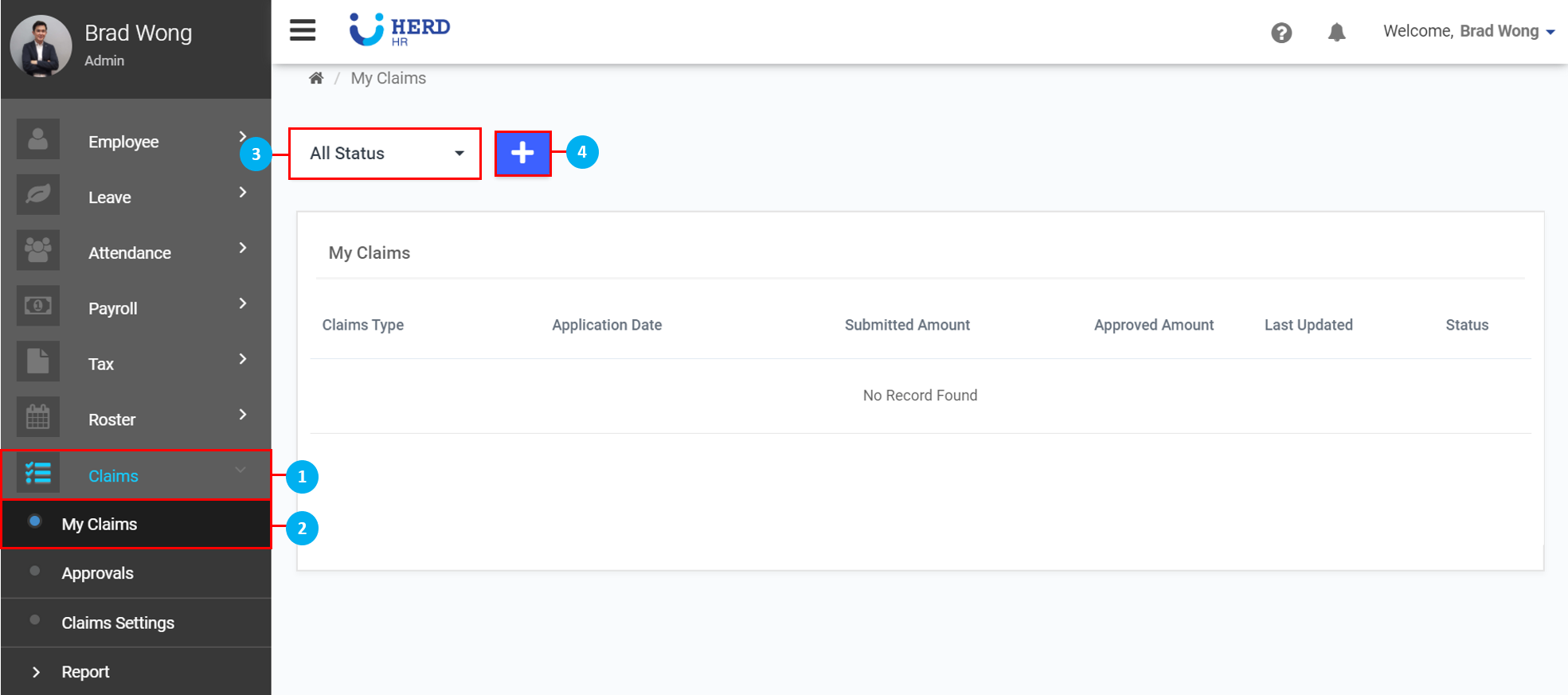
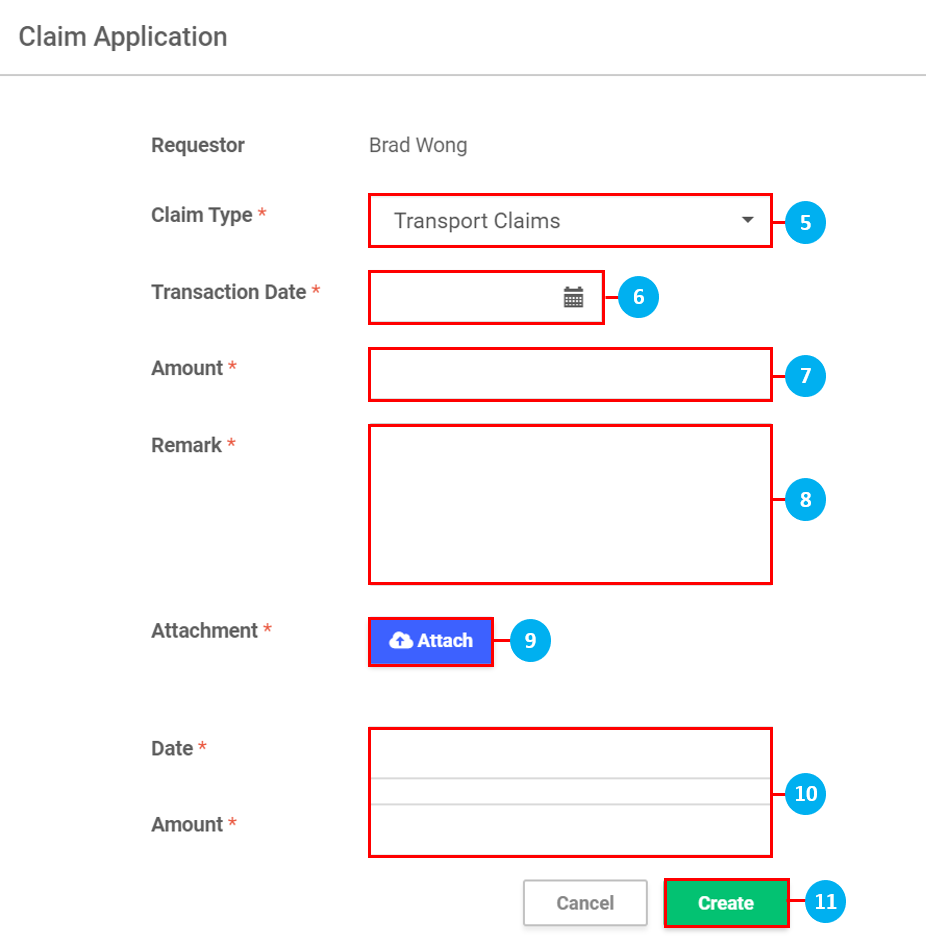
- Select the Claims Type from the drop down list.
- Click on the
 icon to select the Transaction Date of the claim.
 - Key in the Amount of the claim.
- Key in a Remark for the claim.
- Click on the
 icon to upload attachments for the claim. (*Note: This option will become available when the "Attachment Required" toggle button is switched on when this Claim Type was created.)
 - The "Custom Fields" created will appear under the "Remarks" / "Attachment Required" (if selected) fields.
- Once done, click Create. Once created, the Claim will appear with a
 icon in "My Claims".