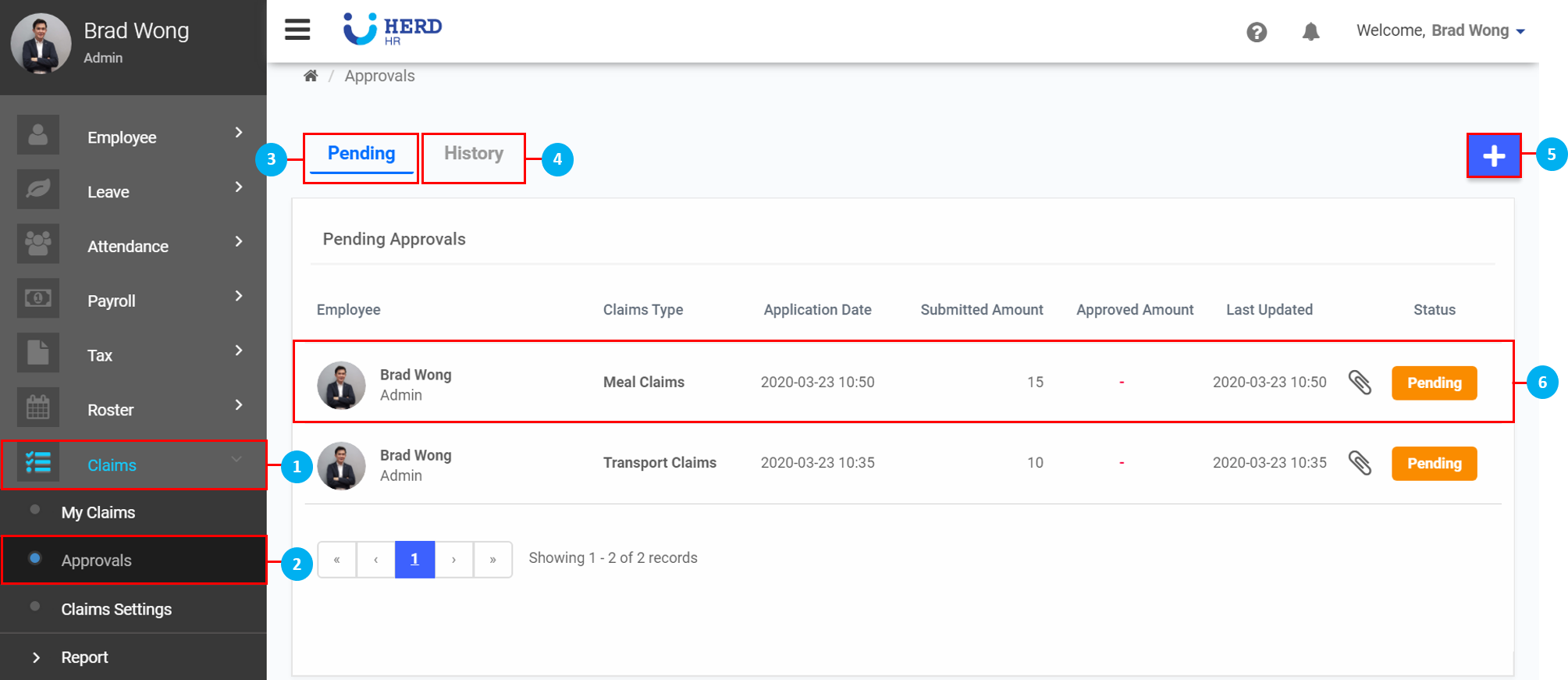
To check a Claims Application:
- On the left sidebar menu, click “Claims”.
- Click "Approvals".
- Click "Pending" to view Claims that are pending approval.
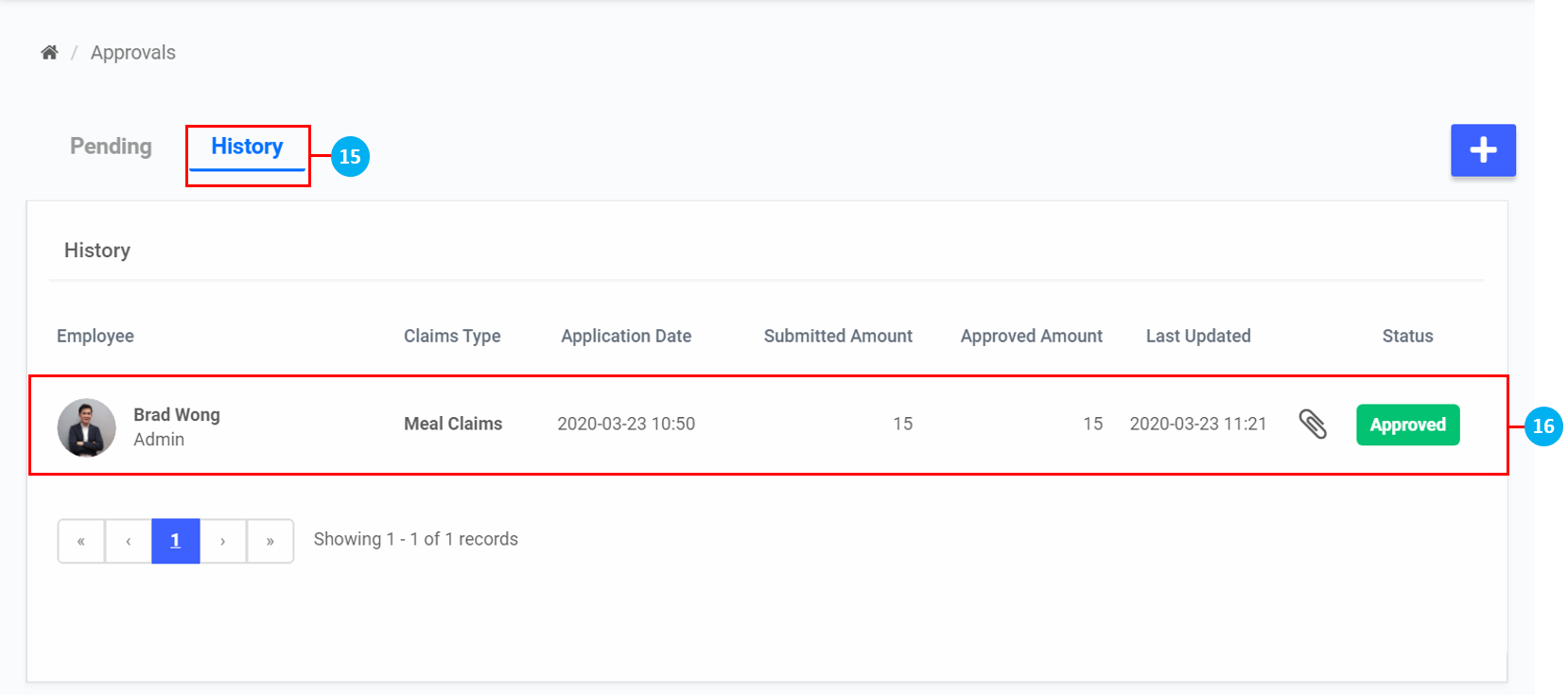
- Click "History" to view Claims that have been processed.
- Click on the
 icon to create a new Claims application on behalf of an Employee.
 - Click on a Claims application to process the application.
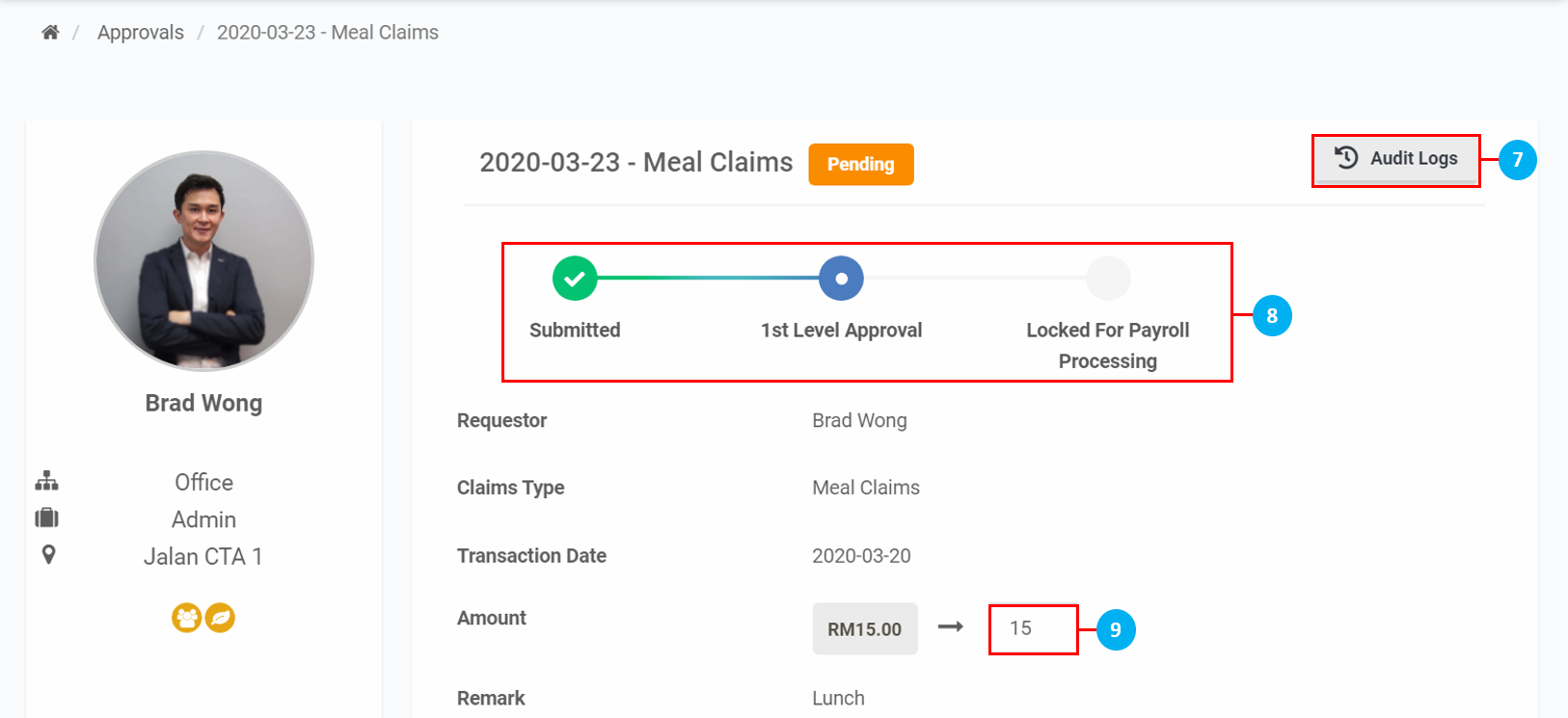
- Click on the
 icon to view the history of changes made during the processing of this Claims Application.
 - View the progress of the approvals process here.
- Key in a different amount for the Claim if necessary.
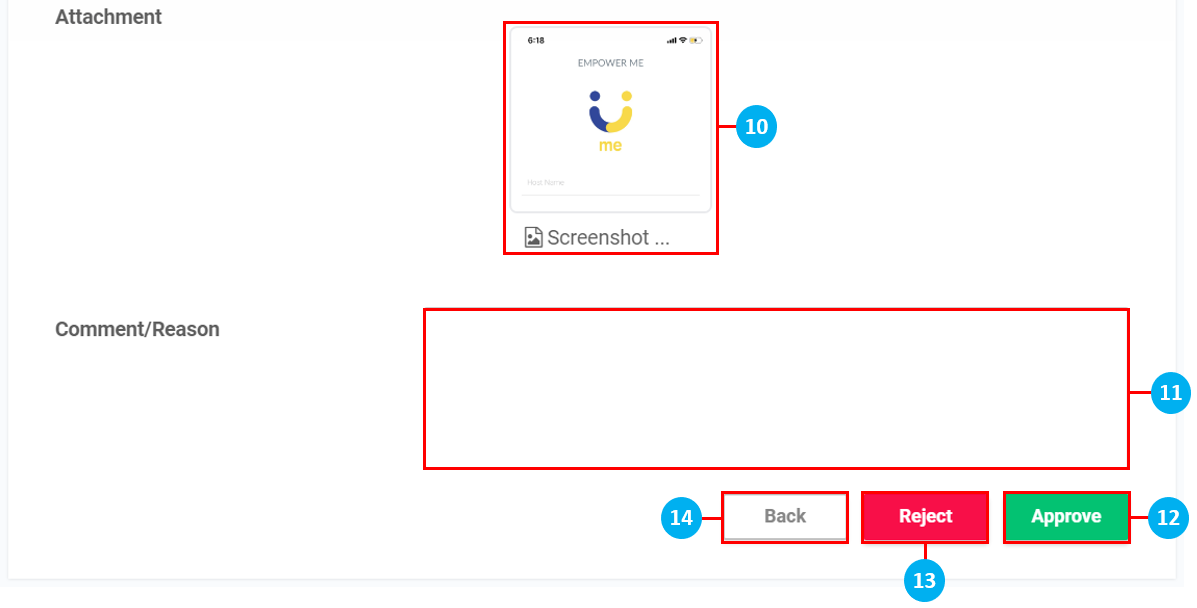
- Click to view the attachment. Once done, click OK.
- Key in any comments / reasons for approval / rejection of the Claim if necessary.
- Click Approve to approve the Claim.
- Click Reject to reject the Claim.
- Click Back to return to the previous page.
- Approved / rejected Claims will appear in the History tab.
- Click on a Claims application to view the approval details.
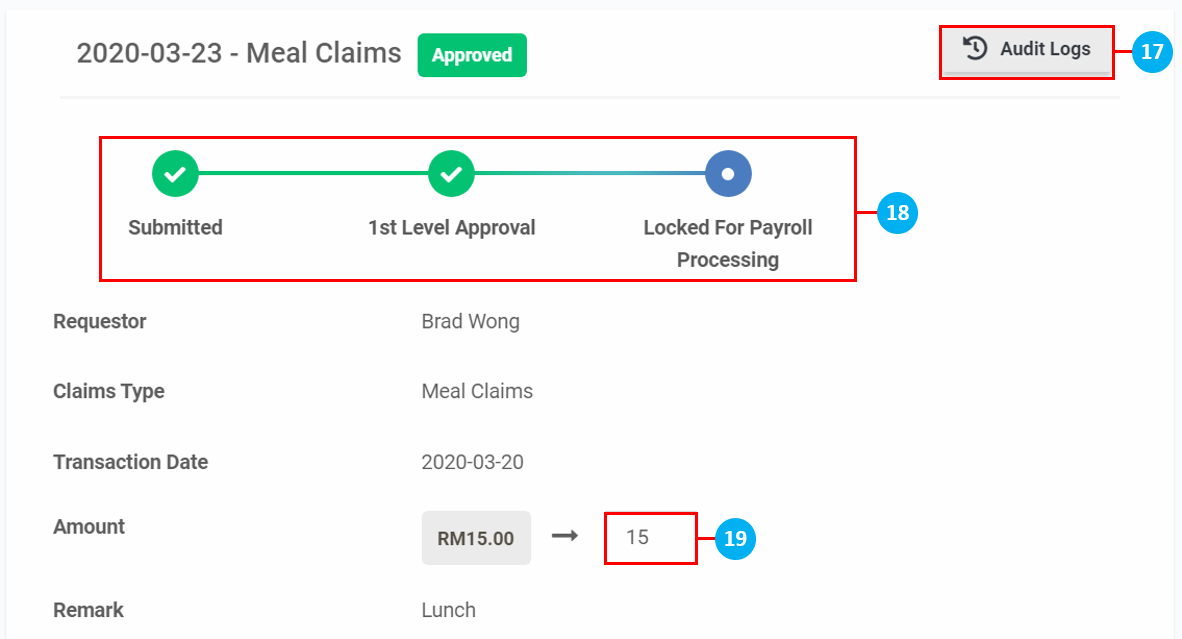
- Click on the icon to view the history of changes made during the processing of this Claims approval.
- View the progress of the approvals process here. Once all the Levels have approved the Claim, it will be "Locked For Payroll Processing".
- The approved Claim amount can still be changed at this stage. (*Note: Once the Claim has been "Locked For Payroll Processing", this Employee's payslip will need to be regenerated for the change in amount to be reflected in the upcoming payroll batch.)
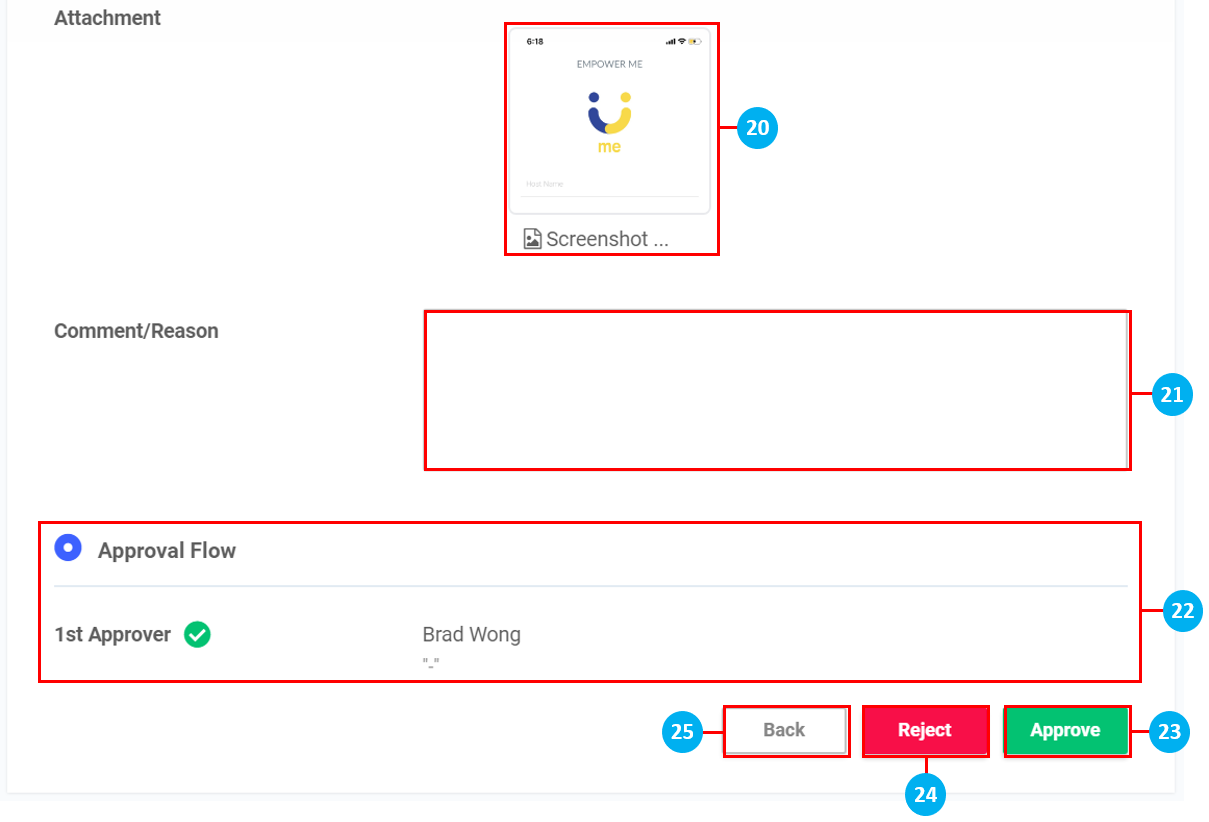
- Click to view the attachment. Once done, click OK.
- Key in any comments / reasons for approval / rejection of the Claim if necessary.
- View the Approval Flow here.
- Click Approve to approve the Claim.
- Click Reject to reject the Claim.
- Click Back to return to the previous page.