Running Payroll - Generation of Reports
Besides generating payroll documents, you can also view your payroll reports to obtain a more comprehensive payroll summary.
Generating Payroll Reports
- Working history Report
- Payroll Detail Report
- Payroll History Report
- Payroll YTD (Year To Date) Report
- Leave Costing Report
Working History Report
- On the left sidebar menu, Click Payroll
- Click Report
- Click Working History Report
- Fill in all the fields
- Click Generate to obtain the working history report of all/selected employee(s)
- Click Export to Excel, if required

*Note: Ensure that pop-up blocker is turned off
Payroll Detail Report
- On the left sidebar menu, Click Payroll
- Click Report
- Click Payroll Detail Report
- Select Year and Month
- Select the type of payroll batch (All payroll batch, finalized, pending)
- Toggle off Check Variance (Shows payroll variance between 2 months)
- Click Generate
- Click Export to Excel, if required

*Note: Ensure that pop-up blocker is turned off
Payroll History Report
- On the left sidebar menu, Click Payroll
- Click Report
- Click Payroll History Report
- Select the month and year
- Key in Employee Name, if desired
- Click Generate
- Click Export to Excel, if required

*Note: Ensure that pop-up blocker is turned off
Payroll YTD Report
- On the left sidebar menu, Click Payroll
- Click Report
- Click Payroll YTD Report
- Select the start date and end date
- Select the Cost Center
- Key in Employee Name, if desired
- Click Export
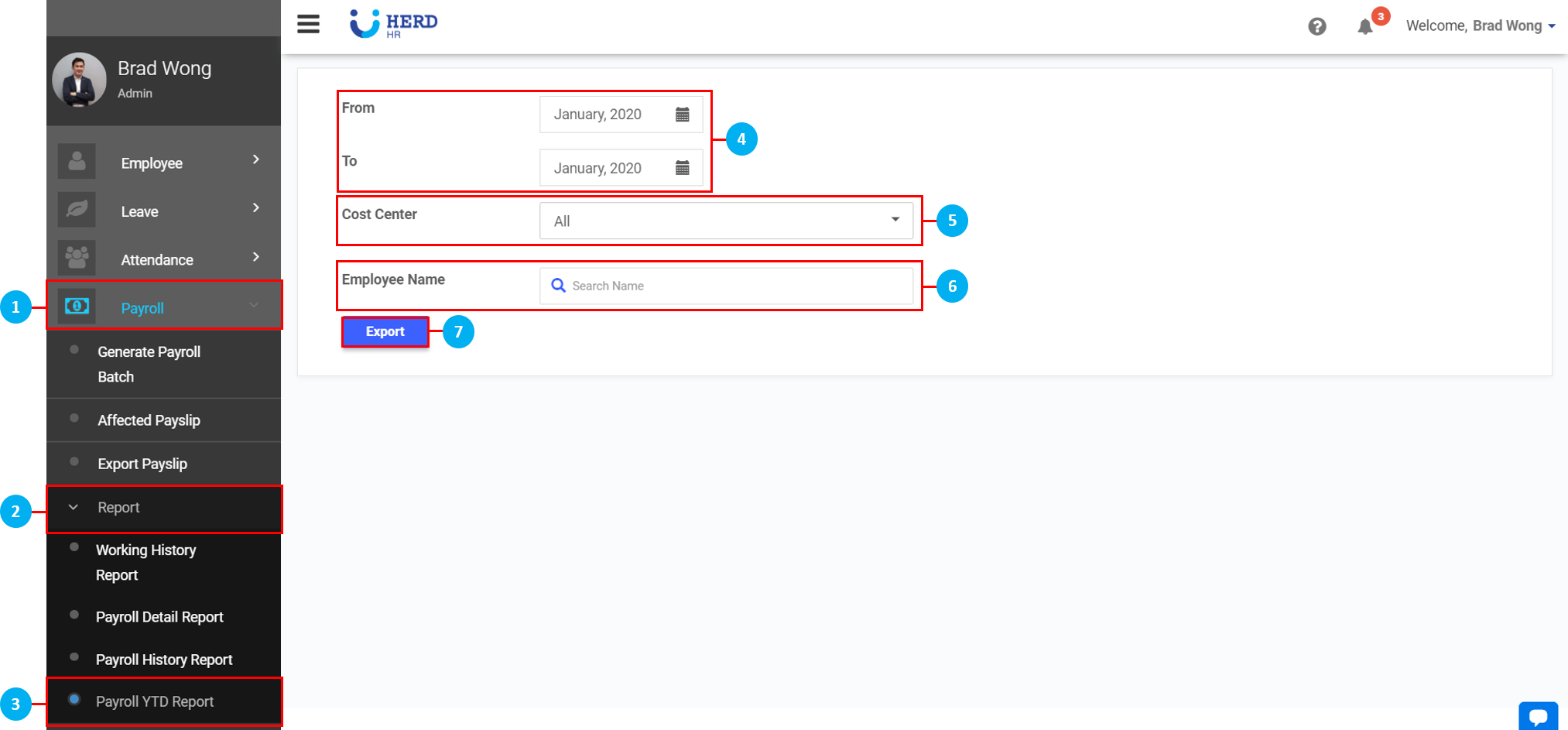
*Note: Ensure that pop-up blocker is turned off
Leave Costing Report
- On the left sidebar menu, Click Payroll
- Click Report
- Scroll down and click Leave Costing Report
- Select the Leave Balance's Date
- Select the Leave Type
- Select the Cost Center
- Select the Department
- Select the Role
- Select whether to Group By Cost Center or Department
- Key in Employee Name, if desired
- Turn the toggle on to Include Ceased Employees
- Click Generate
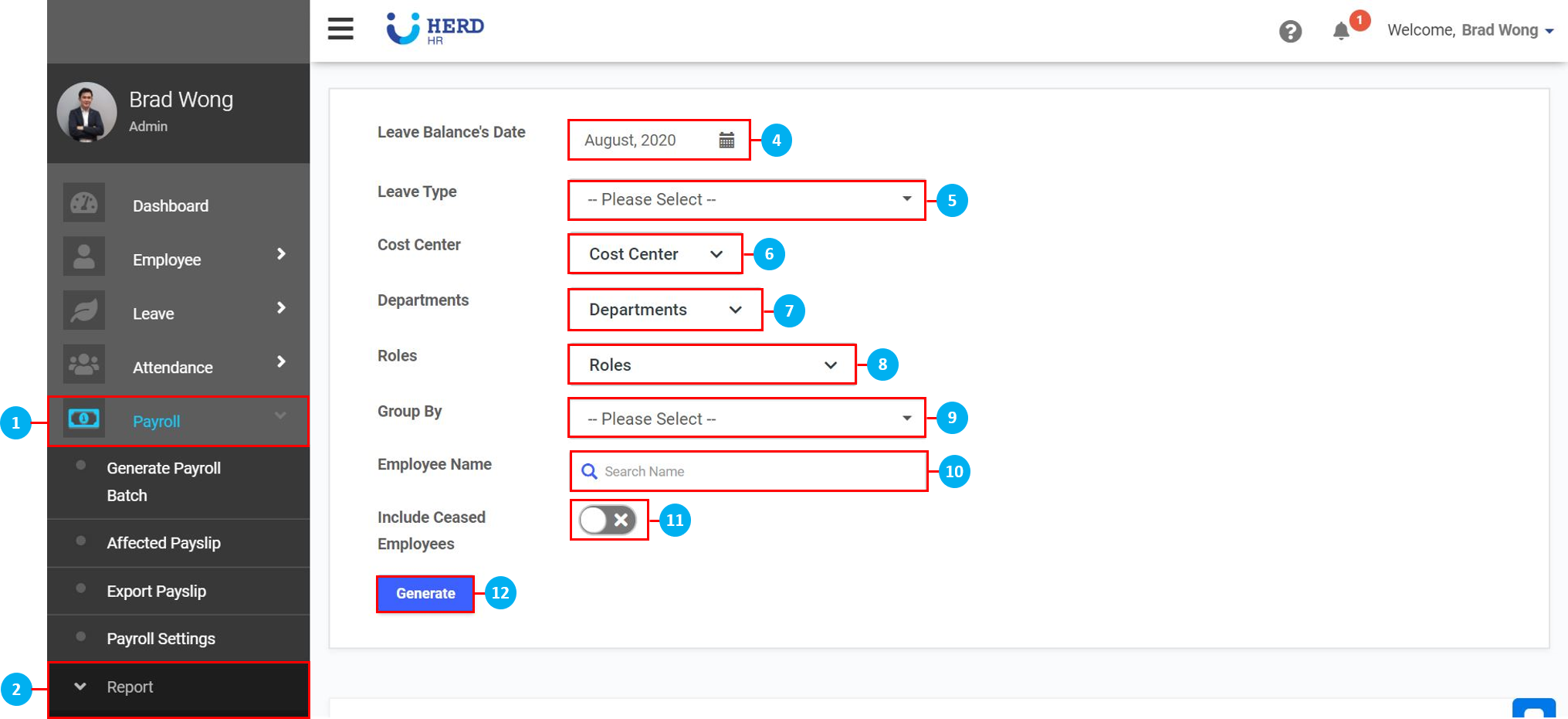
*Note: Ensure that pop-up blocker is turned off