User Profile Set up - Attendance Setting
To configure employees’ Attendance Setting after the employee profile has already been created, simply Click Employee on the left sidebar menu > Click Profile > Select desired Employee > Click on the Attendance tab at the top.
Configuring Employees’ Attendance Setting
Step 1: Configuring Basic Attendance Setting
Step 2: Configuring Employee Work Calendar
Step 3: Setting up OT & Deductions
- No OT and Deductions
- Use Working Hours (e.g 9AM - 6PM)
- Use Work Hours (e.g. 10HRS)
- Hourly Rated
- Monthly & Daily Rated
- Compare Work Hours with Hours to Pay OT
Step 1: Configuring Basic Attendance Setting
- Click “
 ” to select Effective from date (the month Attendance Settings takes effect from)
 - Select where Attendance will be calculated from (Employee Work Schedule as default)
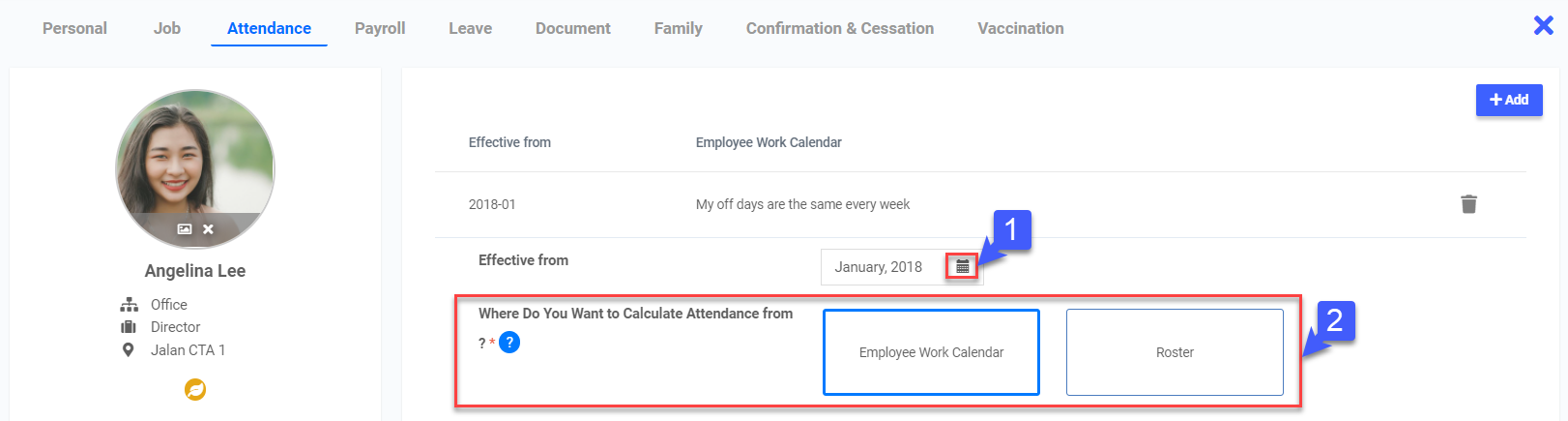
Step 2: Configuring Employee Work Calendar
Not Paid For Break
- Toggle Paid Basic for Work On Holiday on or off if required
- Toggle Paid for Break OFF
- When break is not paid, select where to deduct unpaid break from (Scheduled break / Clocked break)
- If Scheduled break is selected, toggle if there will be a deduction if user does not clock break
- Toggle if there will be a deduction if additional duration exceeding scheduled break is taken
- Toggle to pay for remaining break if break ends early
- Key in duration for which unpaid break will not be deducted
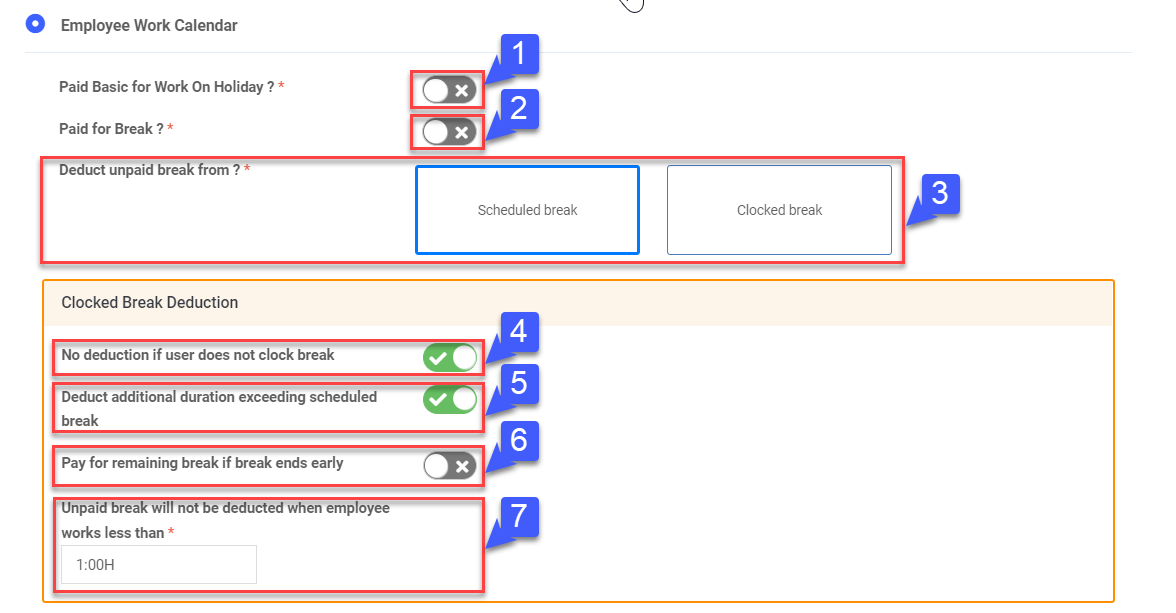 *Note: Select Scheduled Break to deduct pay based on the scheduled break hours per day you entered earlier in Settings > Shifts & Breaks. Select Clocked Break to deduct pay based on actual clocked in & out break time
Paid For Break
- Toggle Paid for Break ON
- Select whether off days are fixed or differs each week
- Select Maximum Number of Work Day per week (applicable only when off days differ every week)
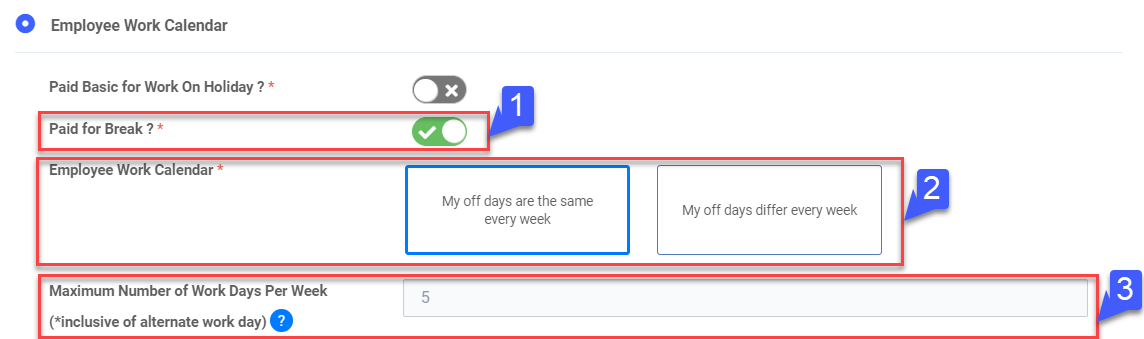
- Toggle Has Half Day?, if required
- Select if half day scheduled is Fixed Every Week
- Select which day of the week it is fixed on
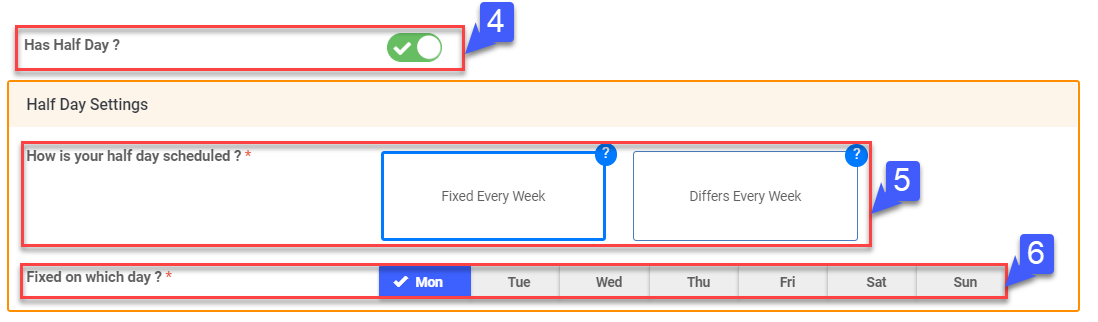
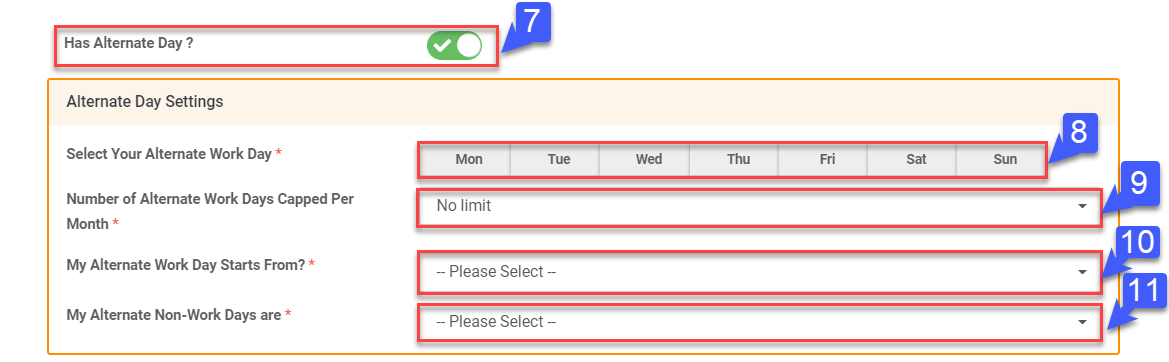
- Toggle Has Alternate Day?, if required
- Select Your Alternate Work Day by clicking on the day
- Select the Number of Alternate Work Days Capped Per Month from the drop down list
- Select My Alternate Work Day Starts From? from the drop down list
- Select My Alternate Non-Work Days are Off Days / Rest Days from the drop down list
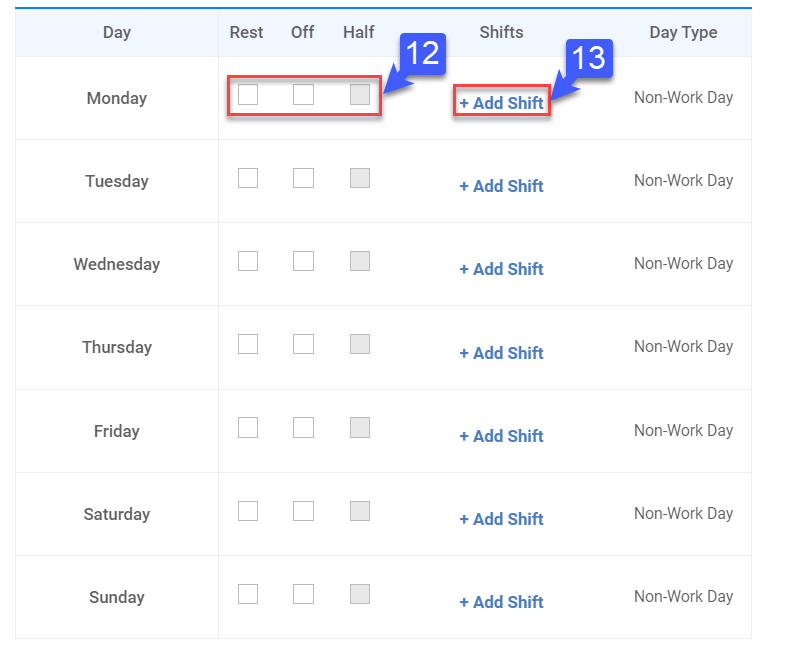
- Check
 to select Rest days and Off days (applicable only when off days are fixed)
 - Click Add Shift (applicable only when off days are fixed)
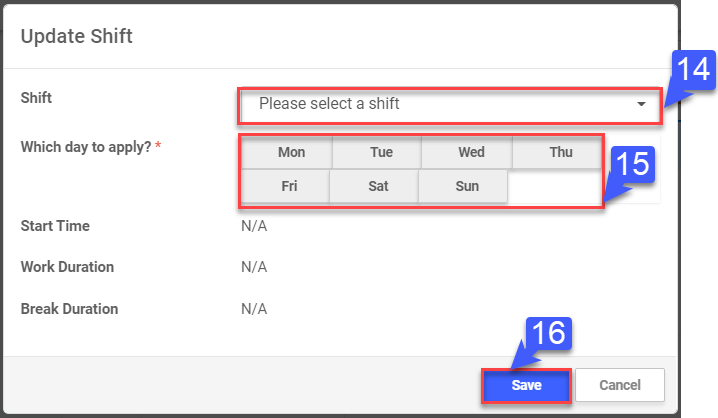
- Select the Shift from the drop down list (the shifts would have been configured in Settings > Shifts & Breaks)
- Select Which day to apply the shift to
- Click Save. Repeat Step 13 to 15 to add shifts for the rest of the week
Step 3: Setting up OT & Deductions
- Choose how OT & Deductions are calculated (6 options)
Option 1: No OT and Deductions
- Key in Work Hours Per Day (Breaks Included)
- Key in Break Hours Per Day
- Key in Work Hours Per Half Day
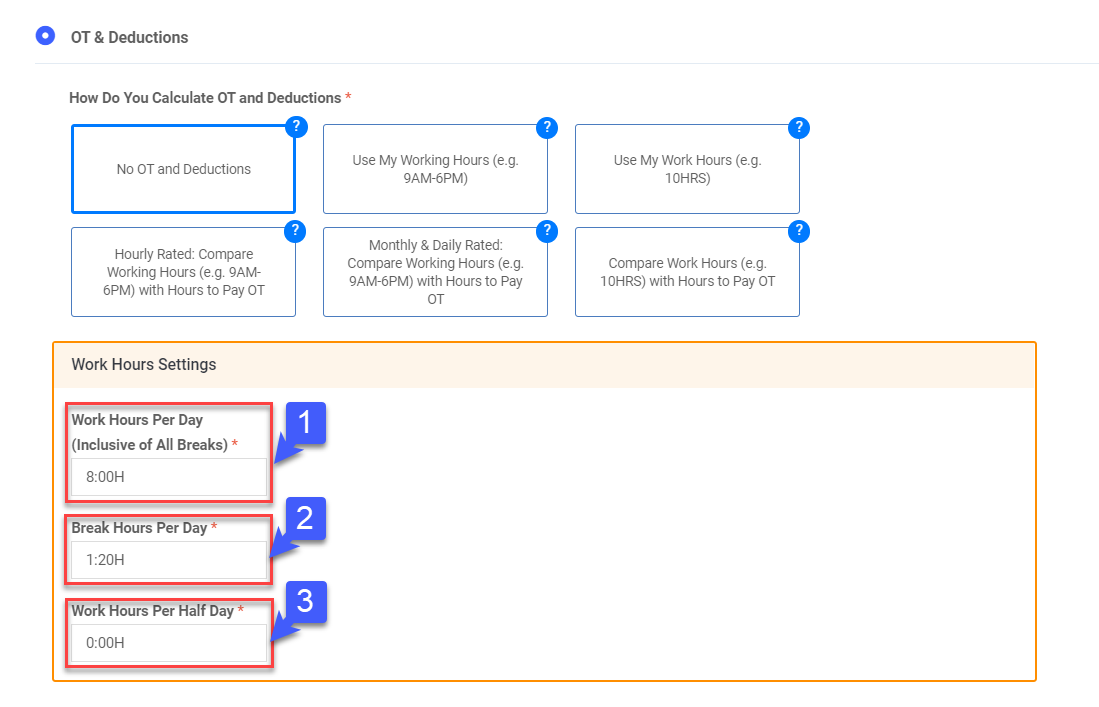
- At the bottom of the page, Click Save
*Note: Choose option 1 when your employees have no OT and no deductions
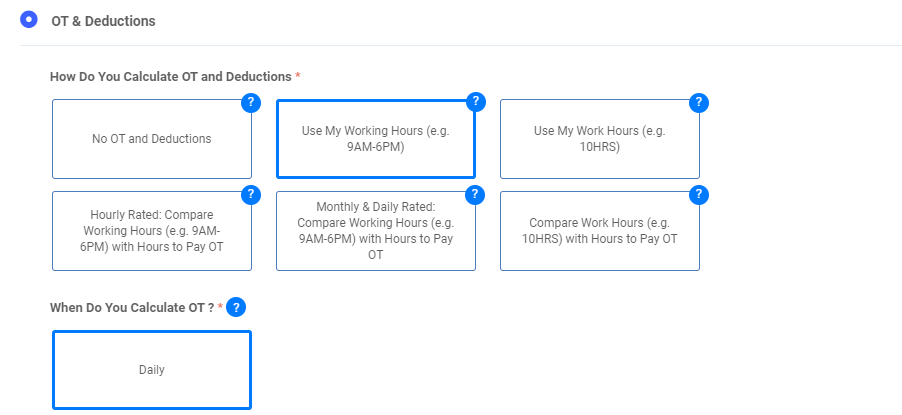
Option 2: Use My Working Hours (e.g 9AM - 6PM)
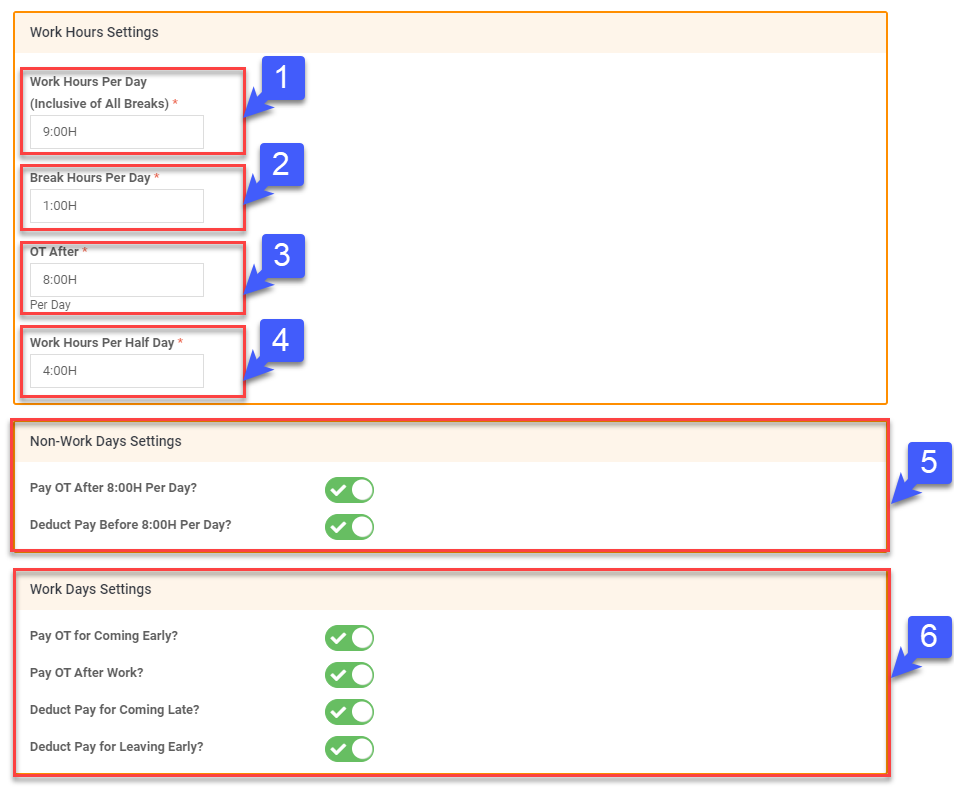
- Key in Work Hours Per Day (Breaks Included)
- Key in Break Hours Per Day
- Key in OT After Per Day
- Key in Work Hours Per Half Day
- Toggle Non-Work Days Settings, if required (Pay OT After 8:00H Per Day, Deduct Pay Before 8:00H Per Day)
- Toggle Work Days Settings, if required (Pay OT for Coming Early, Pay OT After Work, Deduct Pay for Coming Late, Deduct Pay for Leaving Early)
- At the bottom of the page, Click Save
*Note: Choose option 2 when your employees have a fixed schedule, which means a fixed start and end work time
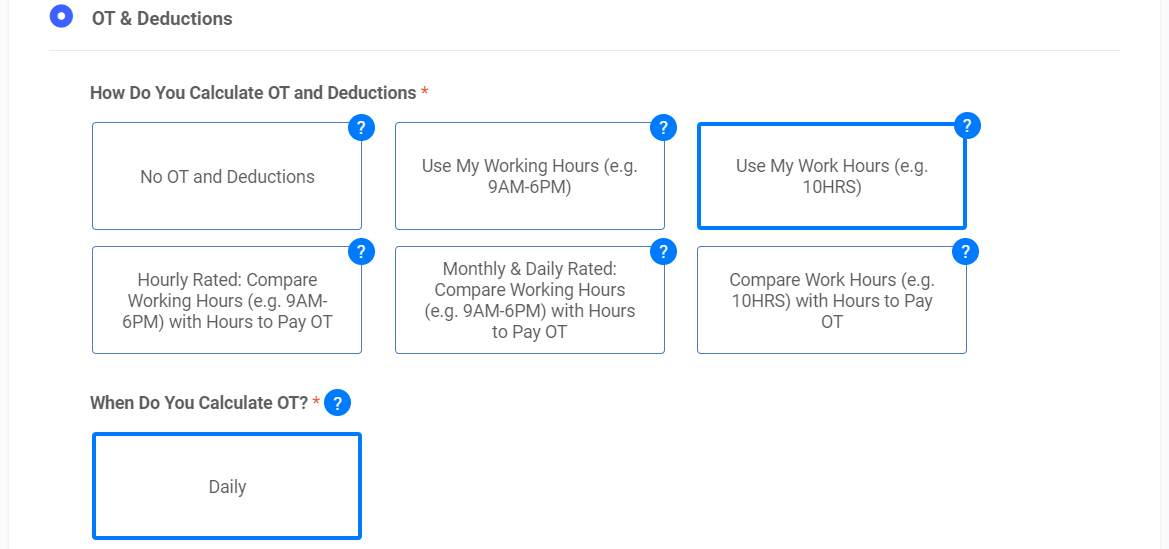
Option 3: Use Work Hours (e.g. 10HRS)
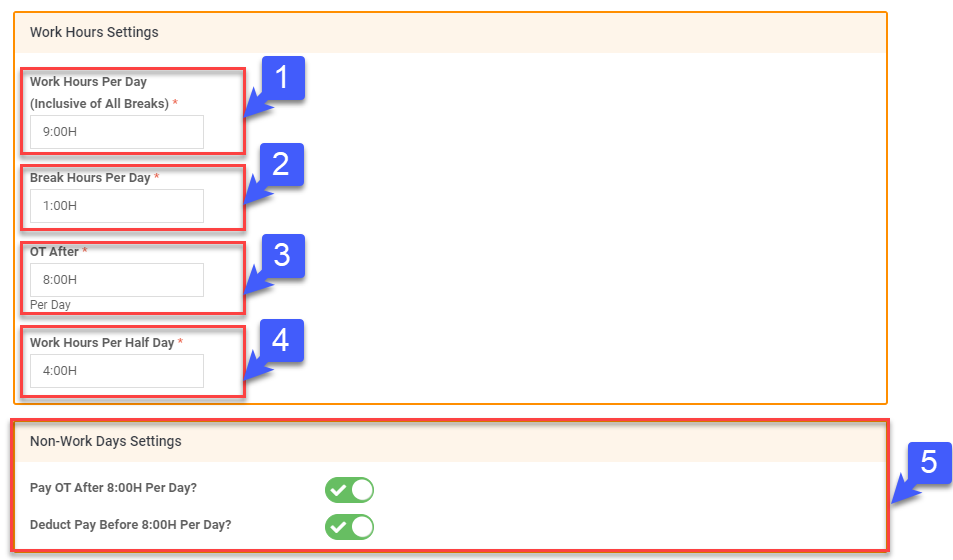
- Key in Work Hours Per Day (Breaks Included)
- Key in Break Hours Per Day
- Key in OT After Per Day
- Key in Work Hours Per Half Day
- Toggle Non-Work Days Settings, if required (Pay OT After 8:00H Per Day, Deduct Pay Before 8:00H Per Day)
- At the bottom of the page, Click Save
*Note: Choose option 3 when your employees have no fixed start and end work time (e.g. Daily 10 hours of work)
Option 4: Hourly Rated
- Select when OT is calculated (Daily, Weekly)
- Key in Work Hours Per Day (Breaks Included)
- Key in Break Hours Per Day
- Key in OT After Per Day
- Key in OT After Per Week (Applicable if OT is calculated Weekly)
- Key in Work Hours Per Half Day
- Toggle Non-Work Days Settings, if required (Pay OT After 8:00H Per Day, Deduct Pay Before 8:00H Per Day)
- Toggle Work Days Settings, if required (Pay OT for Coming Early, Pay OT After Work, Deduct Pay for Coming Late, Deduct Pay for Leaving Early)
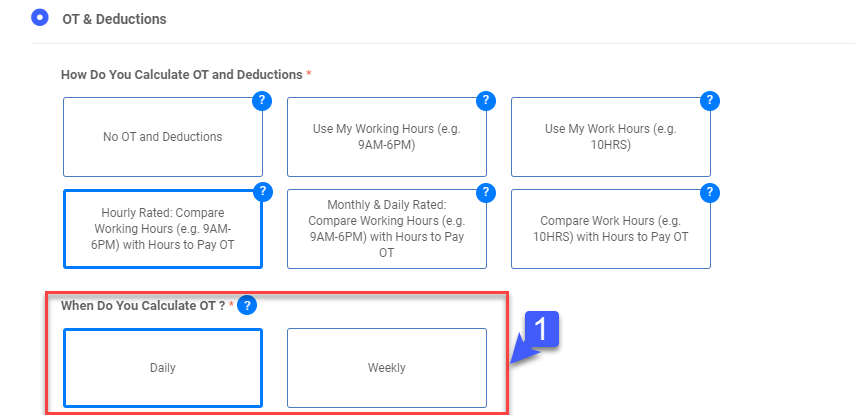
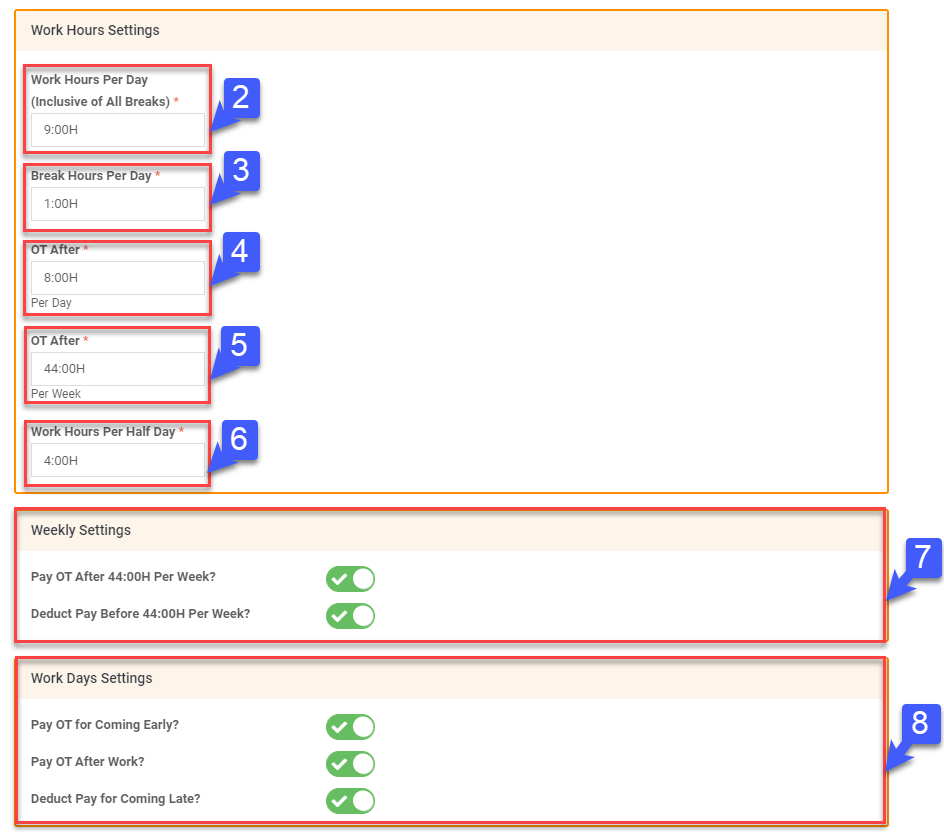
- At the bottom of the page, Click Save
*Note: Choose option 4 when your employees are on a fixed schedule and are hourly rated
Option 5: Monthly & Daily Rated
- Select when OT is calculated (Daily, Weekly)
- Key in Work hours Per Day (Breaks Included)
- Key in Break Hours Per Day
- Key in OT After Per Day
- Key in OT After Per Week (Applicable if OT is calculated Weekly)
- Key in Work Hours Per Half Day
- Toggle Non-Work Days Settings, if required (Pay OT After 8:00H Per Day, Deduct Pay Before 8:00H Per Day)
- Toggle Work Days Settings, if required (Pay OT for Coming Early, Pay OT After Work, Deduct Pay for Coming Late, Deduct Pay for Leaving Early)
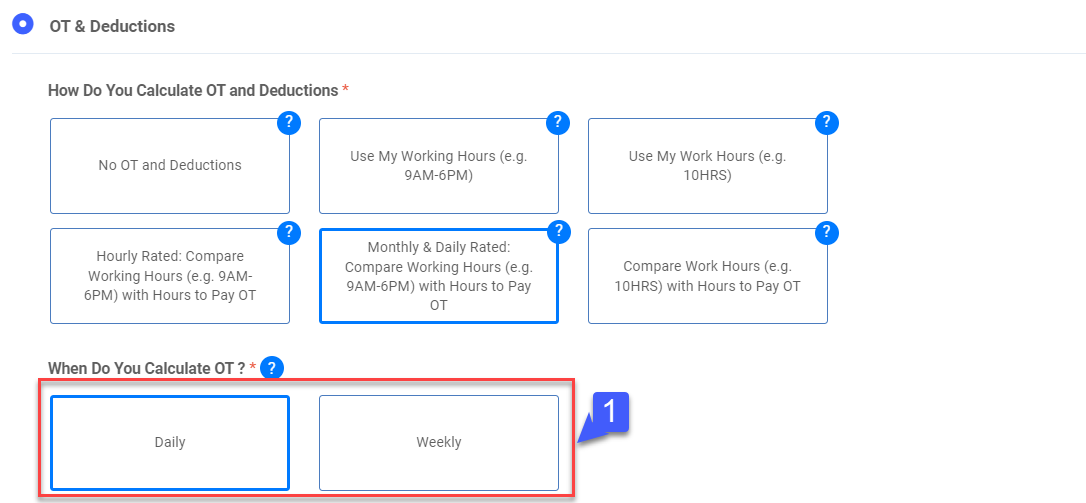
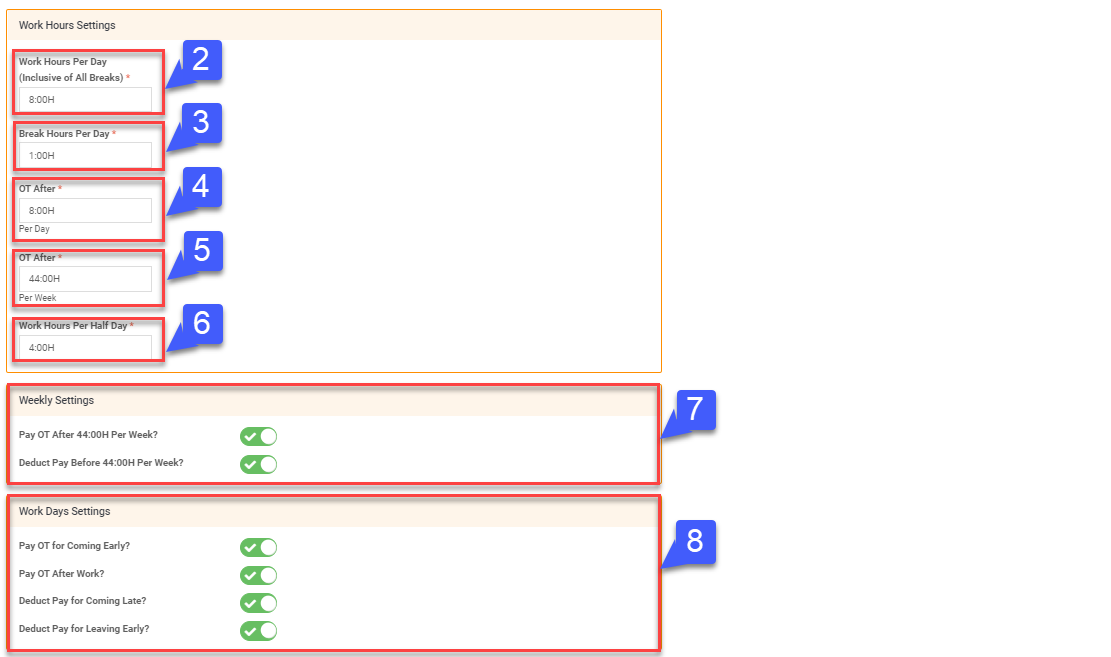
- At the bottom of the page, Click Save
*Note: Choose option 5 when your employees are on a fixed schedule and are monthly / daily rated
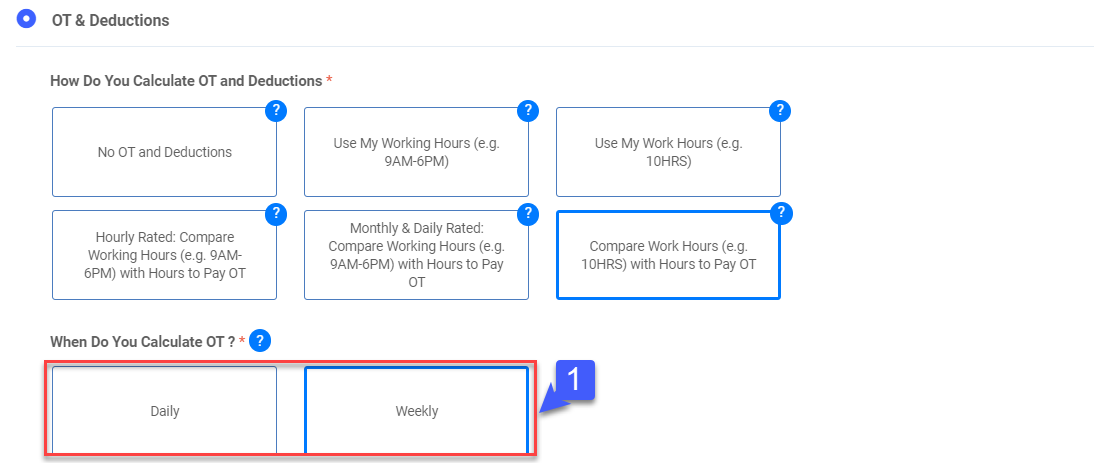
Option 6: Compare Work Hours with Hours to Pay OT
- Select when OT is calculated (Daily, Weekly)
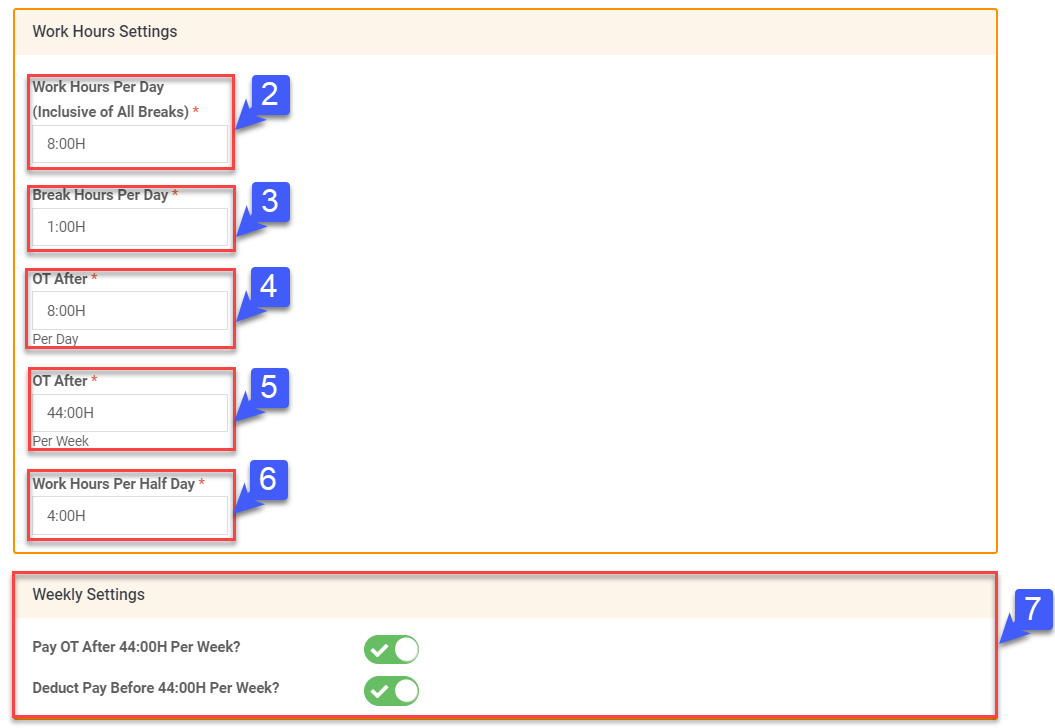
- Key in Work hours Per Day (Breaks Included)
- Key in Break hours Per Day
- Key in OT After Per Day
- Key in OT After Per Week (Applicable if OT is calculated Weekly)
- Key in Work Hours Per Half Day
- Toggle Non-Work Days Settings, if required (Pay OT After 8:00H Per Day, Deduct Pay Before 8:00H Per Day)
- At the bottom of the page, Click Save
*Note: Choose option 6 when your employees have no fixed schedule and you would like to pay monthly OT