User Profile Set up - Employee Leave Setting
To configure employees’ Leave Setting after the employee profile has already been created, simply Click Employee on the left sidebar menu > Click Profile > Select desired Employee > Click on the Leave tab at the top.
Configuring Employees’ Leave Setting
Step 1: Adding Leave Type
Step 2: Editing Leave Setting, if required
Step 3: Adding Leave Group
Step 1: Adding Leave Type
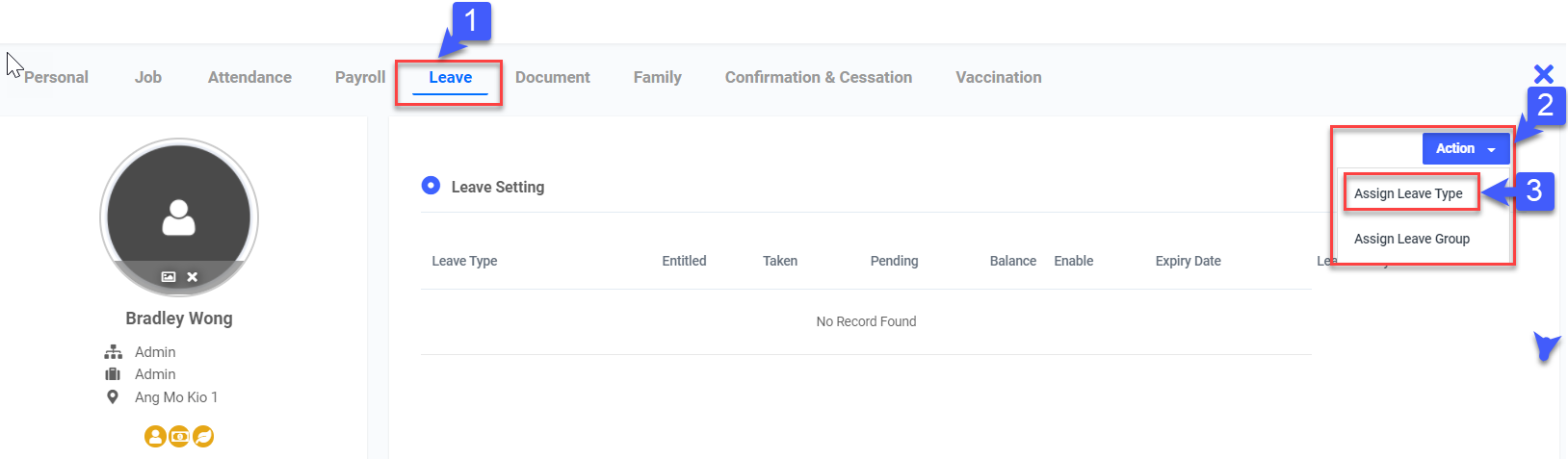
- Click on Leave tab
- Click Action
- Click Assign Leave Type
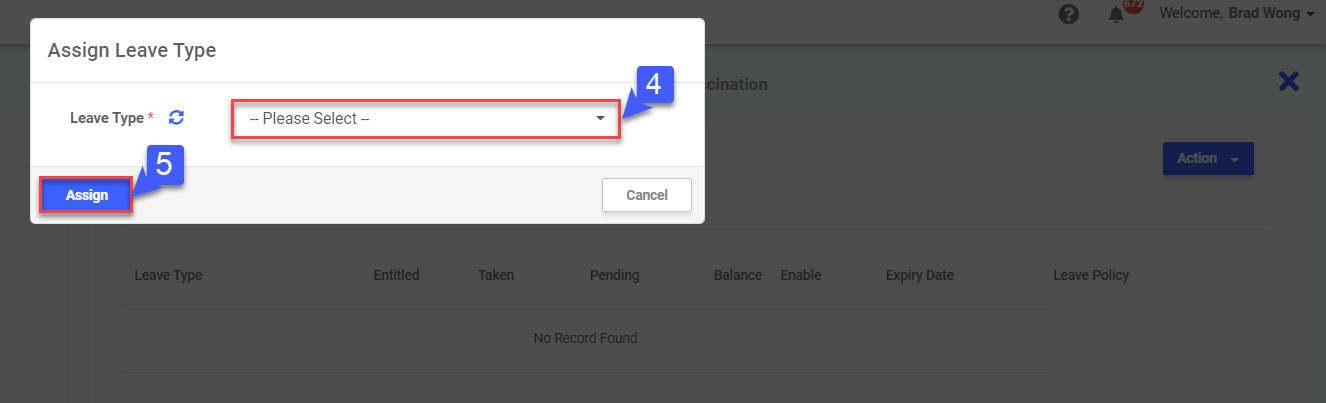
- Select Leave Type
- Click Assign
Step 2: Editing Leave Setting, if required
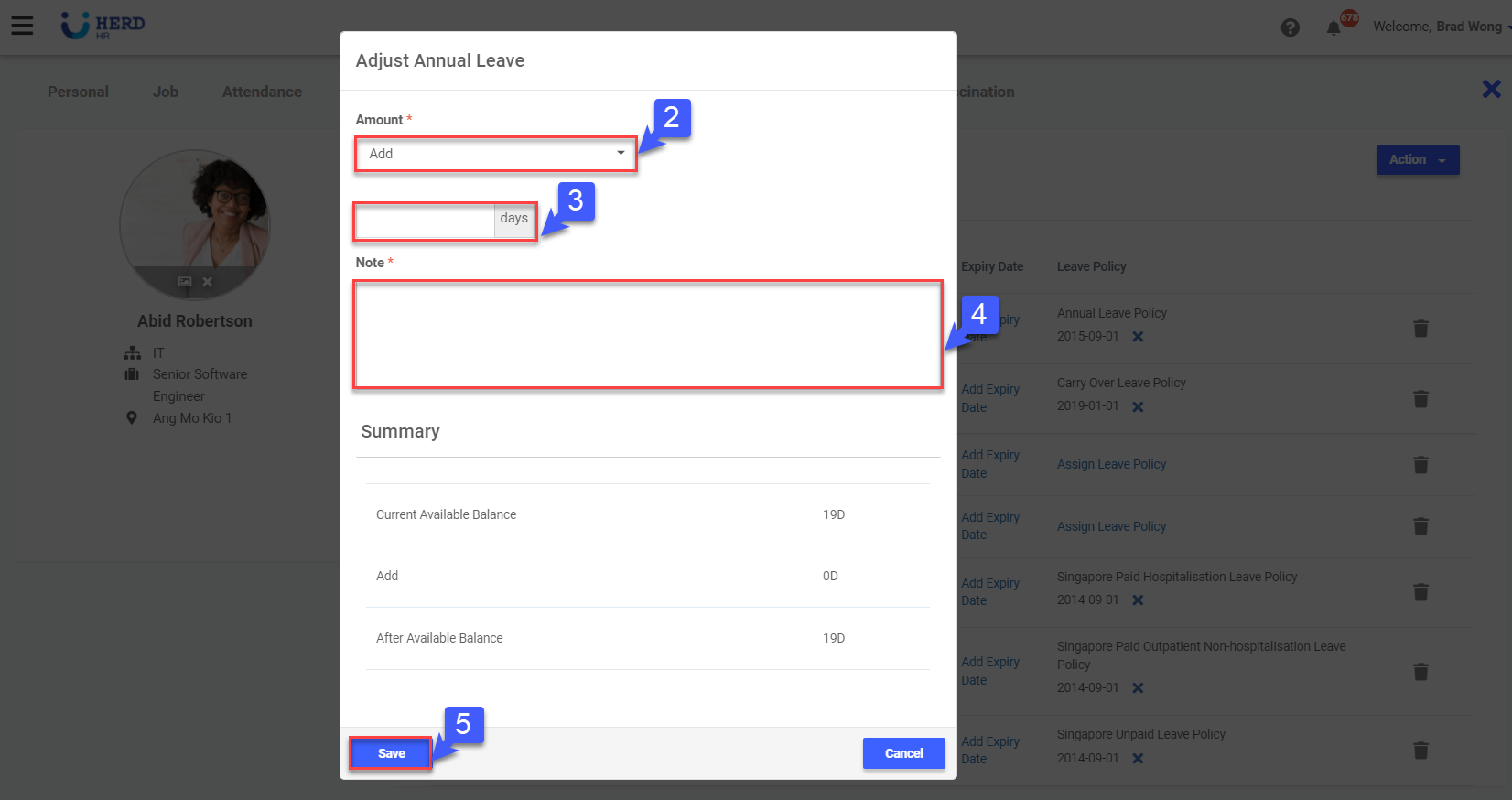
- Click “
 ” to adjust leave balance
 - Select Add/Subtract
- Key in the number of days to add/subtract
- Add Note
- Click Save
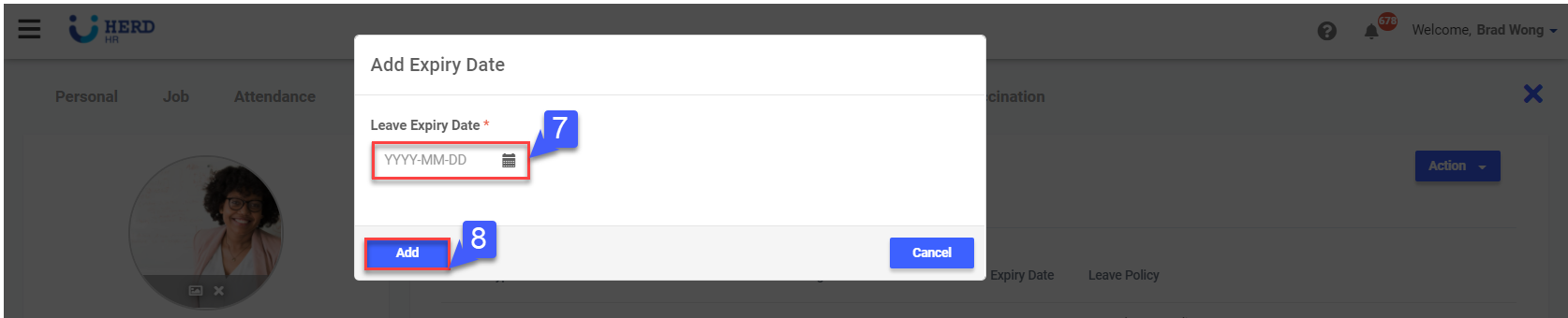
- Click Add Expiry Date
- Click “
 ” to add Expiry Date
 - Click Add
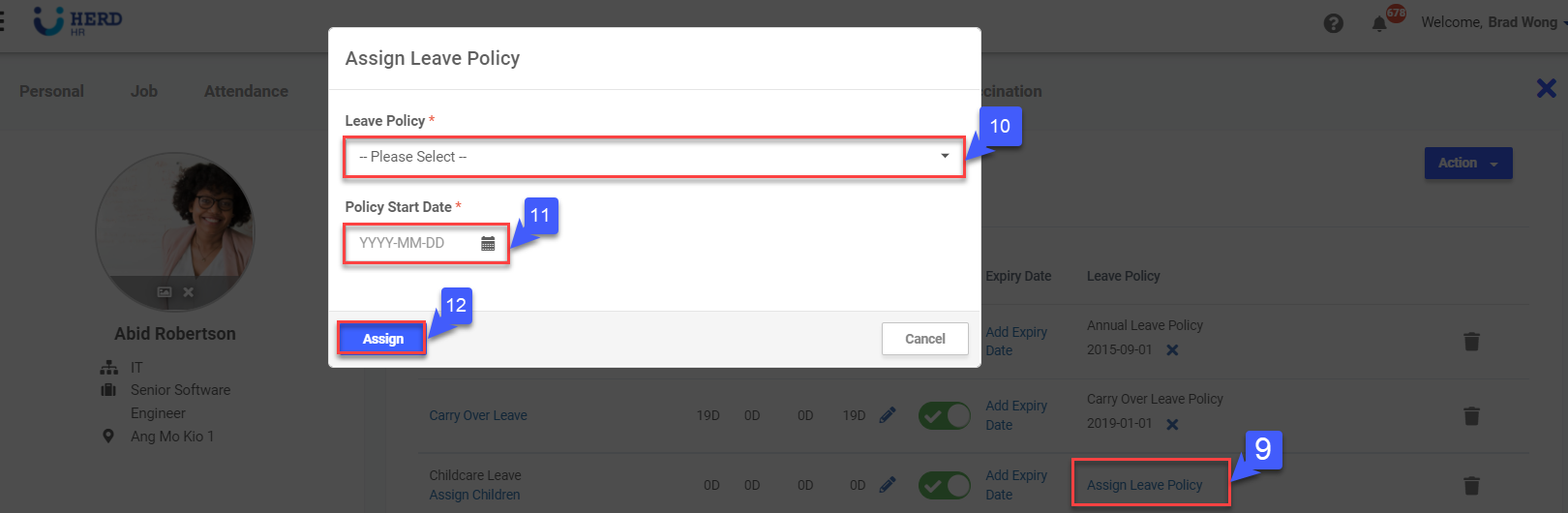
- Click Assign Leave Policy
- Select Leave Policy
- Click “
 ” to add Policy Start Date
 - Click Assign
Step 3: Adding Leave Group
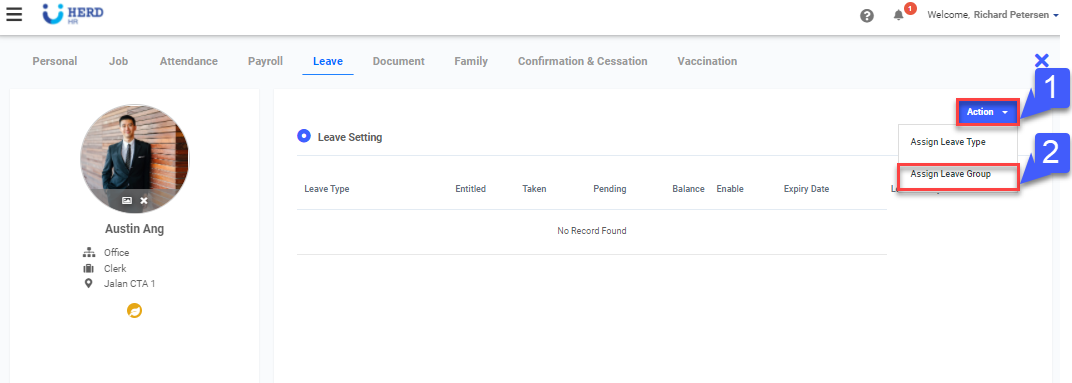
- Click Action
- Click Assign Leave Group
- Select pre-set Leave Group
- Click “
 ” to edit Policy Start Date
 - Click Assign
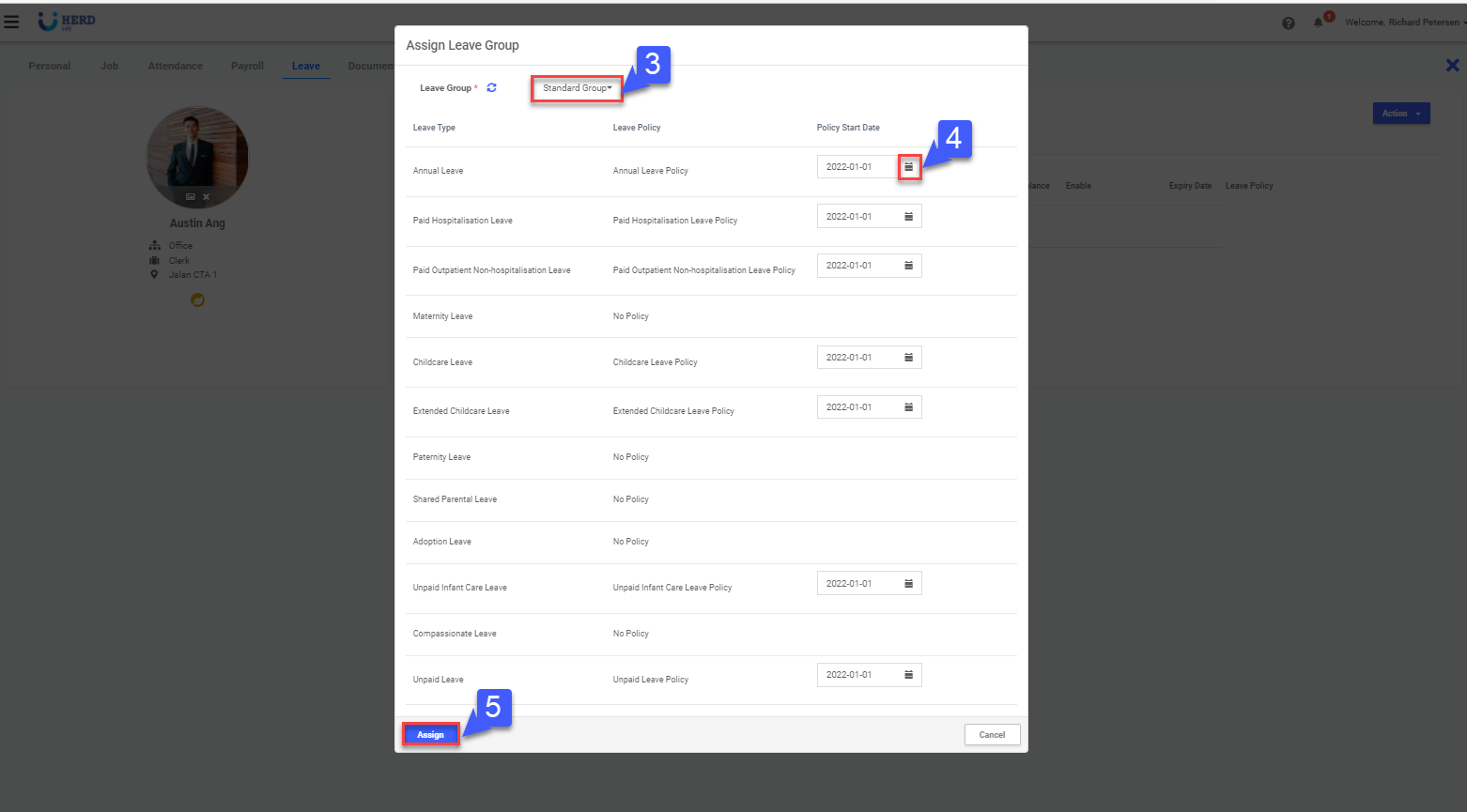
*Note: Policy Start Date else the start date will be set as the hired date by default