This is used to assign individual Leave Types to employees, or preset Leave Groups. You are also able to adjust Leave balances.
To configure employees’ Leave Setting after the employee profile has already been created, simply Click Employee on the left sidebar menu > Click Profile > Select desired Employee > Click on the Leave tab at the top.
Configuring Employees’ Leave Setting
Step 1: Adding Leave Type
Step 2: Editing Leave Setting, if required
Step 3: Adding Leave Group
Step 1: Adding Leave Type
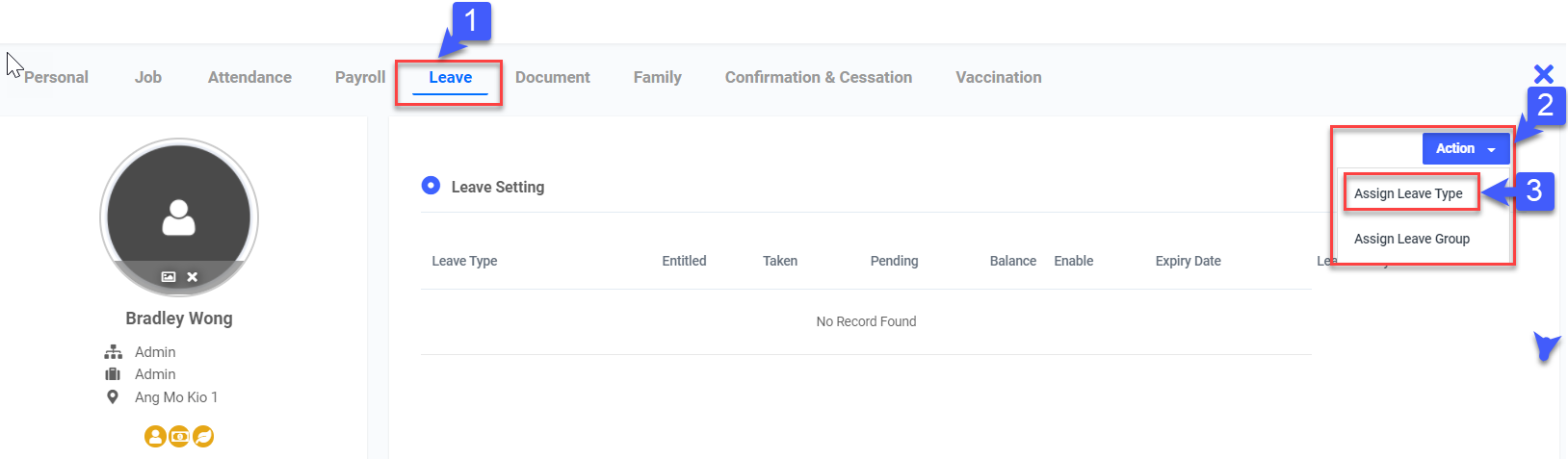
- Click on Leave tab
- Click Action
- Click Assign Leave Type
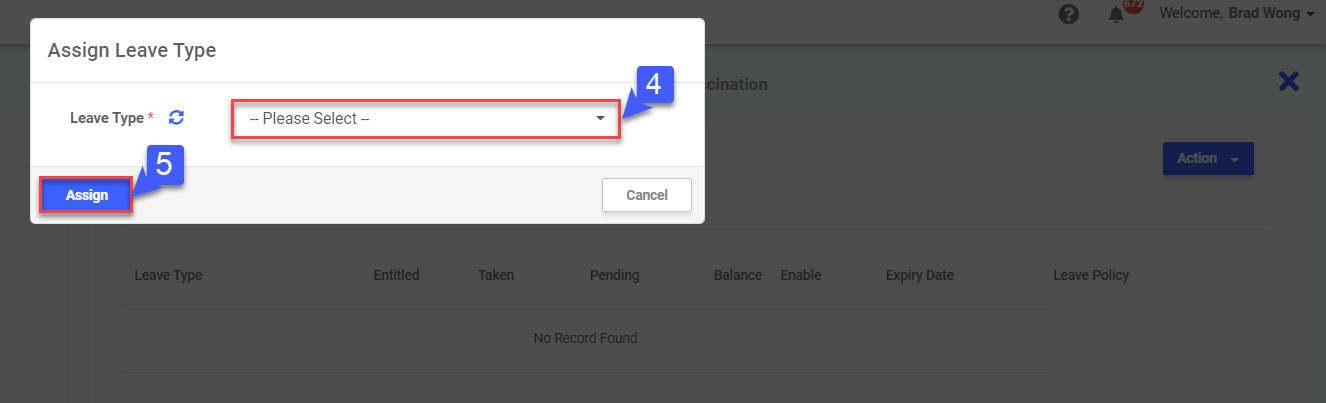
- Select Leave Type
- Click Assign
Step 2: Editing Leave Setting, if required
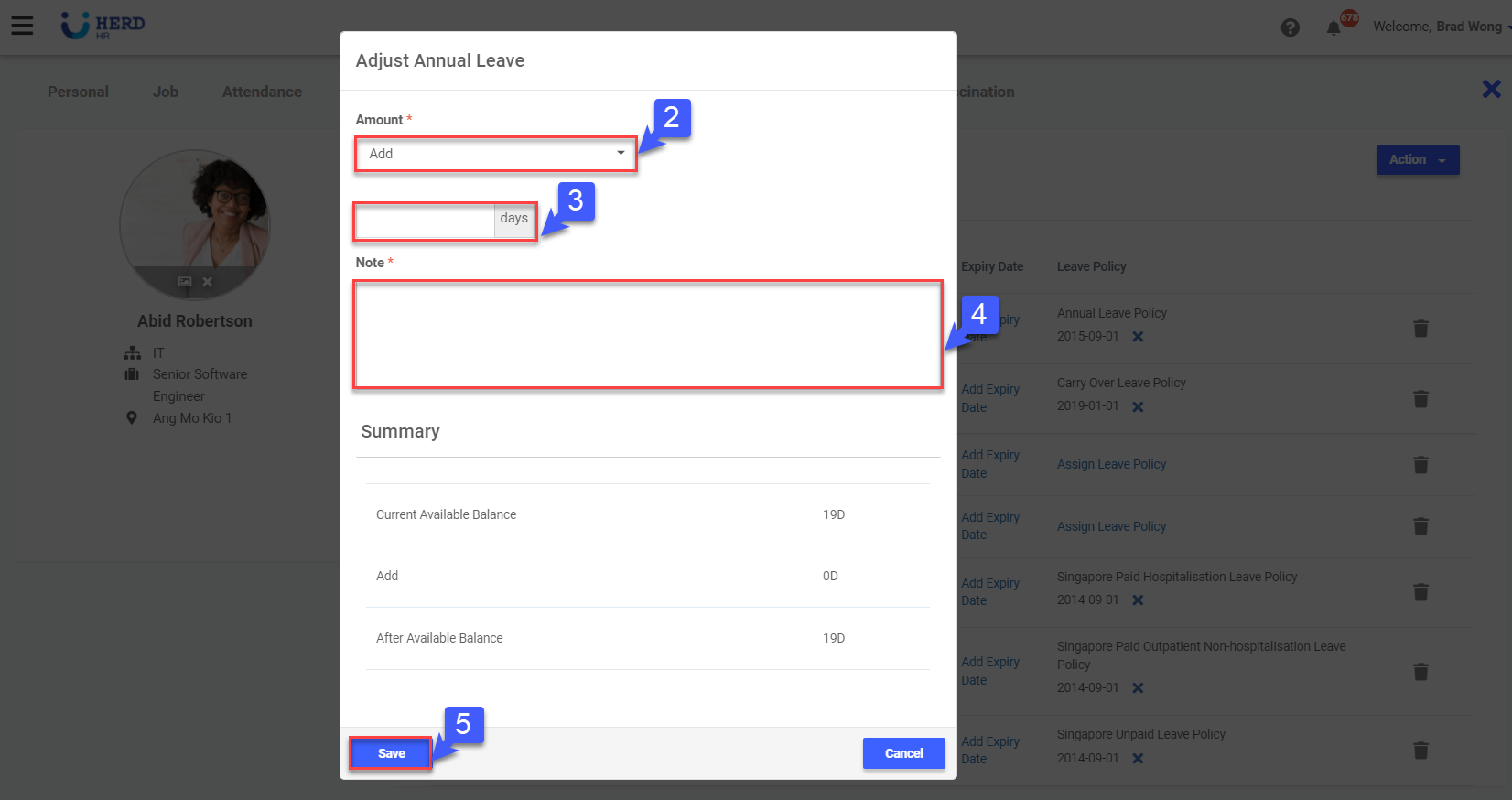
- Click “
 ” to adjust leave balance
 - Select Add/Subtract
- Key in the number of days to add/subtract
- Add Note
- Click Save
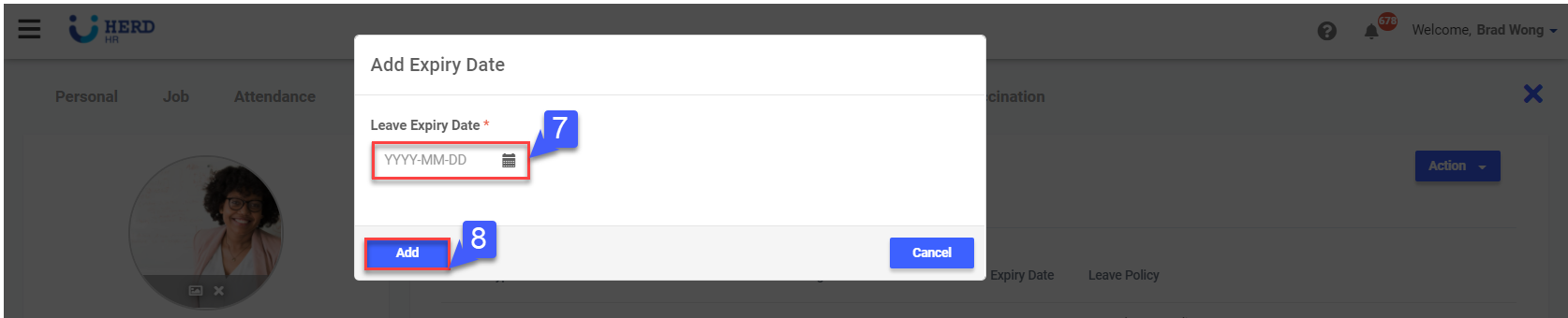
- Click Add Expiry Date
- Click “
 ” to add Expiry Date
 - Click Add
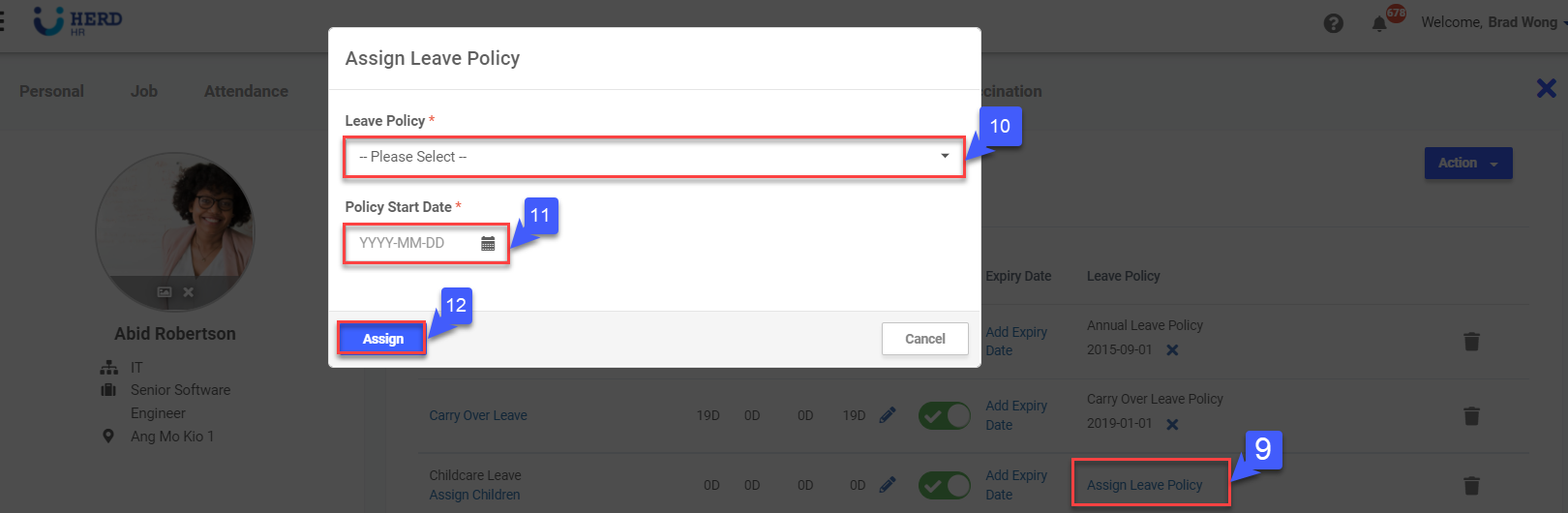
- Click Assign Leave Policy
- Select Leave Policy
- Click “
 ” to add Policy Start Date
 - Click Assign
Step 3: Adding Leave Group
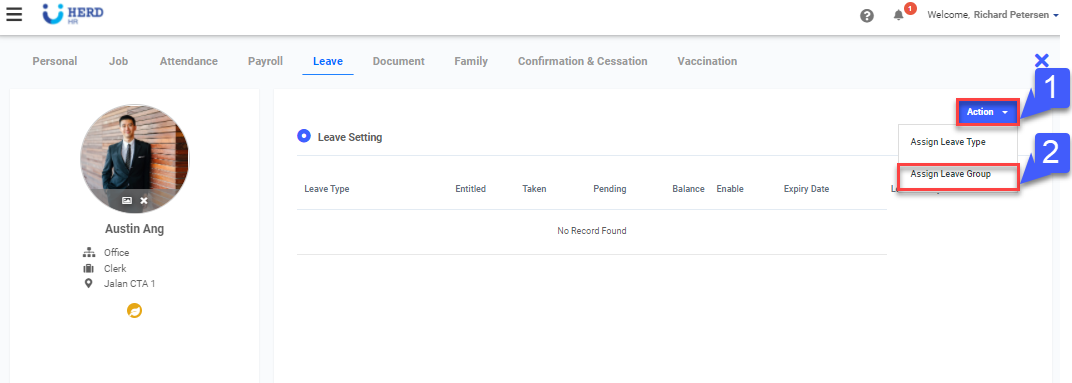
- Click Action
- Click Assign Leave Group
- Select pre-set Leave Group
- Click “
 ” to edit Policy Start Date
 - Click Assign
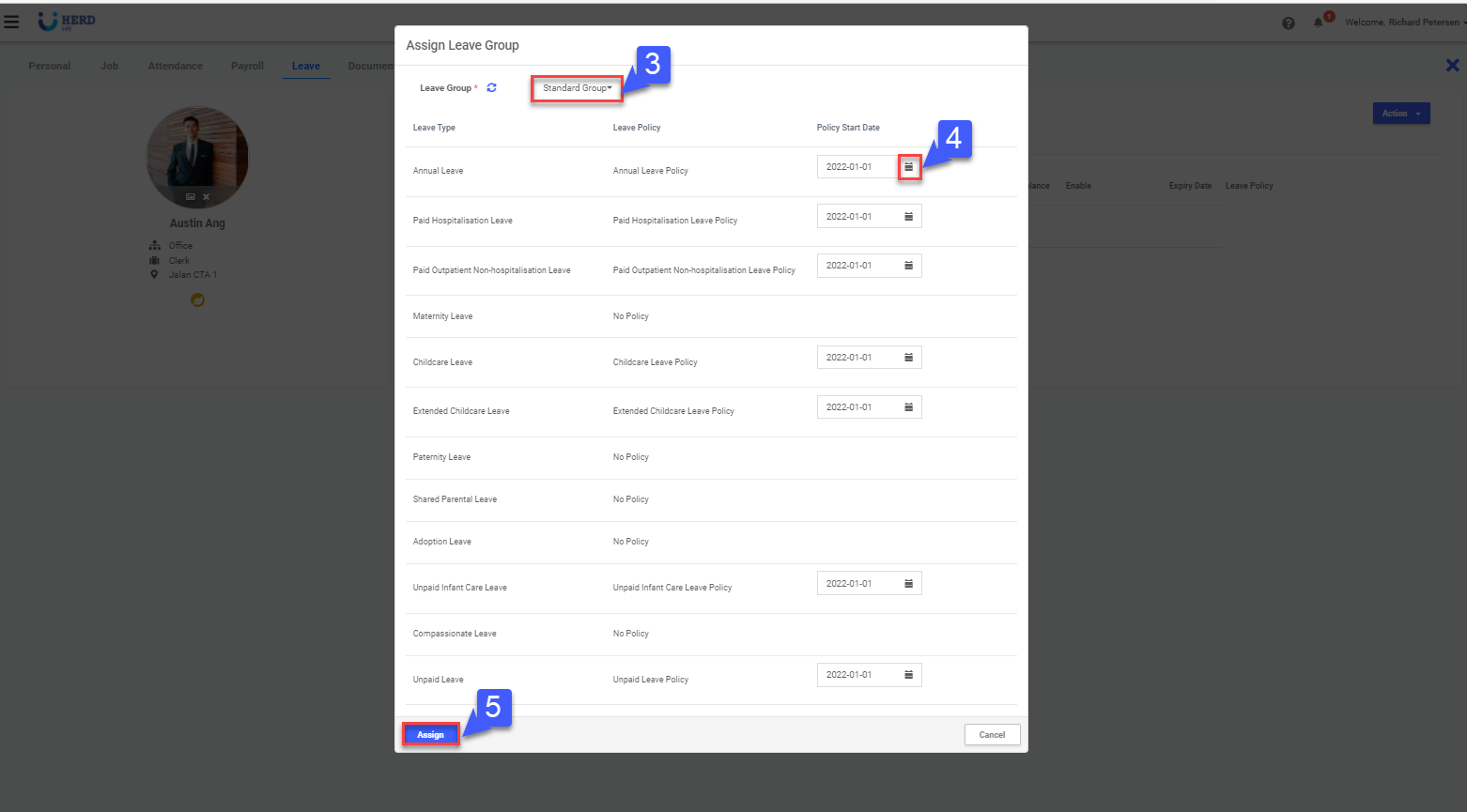
*Note: Policy Start Date else the start date will be set as the hired date by default