To configure employees’ Profile after the employee profile has already been created, simply Click Employee on the left sidebar menu > Click Profile > Select desired Employee > Click on the Profile tab at the top.
Creating New Employee Profile
- Adding New Employee Profile
- Adding Basic and Account Information
- Adding Payroll Information
- Adding Home Address
Adding New Employee Profile
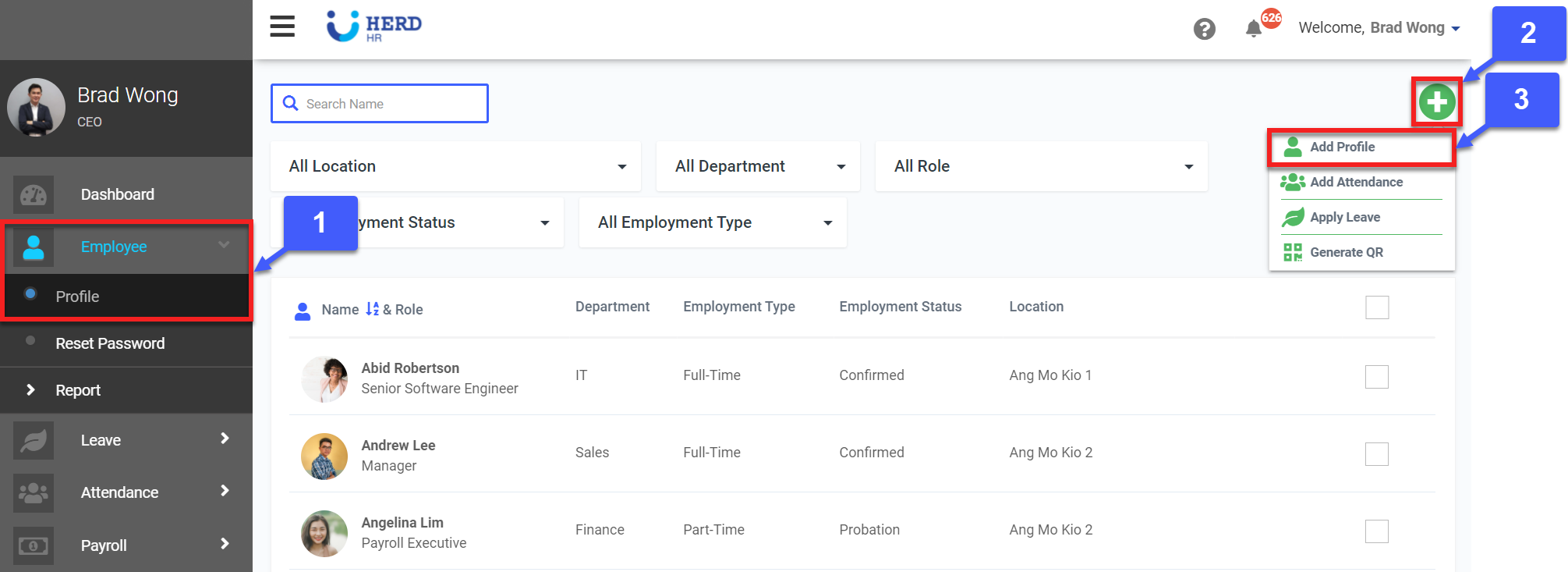
- On the left sidebar menu, Click Employees > Profile
- On the top right corner, Click on the "+" icon
- Click Add Profile
Adding Basic and Account Information
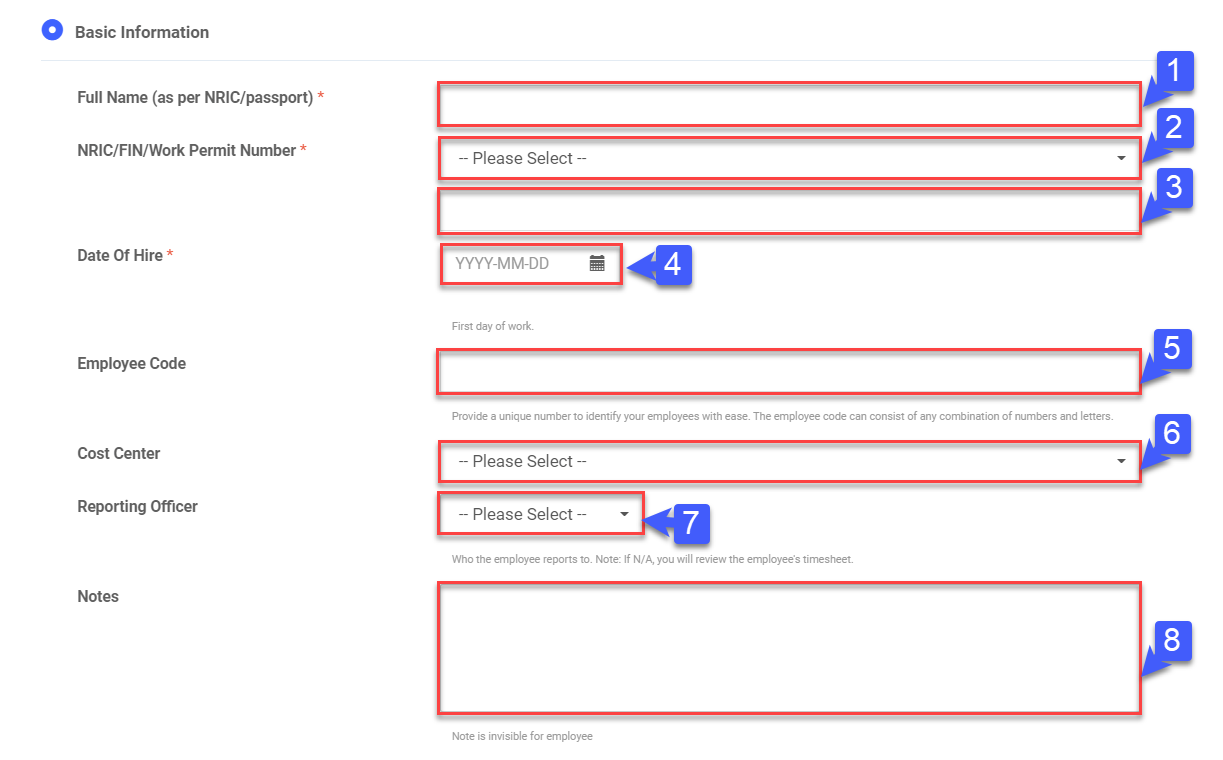
- Key in Employee’s Full Name
- Select NRIC / FIN / Work Permit from the drop-down list
- Key in NRIC / FIN / Work Permit number
- Click “
 ” to select Date of Hire
 - Enter Employee Code
- Select Cost Centre from the drop-down list
- Select the Reporting Officer from the drop-down list
- Key in Notes if any
- Key in Email Address
- Key in Mobile Number
- Click View More to display more required information fields
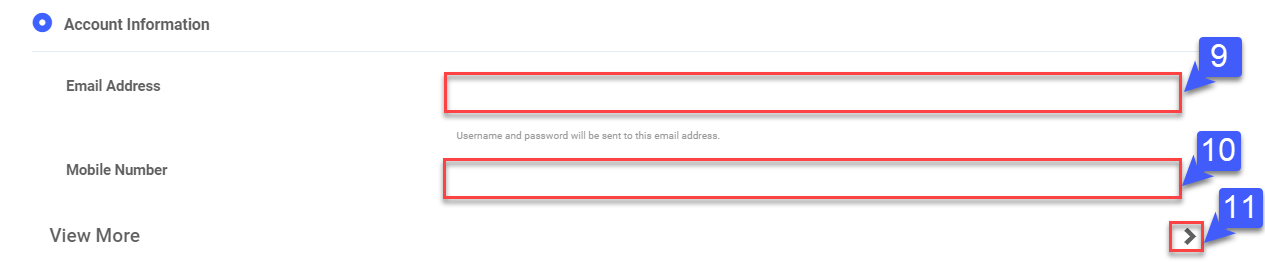
*Note: Username and password to access the HERD apps will be sent to the email address entered.
Adding Payroll Information
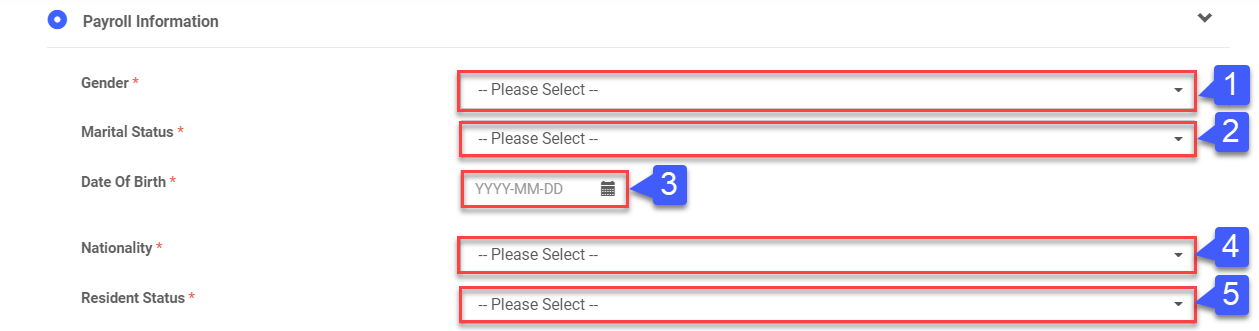
- Select Gender from the drop-down menu
- Select Marital Status from the drop-down menu
- Click “
 ” to select Date of Birth
 - Select Nationality from the drop-down menu
- Select Resident Status from the drop-down menu
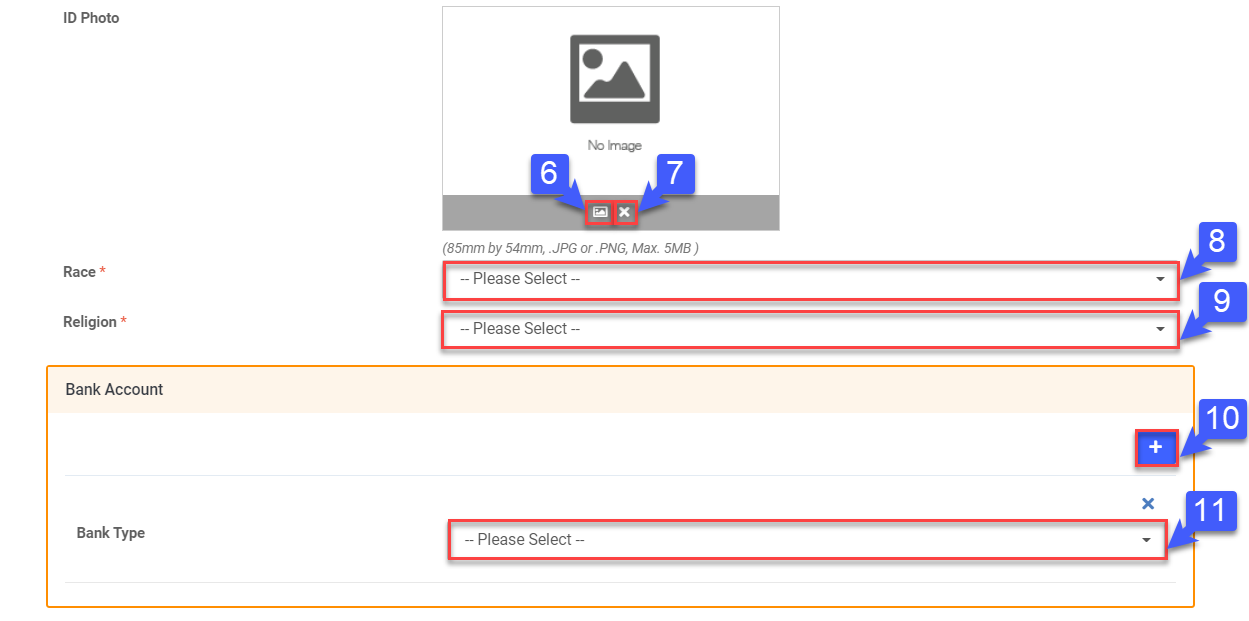
- Click
 to attach ID Photo
 - Click "X" to remove ID Photo, if required
- Select Race from the drop-down menu
- Select Religion from the drop-down menu
- Click + to add bank
- Select Bank Type from the from the drop-down menu and key in the required details
Adding Home Address
- Key in Home Number
- Select Country of Residence (Malaysia) from the drop-down menu
- Key in Residential Address
- Click Next
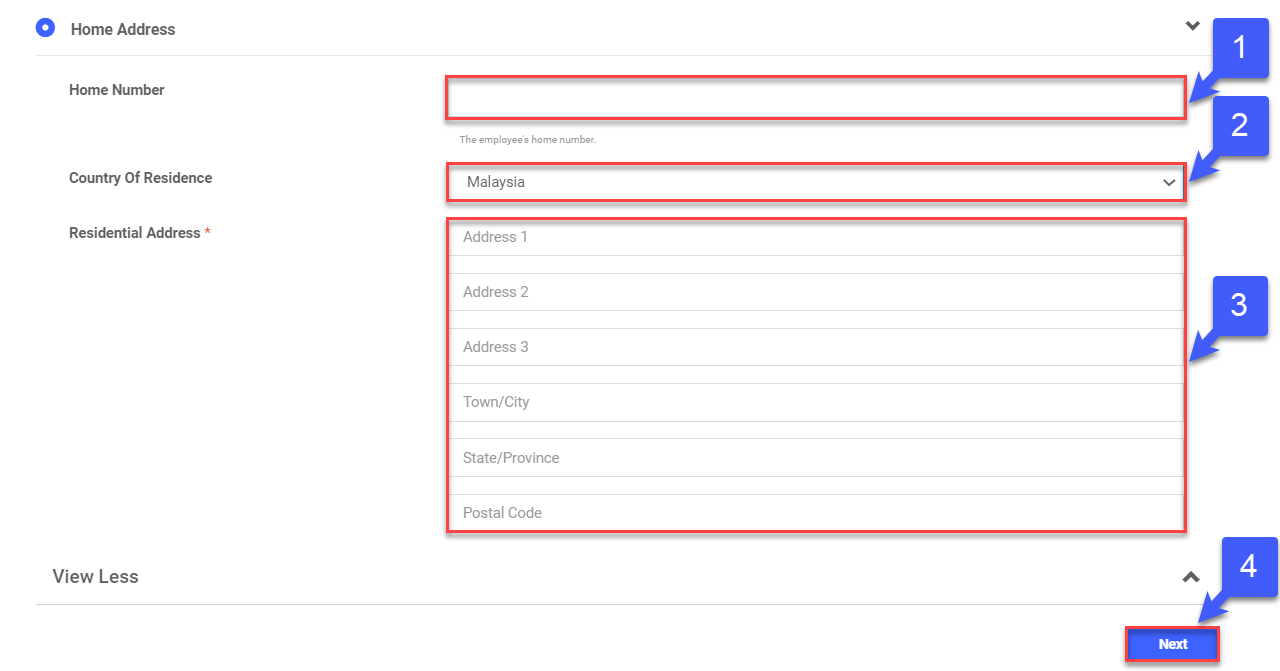
*Note: Clicking Next will lead you to the configuration of your employees’ Job Details