Generating Leave Reports
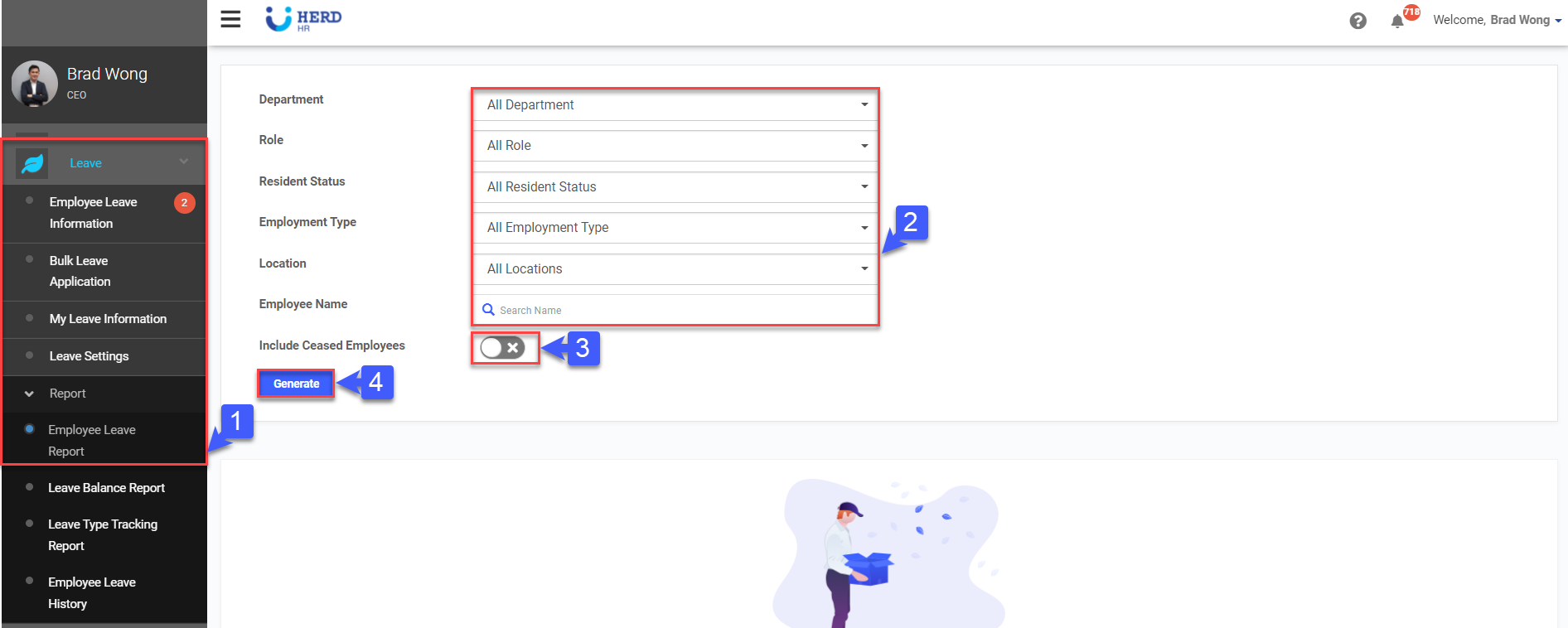
Employee Leave Report
- On the left sidebar menu, Click Leave > Employee Leave Report
- Fill in all the fields
- Enable the toggle should you want to include ceased employee
- Click Generate to obtain the leave balance report of all/selected employee(s)
Leave Balance Report
- On the left sidebar menu, Click Leave
- Click Report
- Click Leave Balance Report
- Fill in all the fields
- Click Generate to obtain the leave balance report of all/selected employee(s)
- Click Export to Excel, if required

*Note: Ensure that pop-up blocker is turned off
Leave Type Tracking Report
- On the left sidebar menu, Click Leave
- Click Report
- Click Leave Type Tracking Report
- Fill in all the fields
- Click Generate to obtain the Leave Type Tracking Report of all/selected employee(s)
- Click Export to Excel, if required

*Note: Ensure that pop-up blocker is turned off
Employee Leave History Report
- On the left sidebar menu, Click Leave
- Click Report
- Click Leave History Report
- Select Year
- Key in Employee Name
- Click Generate
- Click Export to Excel, if required

*Note: Ensure that pop-up blocker is turned off