How to perform Bulk Leave Applications?
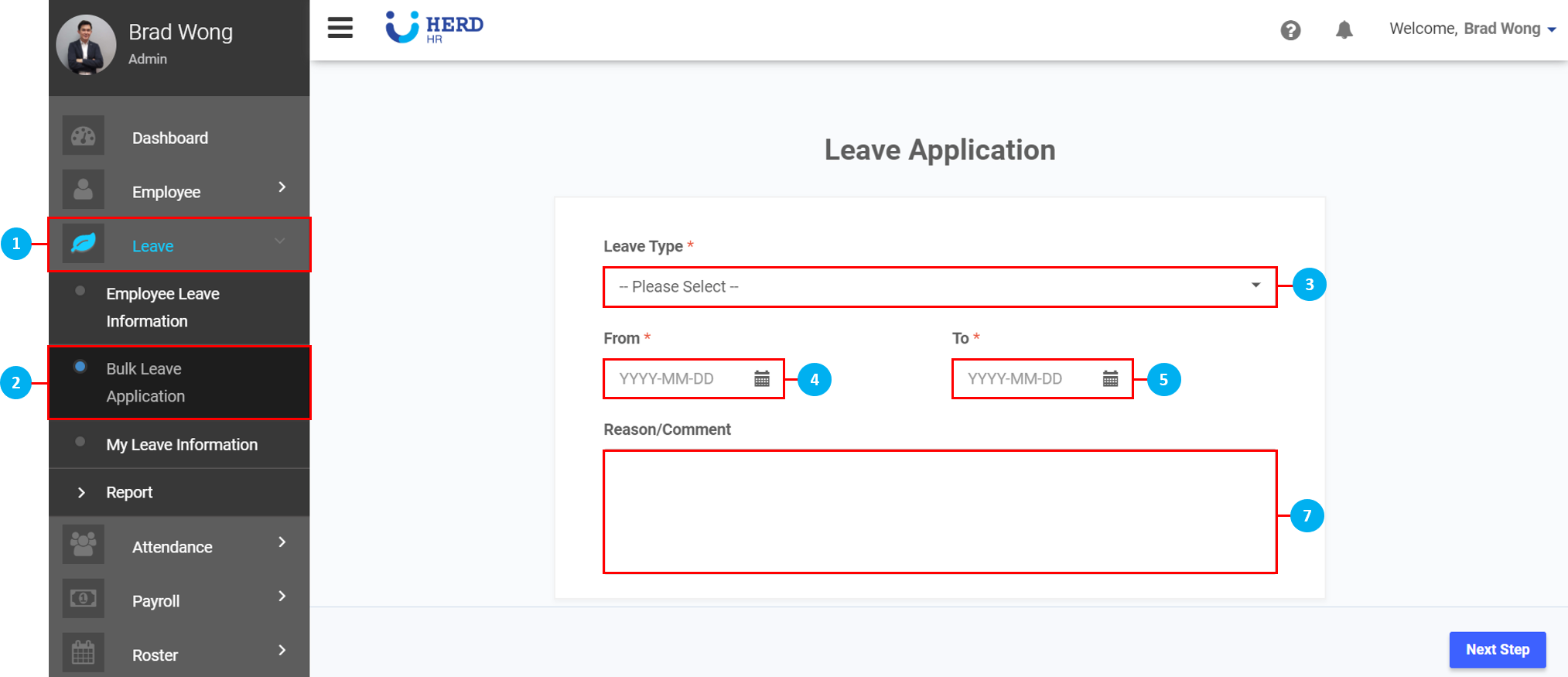
- On the left sidebar menu, click “Leave”.
- Click "Bulk Leave Application".
- Select the Leave Type from the drop down list.
- Click on the
 icon to select the start date for the Leave application.
 - Click on the
 icon to select the end date for the Leave application.
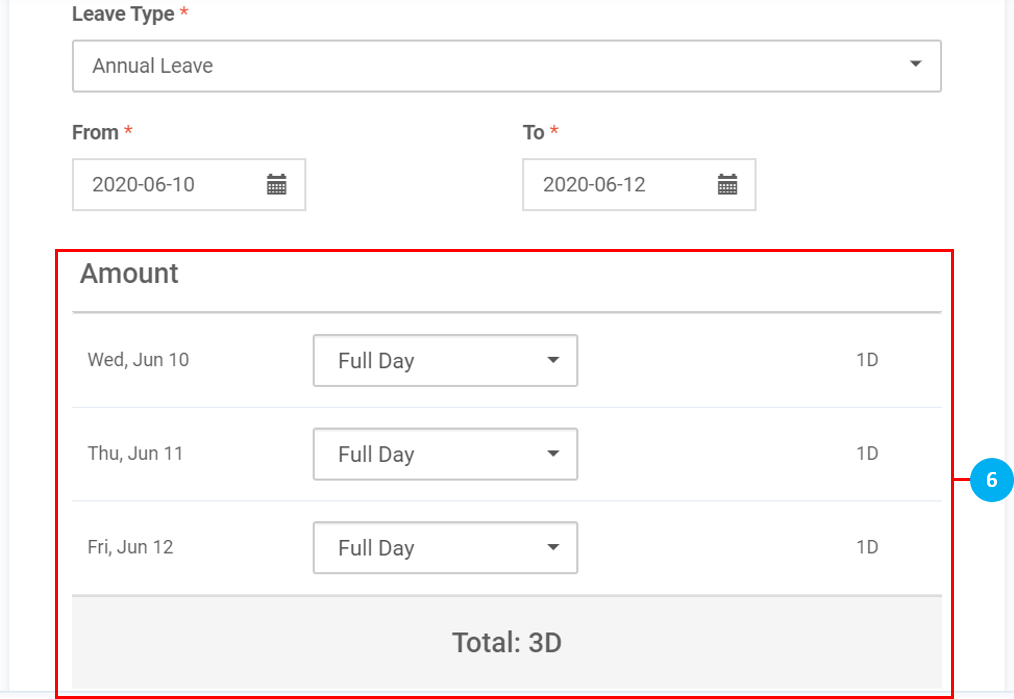
 - A summary of the leave application will appear. Select Full Day / 1st Half / 2nd Half / None from the drop down list the edit the Leave application (if required).
- Key in reasons / comments (if required).
- Once done, click Next Step to continue.
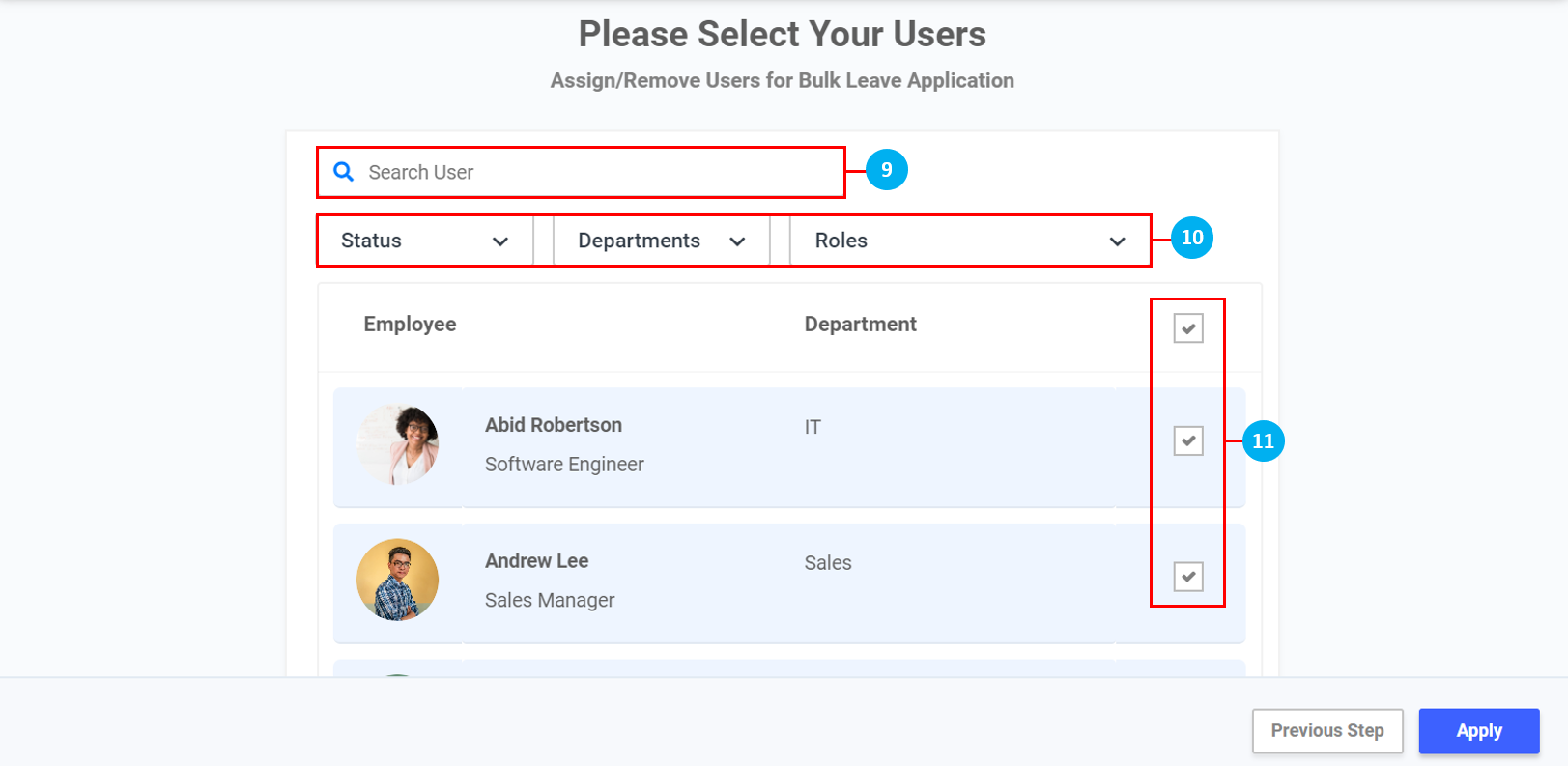
- Key in the name of the Employee in the search bar (if required).
- Use the filters to sort the Employees by Status / Departments / Roles (if required).
- Select the Employees to perform Bulk Leave Application by clicking in the box. (*Note: All Employees are selected by default. Click to remove Employees from the Bulk Leave Application.)
- Once done, click Apply.
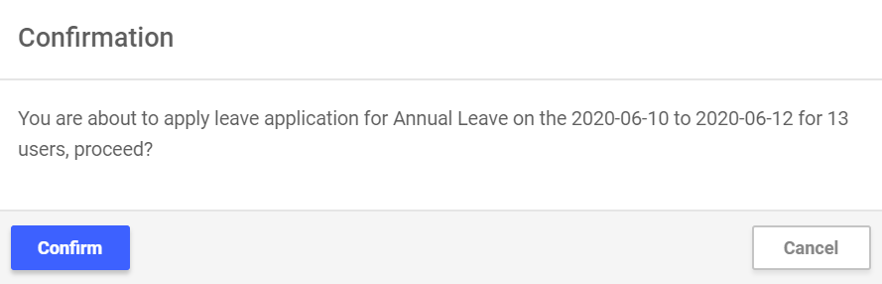
- Click Confirm to finalize the Bulk Leave Application.