Taking Attendance with the Herd app
Getting Started
-
Sign in using your Herd account credentials which will be sent to you via email.
Hostname: herdhr <- Tenant Name (Not required when accessing Herd by clicking on the URL below.)
Email: sample@gmail.com <- Your working email address.
Password: G@H#H$JF <- Change this to something easy to remember once you log in.
- Tap on Sign In at the bottom of the screen.

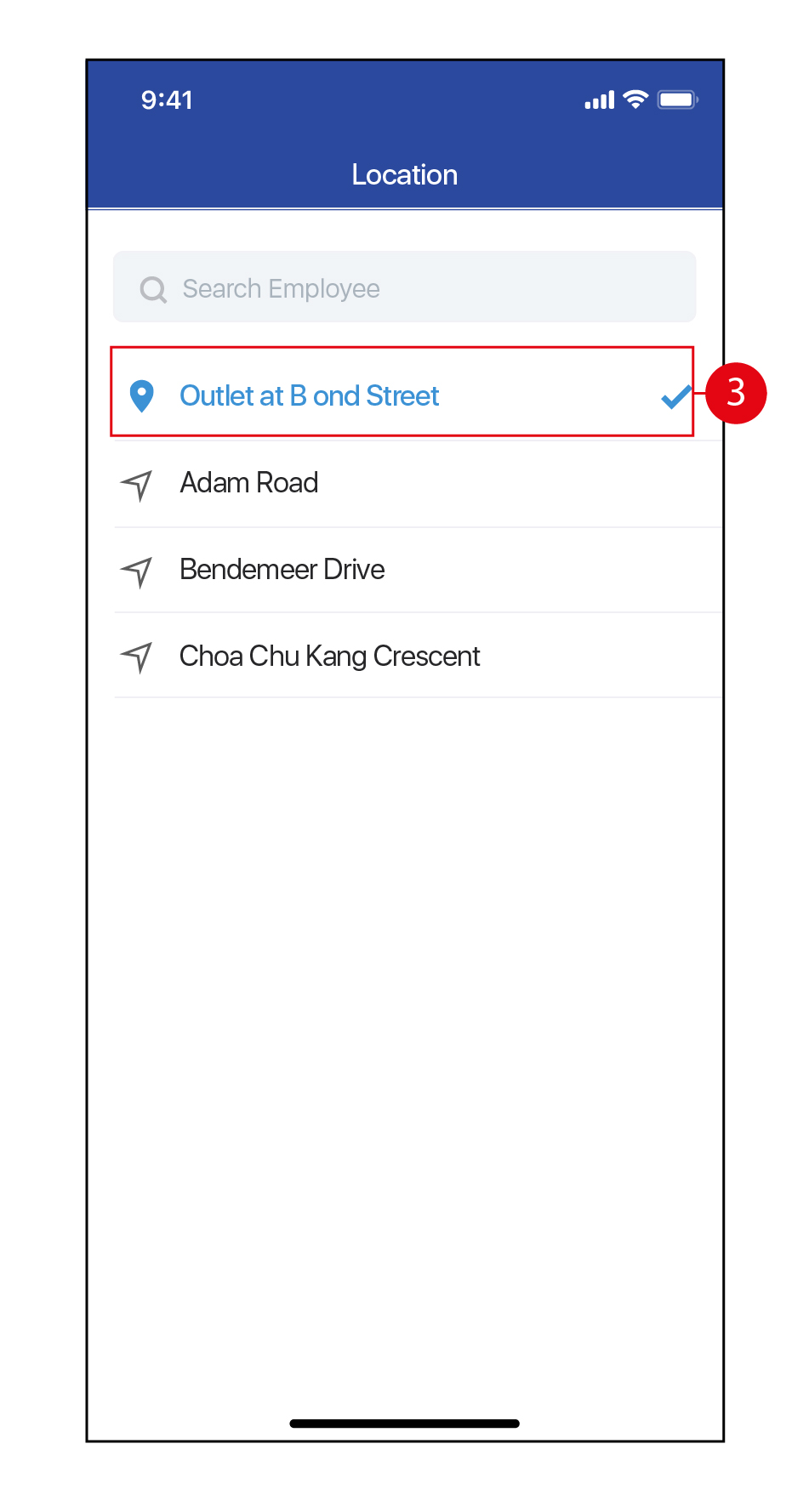
- Once you have signed in, you will be prompted to select your current location where your Employees will use the Herd APP for Attendance taking.
- Tap on the
 Work icon to begin.
Start Taking Attendance
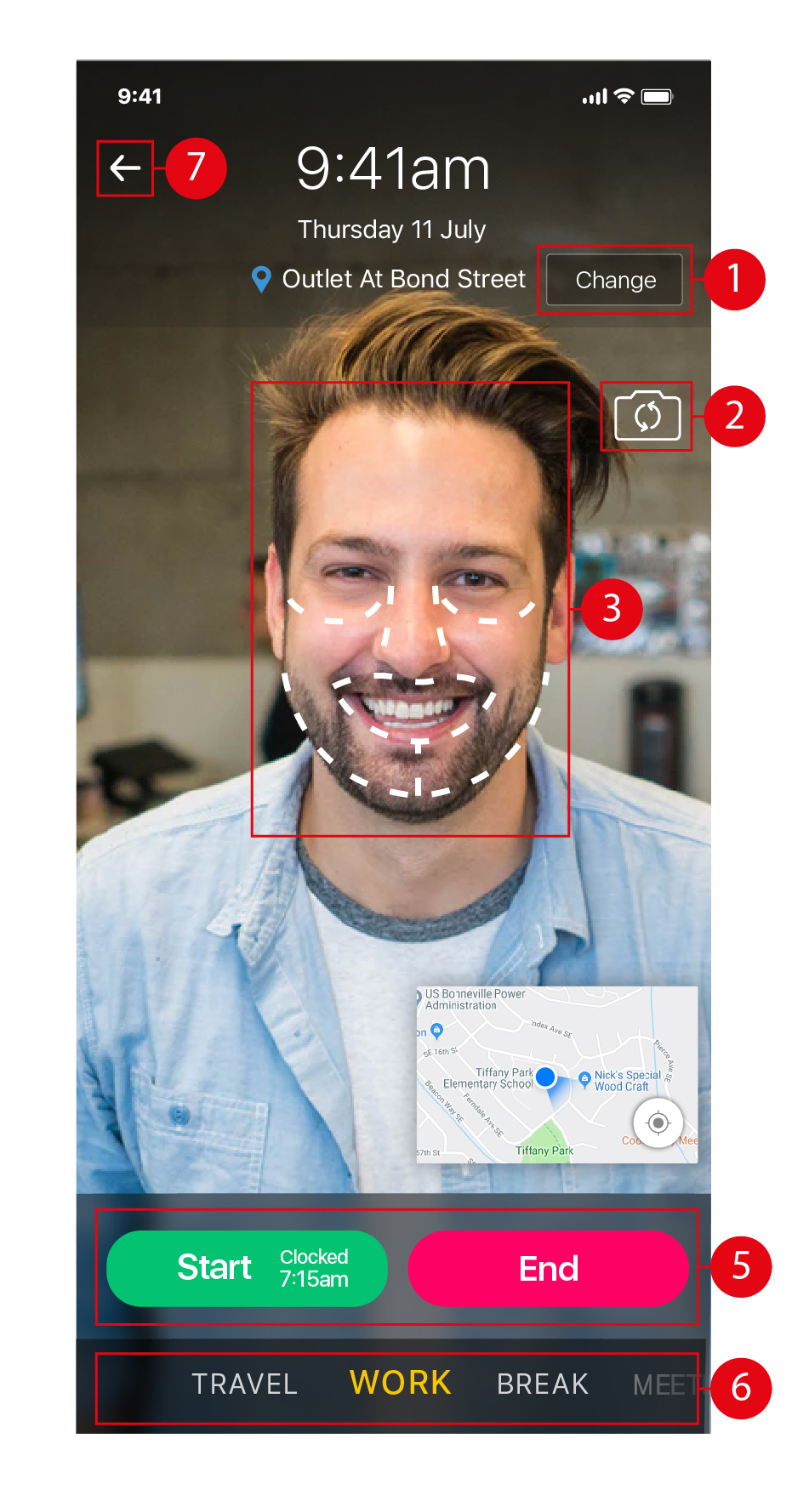
- Tap on Change to change your location for Attendance taking.
- Tap on the
 icon to toggle between the forward facing camera or rear camera on your device.
 - Use the dotted lines as a guide as to how to frame your face before taking a selfie to take Attendance.
- Tap on the
 icon to center your location on the map, if required. (*Note: This is not usually necessary as the GPS on your device would have locked in your position on the map automatically.)
 - Once you are ready to take your selfie, tap on Start or End to take your Attendance at the start / end of your work shift / break / travel / meeting.
- Swipe left or right to select Work / Break / Travel / Meeting to select which activity you would like to clock / take Attendance for.
- Tap on the
 icon to return to the previous page / Home page.