Account Set Up - Company Payroll Period
Enabling Advance Payroll Period
Creating an Advance Payroll Period Group
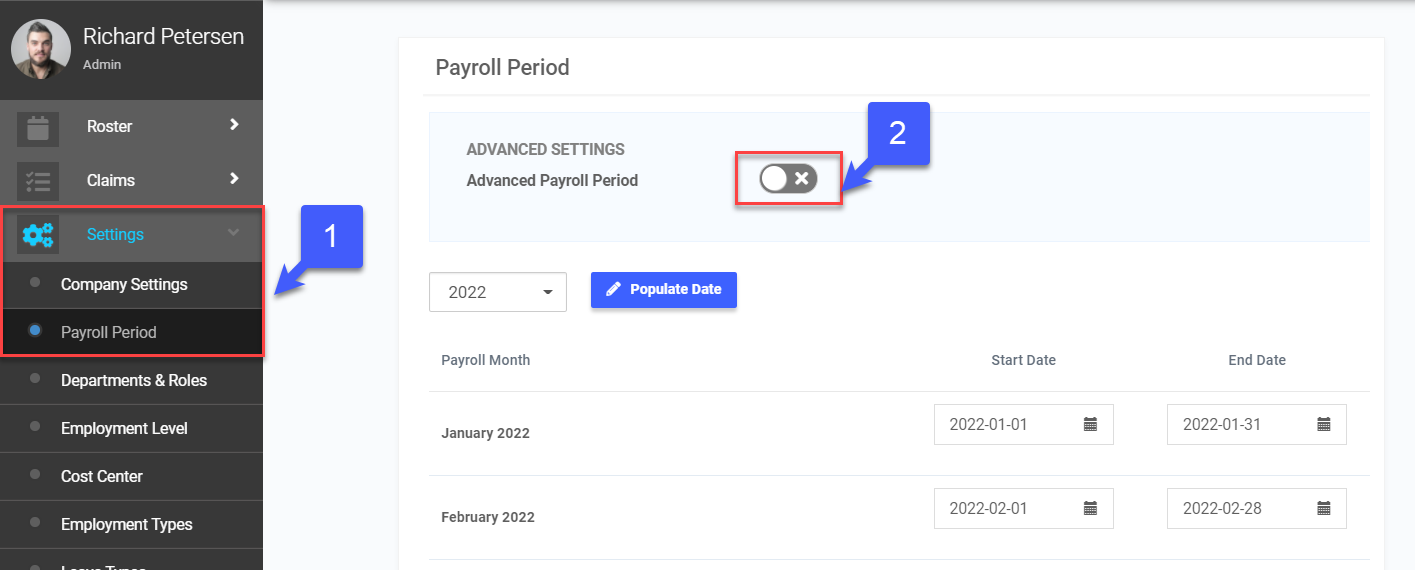
- On the left sidebar menu, Click Settings > Pay Period
- Click on the toggle switch to configure Advanced Payroll Period settings.
- Click Confirm.
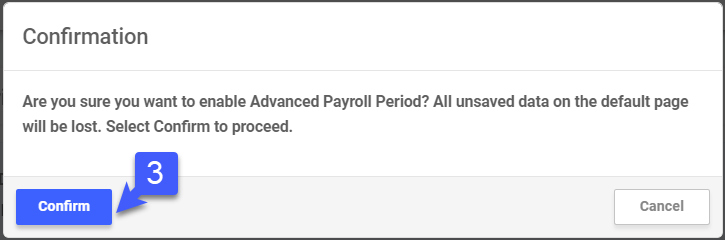 *Note: Any unsaved settings made on the default Payroll page will be lost
 - Click +Add to set up a Payroll Period
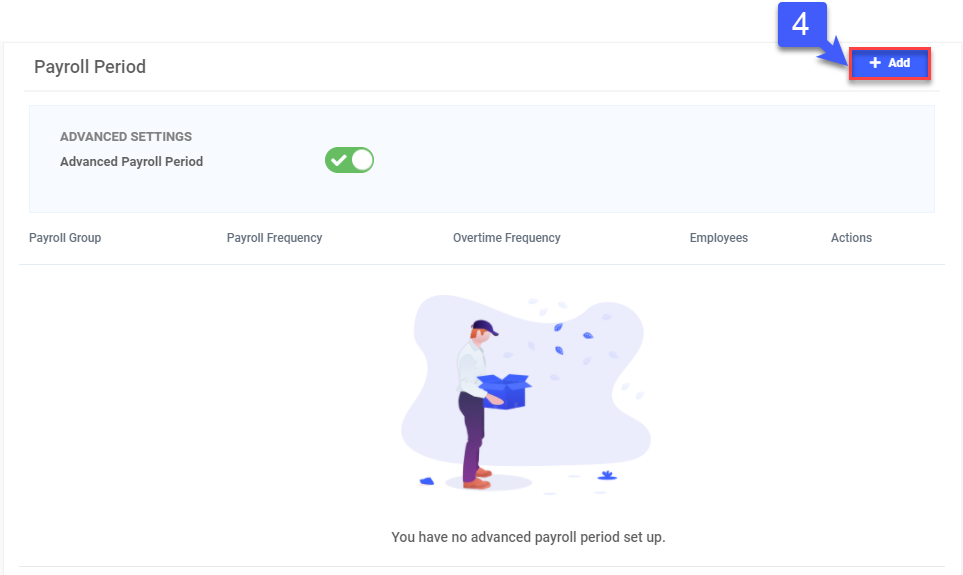
- Key in Payroll Group name
- Select the Year for your Payroll Period setup.
- Click on Populate Date to auto populate remaining dates.
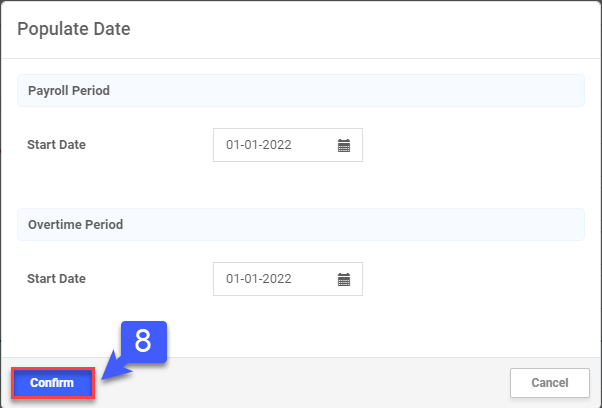
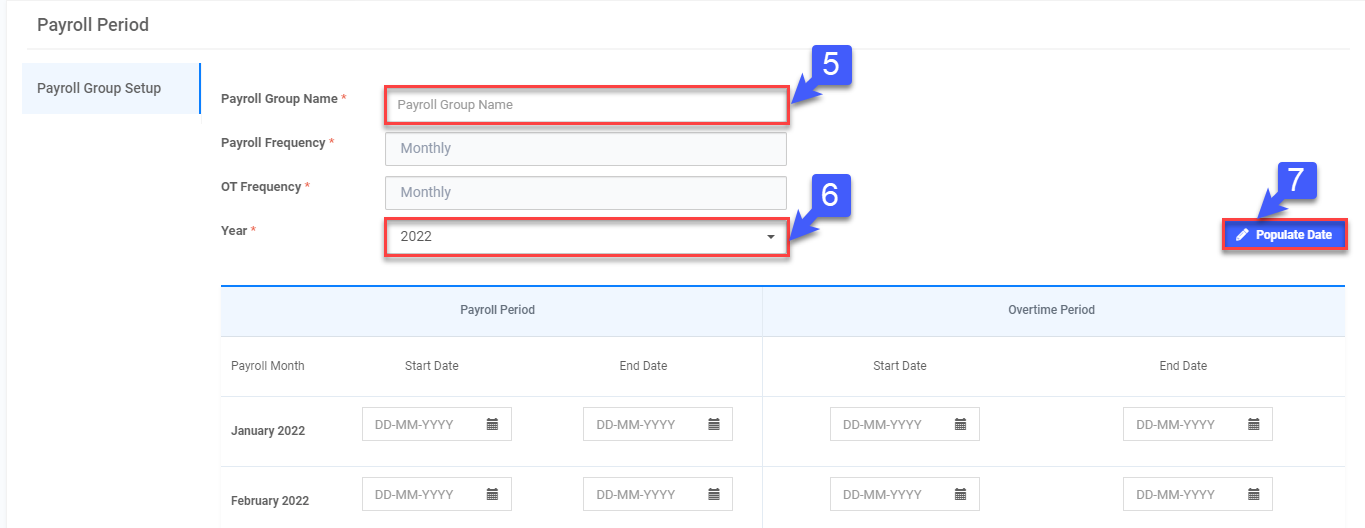 *Note: Populate Date will allow you to Select the Start date for your Payroll/OT period and auto populate remaining dates
 - Select your Start Date for Payroll Period and Overtime Period, and click Confirm.
Adding Users
Assign employees to this Payroll Period Setting by adding user
- On the left sidebar menu, Click Settings > Pay Period
- Select Payroll Group
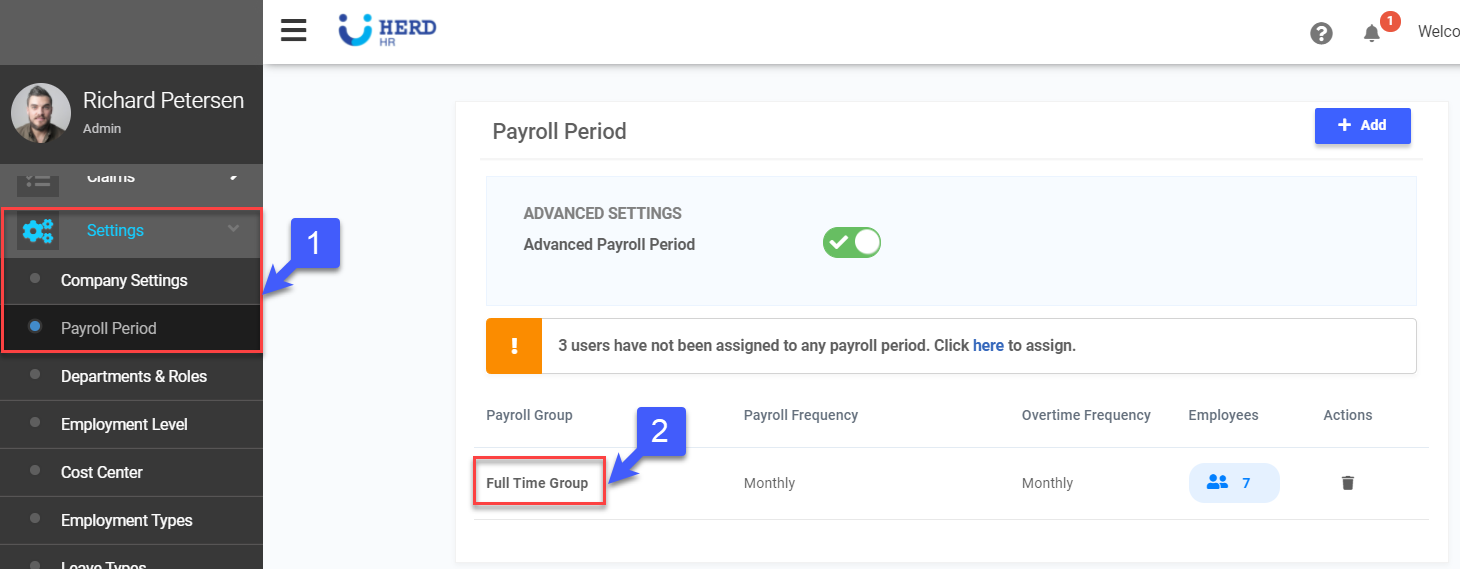
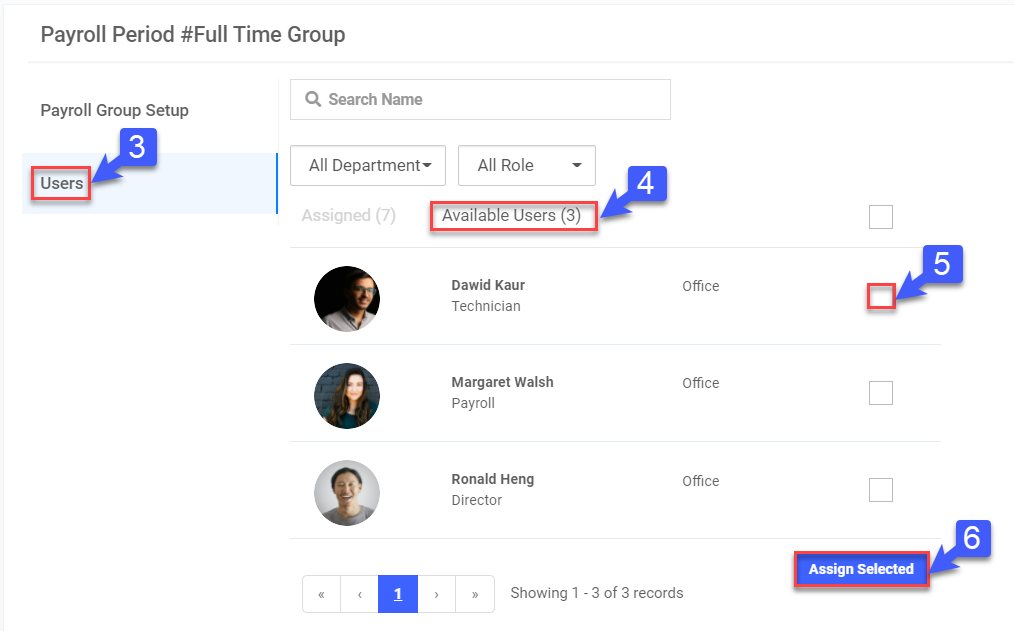
- Click on the Users tab
- Click Available Users
- Check box to select individual employees.
- Click Assign Selected to add checked employees at the bottom of the page
My Unassigned Users
Learn how to assign Payroll Period to Employees who have not been assigned to any Payroll Period
- On the left sidebar menu, click Settings > Payroll Period
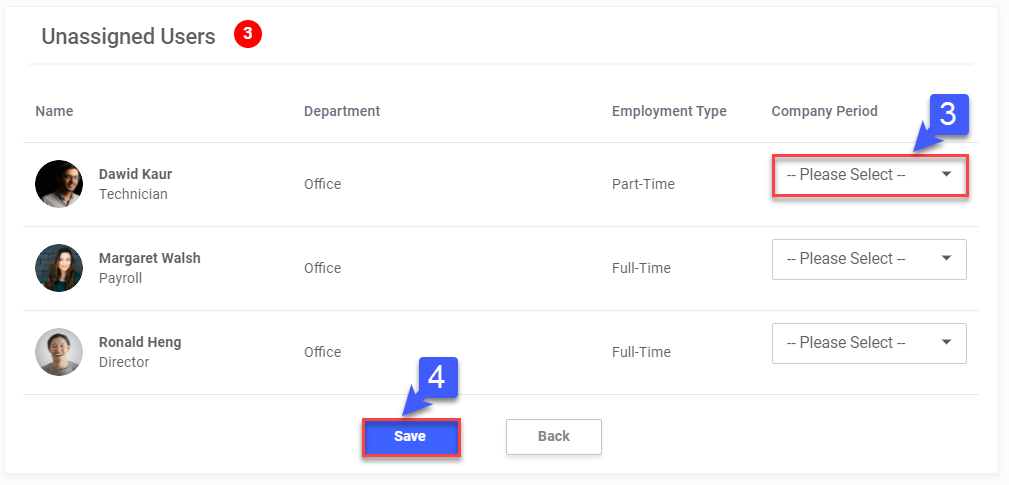
- Click here to assign Payroll Period
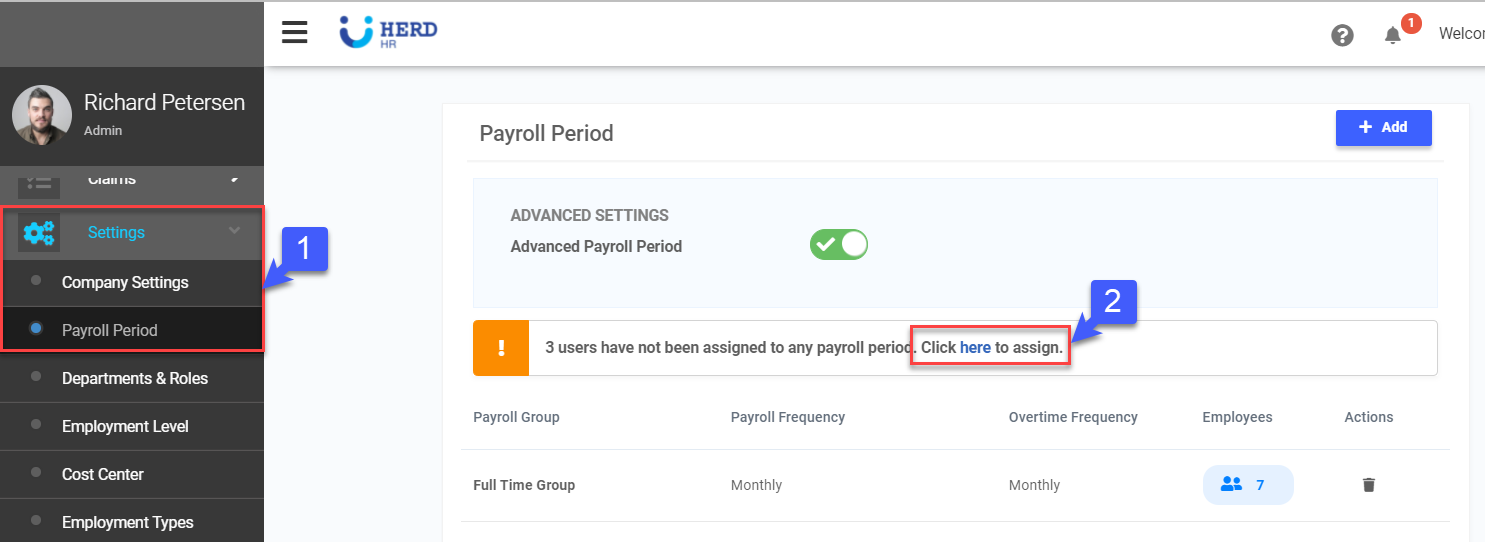
- Select a Payroll Period previously created for each employee in the drop-down list.
- Click Save at the bottom of the page