In this article, learn how to add Cost Centers and assign Employees to them.
To add a Cost Center:
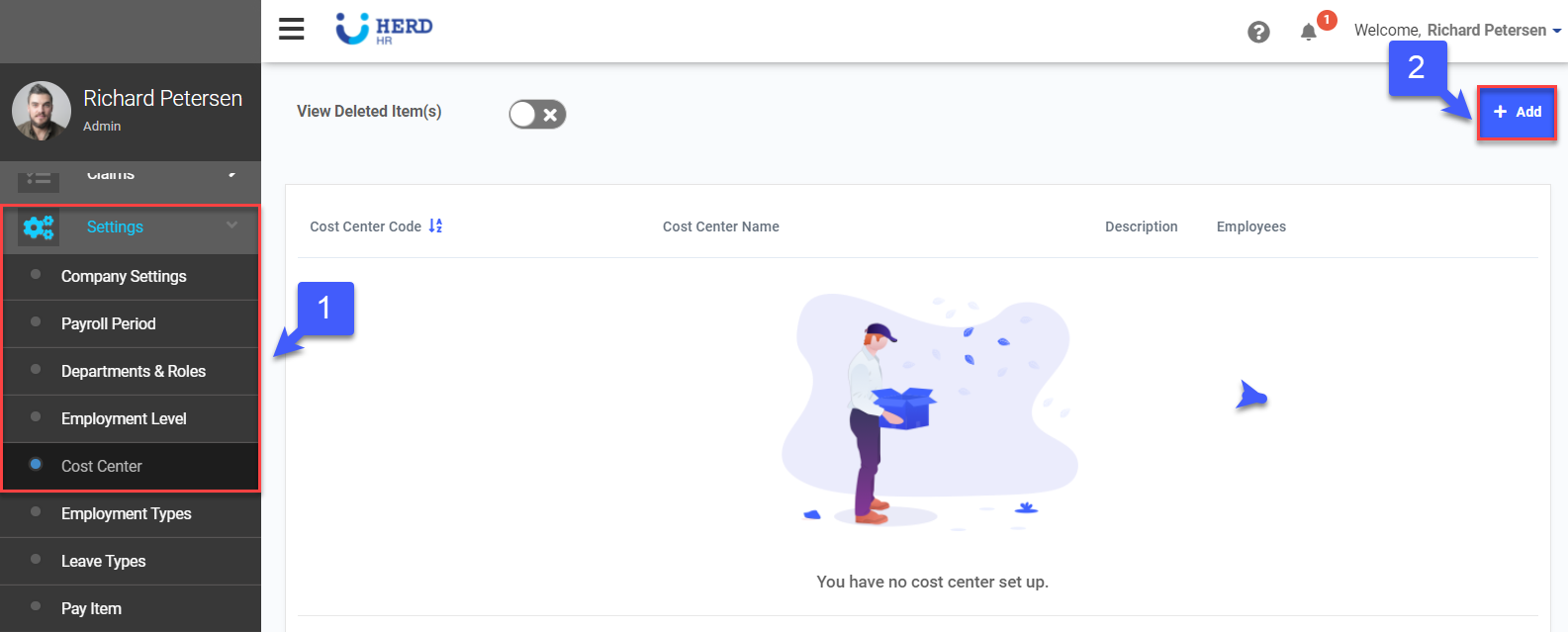
- On the left sidebar menu, Click Settings > Cost Center
- Click “+ Add” button
- Fill up all the following fields "Cost Center Code" and "Cost Center Name" which are required fields, and "Description" if necessary
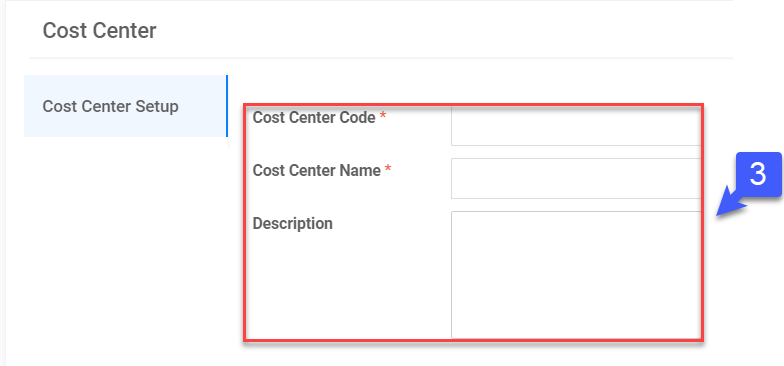
*Note: Code can have alpha-numeric characters, dashes and underscores only, spaces are not allowed
Adding Employees
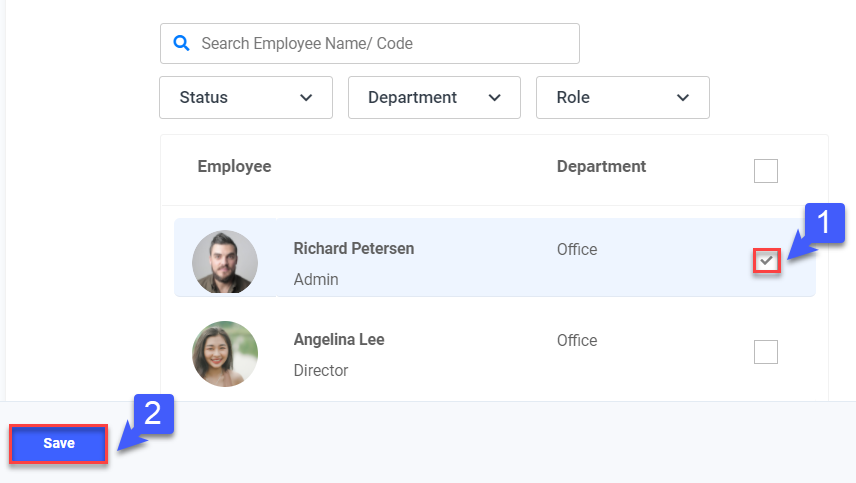
Learn how to assign Employees to this Cost Center
- Select the Employees to add to this Cost Center
- Click Save
My Unassigned Employees
Learn how to identify Employees who have not been assigned to any Cost Center
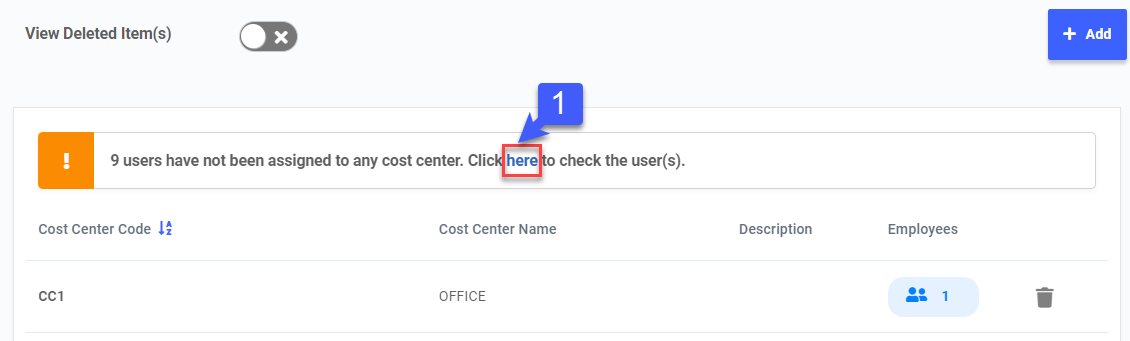
- Click "here" to view Employees who have not been assigned to any Cost Center
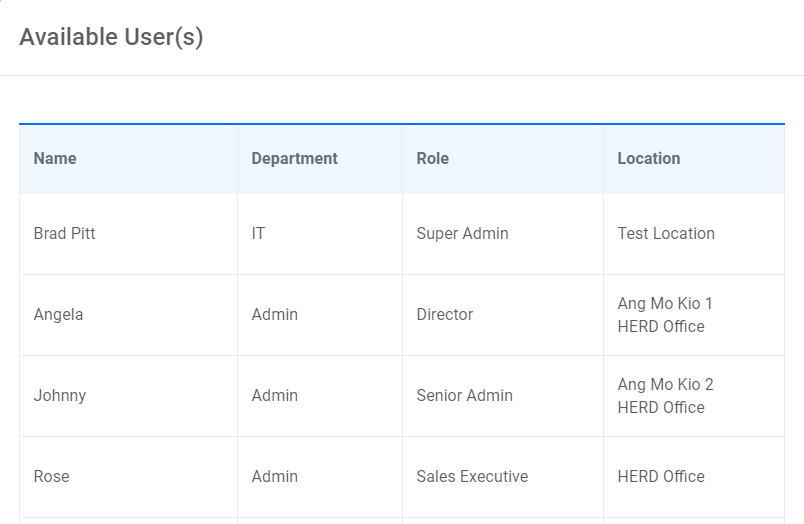
- A list of Employees who have not been assigned to any Cost Center will appear in a pop up window
Restore Deleted Cost Centers
Learn how to restore Cost Centers that have been deleted previously
- At the top left of the screen, Click on the “View Deleted Item(s)” toggle switch
- Click
 to restore deleted records, if required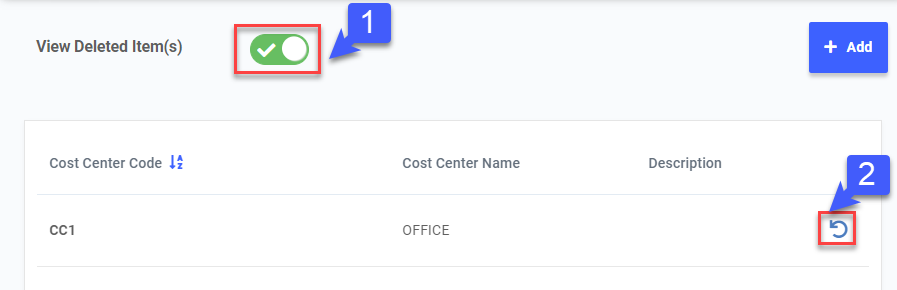
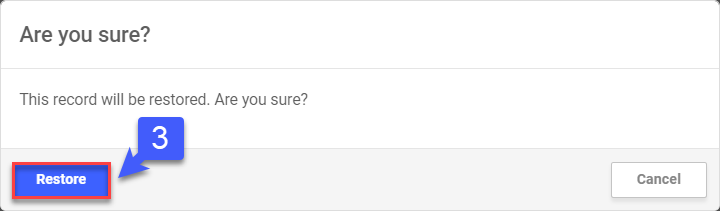
- Click "RESTORE" to confirm
Assign a Cost Center to Employees individually
Learn how to assign a Cost Center that has already been created to Employees in their Profile tab
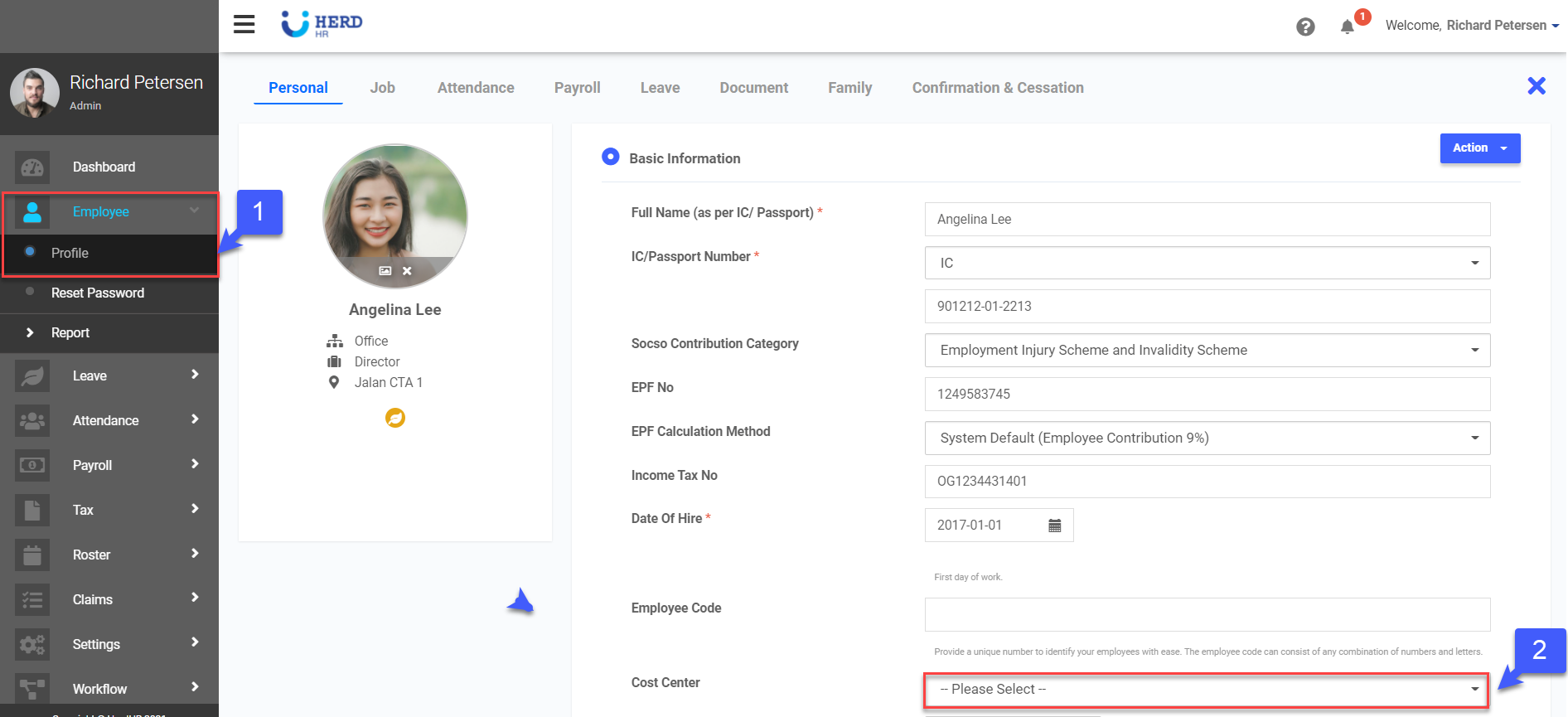
- On the left sidebar menu, Click Employee > Profile
- Select the Cost Center to assign to the Employee from the drop down menu