Account Set Up - Department & Roles
Roles denotes the Job Title of users within the Company. They carry permission levels which determines the access level for a position. Permission levels are set considering what the employee has access to in the company (Employee Attendance, Payroll, etc.)
Follow these 3 steps to determine the access level for each position!
Step 1: View Access Rights Tables
Step 2: Set Roles
Step 3: Configure Departments
Step 1: View Access Rights Tables
- Add new permission type to role setting for access right control
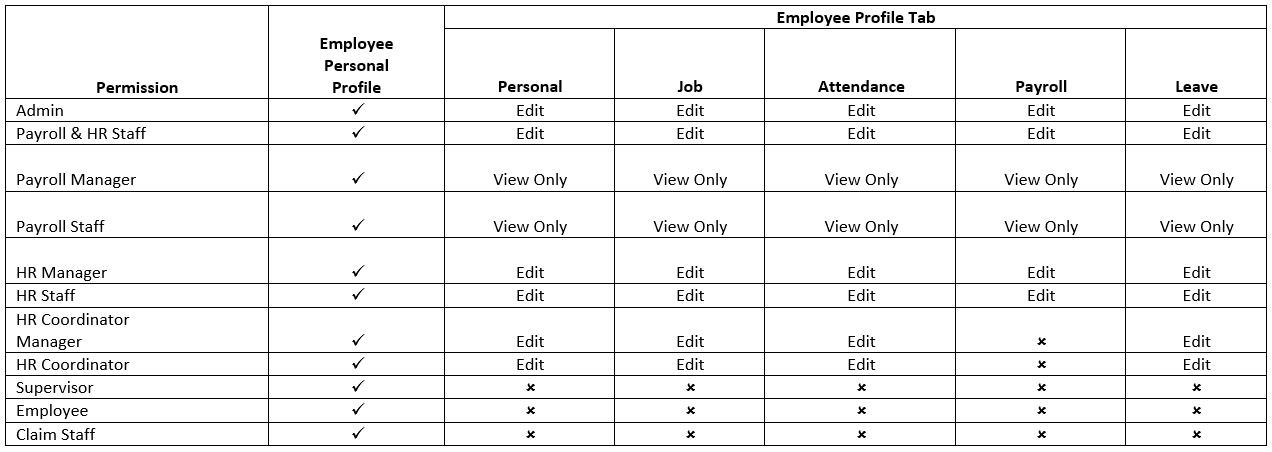
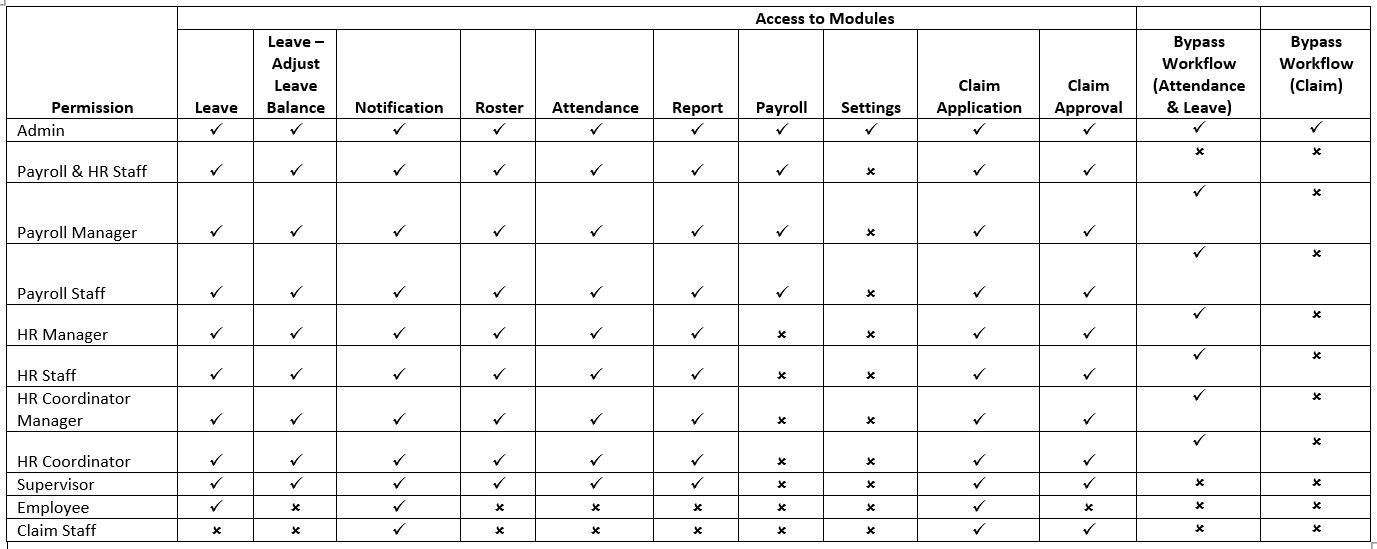
Above table shown each permission type access right
Only Admin, System Admin, HR Manager and Staff able to edit employee profile
Step 2: Set Roles
- On the left sidebar menu, Click Settings > Departments & Roles
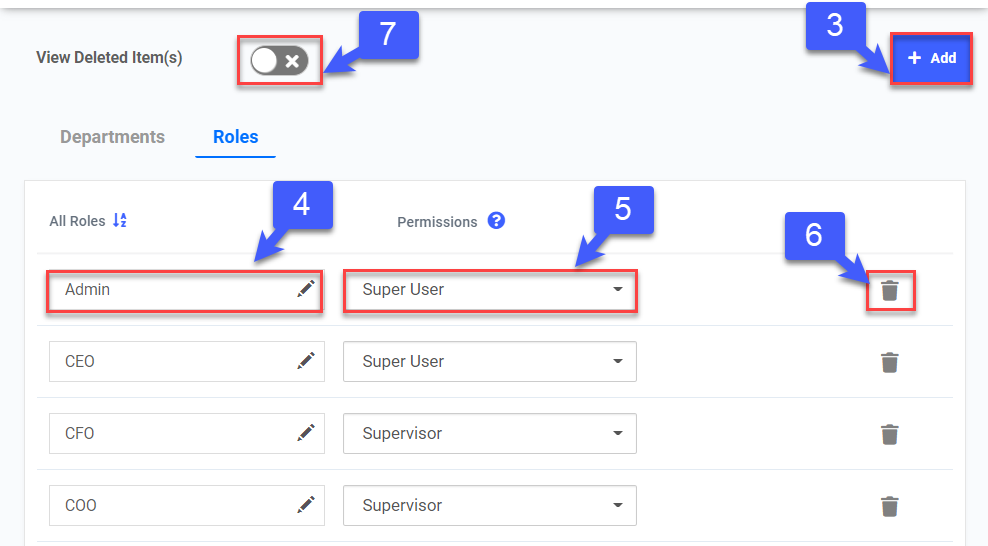
- Click on Roles tab
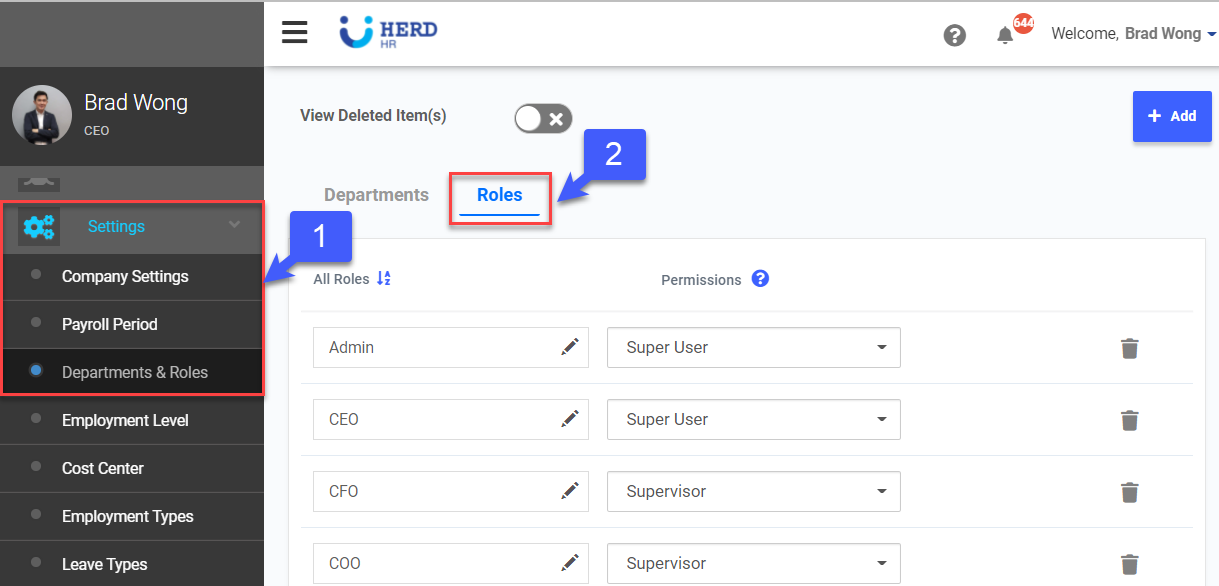
- Click +Add to add a new input field
- Key in Role Name
- Select Permission levels
- Click
 to remove entire record
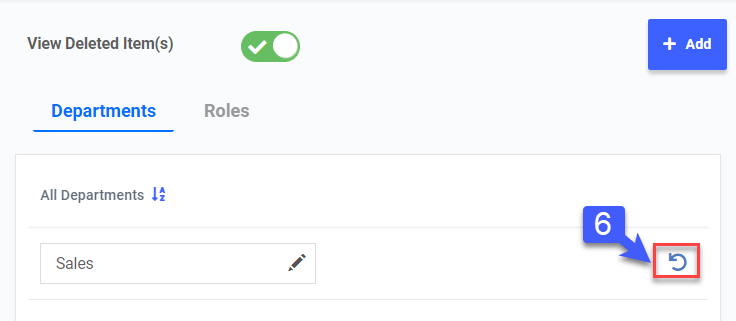
 - Toggle View Deleted Items(s) to view deleted permissions, if required
- Click
 to restore deleted records, if required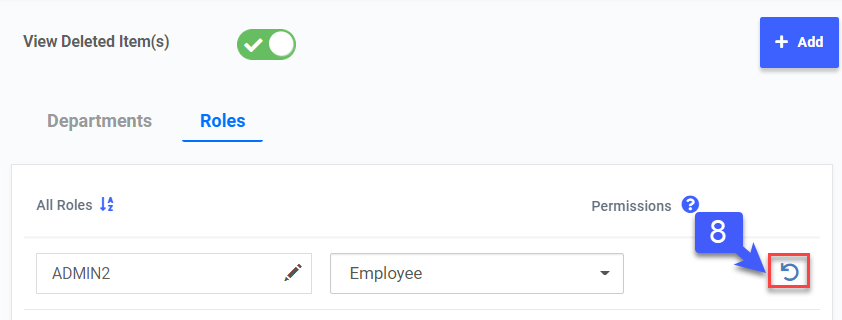
Step 3: Configure Departments
- Click on Departments tab
- Click +Add to add a new input field
- Key in Department Name
- Click to remove entire record, if required
- Toggle View Deleted Items(s) to view deleted records, if required
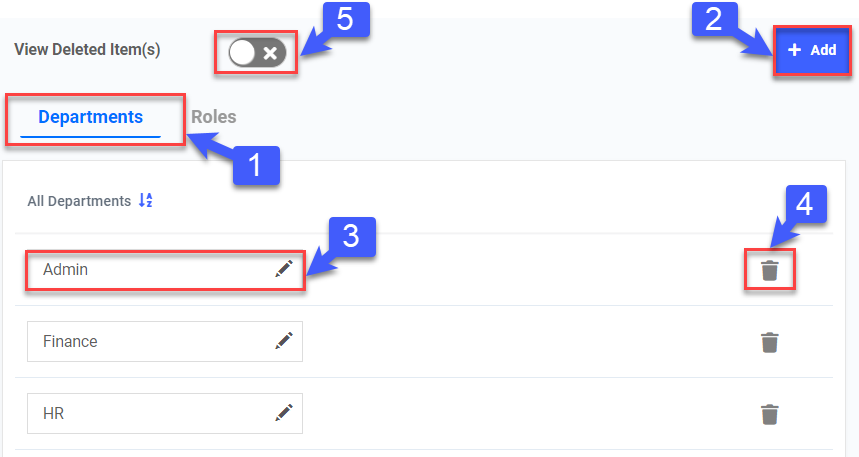
- Click
 to restore deleted records, if required