Account Set Up - Company Settings
Setting up your company profile to get started and facilitate with EPF contribution.
Set up your company profile with these 4 steps!
Step 1: Set up Company Profile
Step 2: Edit Bank Details
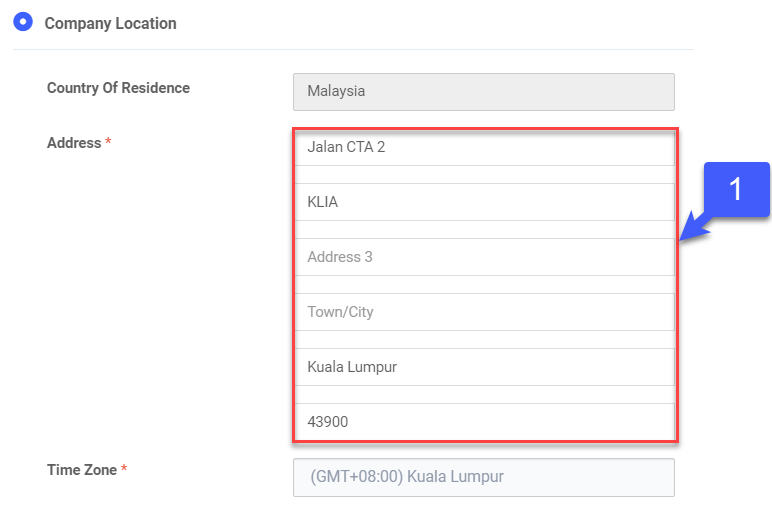
Step 3: Configure Company Location
Step 4: Edit System Default Settings
Step 1: Set up Company Profile
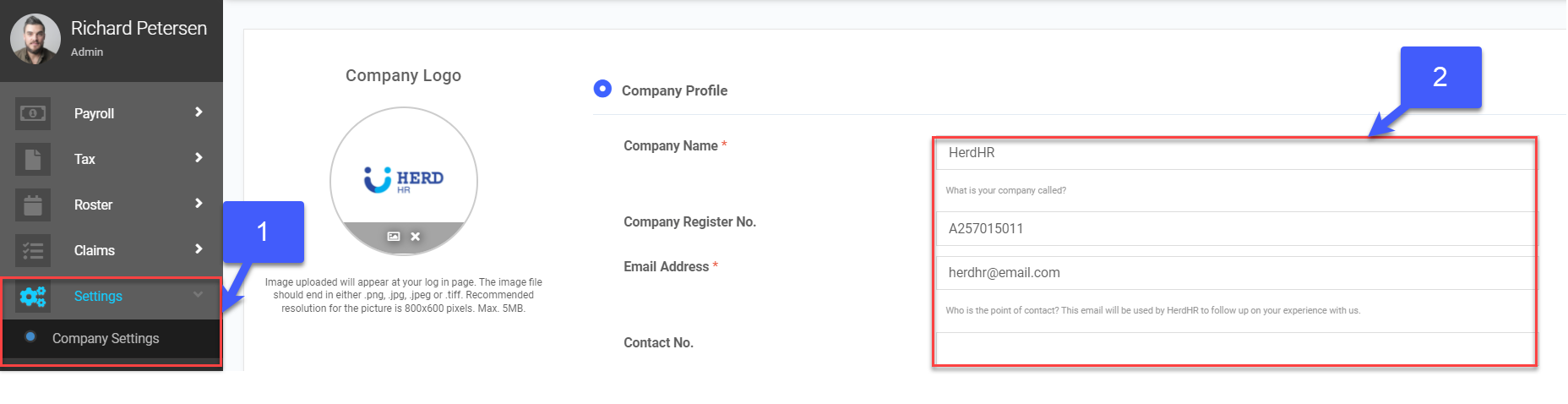
- On the left sidebar menu, Click Settings > Company Settings
- Under Company Profile, key in Company Name, Company Register No., Email address and contact No.
- Key in Company EPF No., Company SOCSO No. and PCB No.
- Click
 to upload Company Logo
 - Click
 to remove image, if required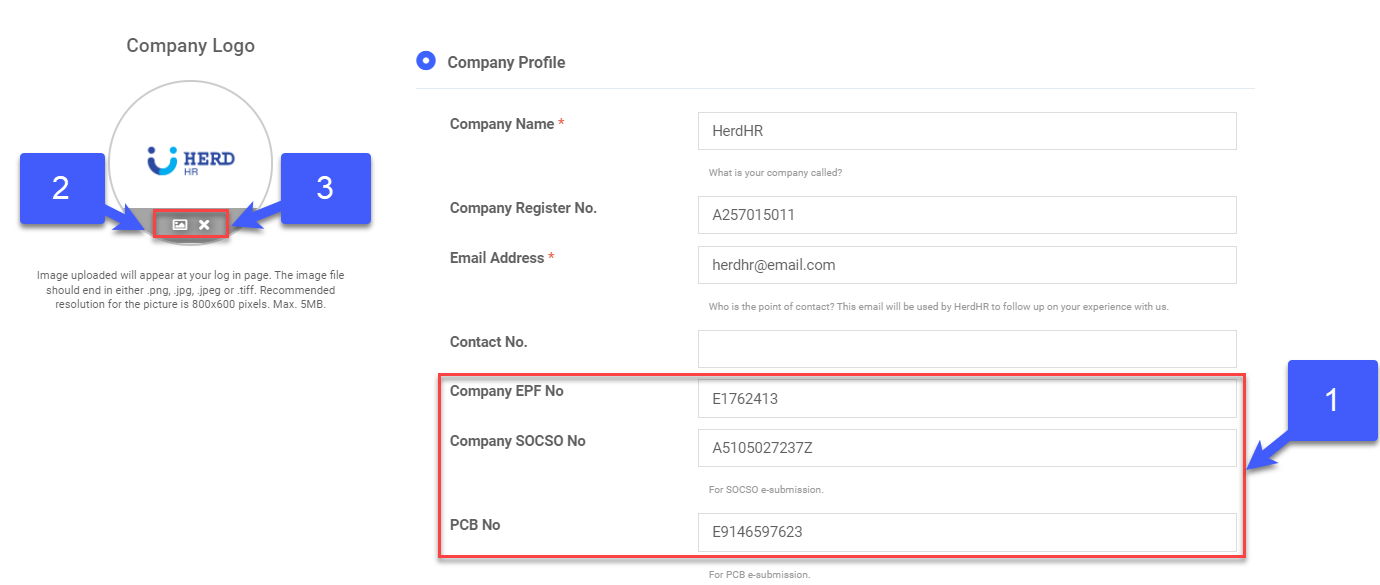
*Note: Image uploaded will appear at your log in page. The image file should end in either .png, .jpg, .jpeg or .tiff. Recommended resolution for the picture is 800x600 pixels. Max. 5MB.
Step 2: Edit Bank Details
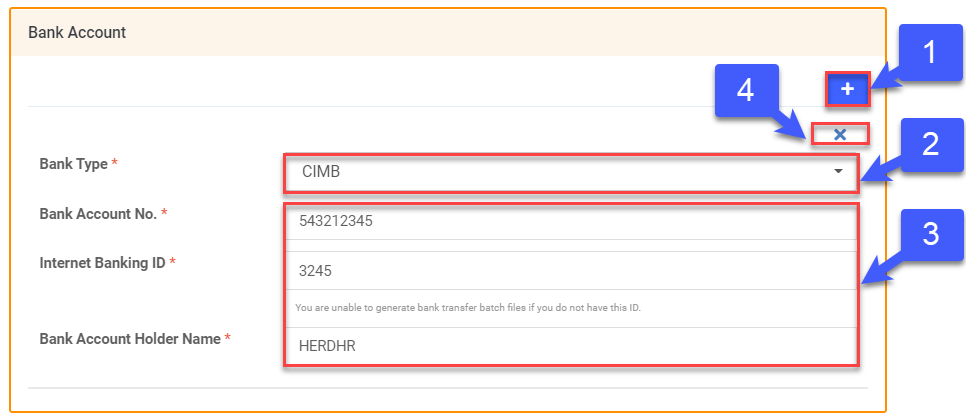
- Click + to add new Bank Record
- Select Bank Type
- Key in Bank Account Number, Internet Banking Details and Bank Account Holder Name
- Click to remove bank details, if required
Step 3: Configure Company Location
- Under Company Location, key in Address
Step 4: Edit System Default Settings
- Select Date Format
- Select Time Format
- Select Number Format
- Select Default Currency
- At the bottom on the page, Click Save
